This article explains the concept of member invitation and how to invite other company members.
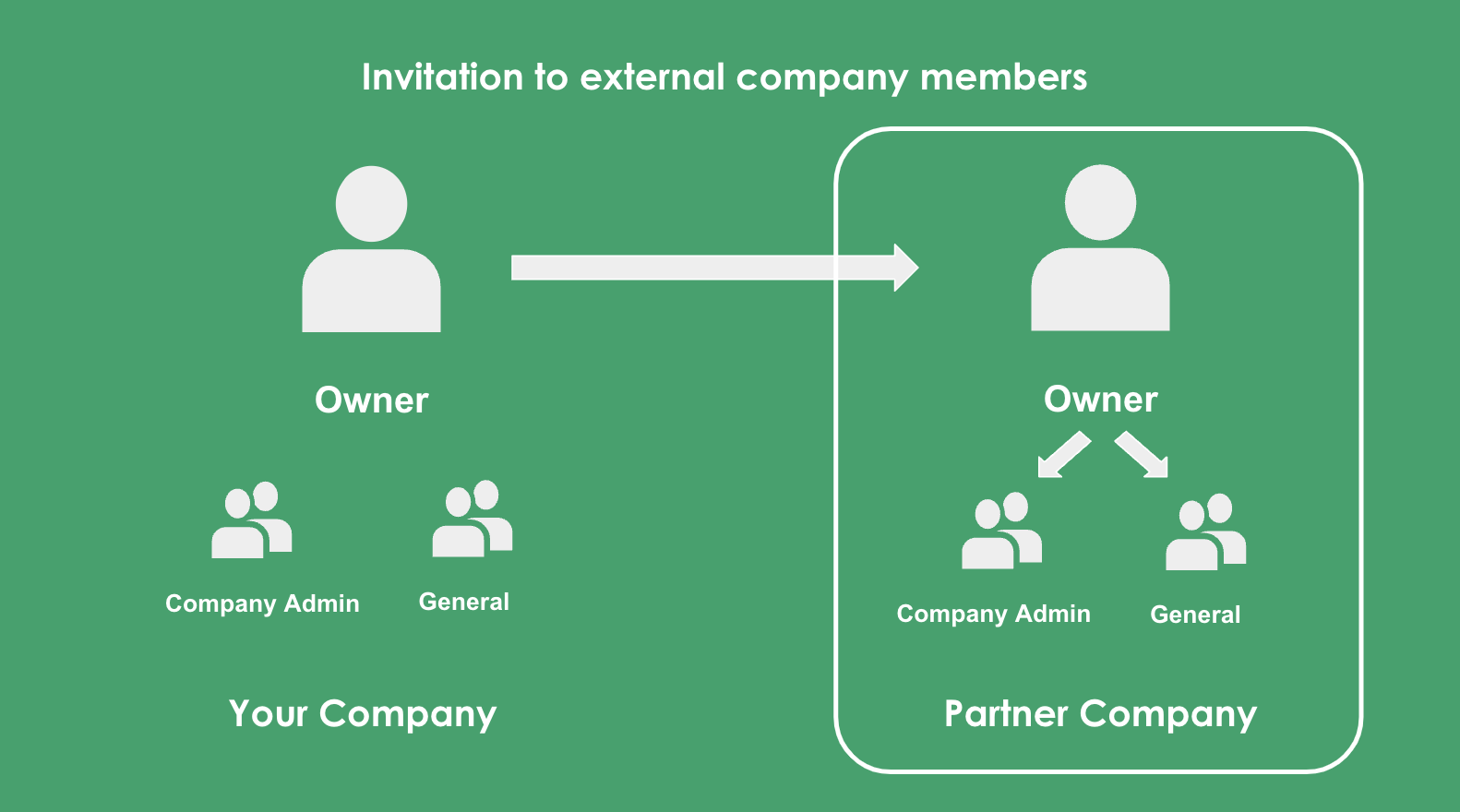
Concept of inviting external company members
"Invitation to external company members" refers to invitations to people who belong to a company other than your company, such as a partner company.
Please invite the owner of the partner company to become a member of another company. After that, please invite your own members within each partner company.
*When inviting multiple members other than the representative of the other company, first send an invitation to one representative of the other company (Company A) to create an account, and then send a "Company Invitation" from that representative to the employees of Company A.
Please note that if you send an invitation directly to each member of Company A, multiple Company A company accounts will be created.
① Invite external company members (invitee side)
Representatives of partner companies are invited as members of external companies.
Please click here for more details on the invitation process.
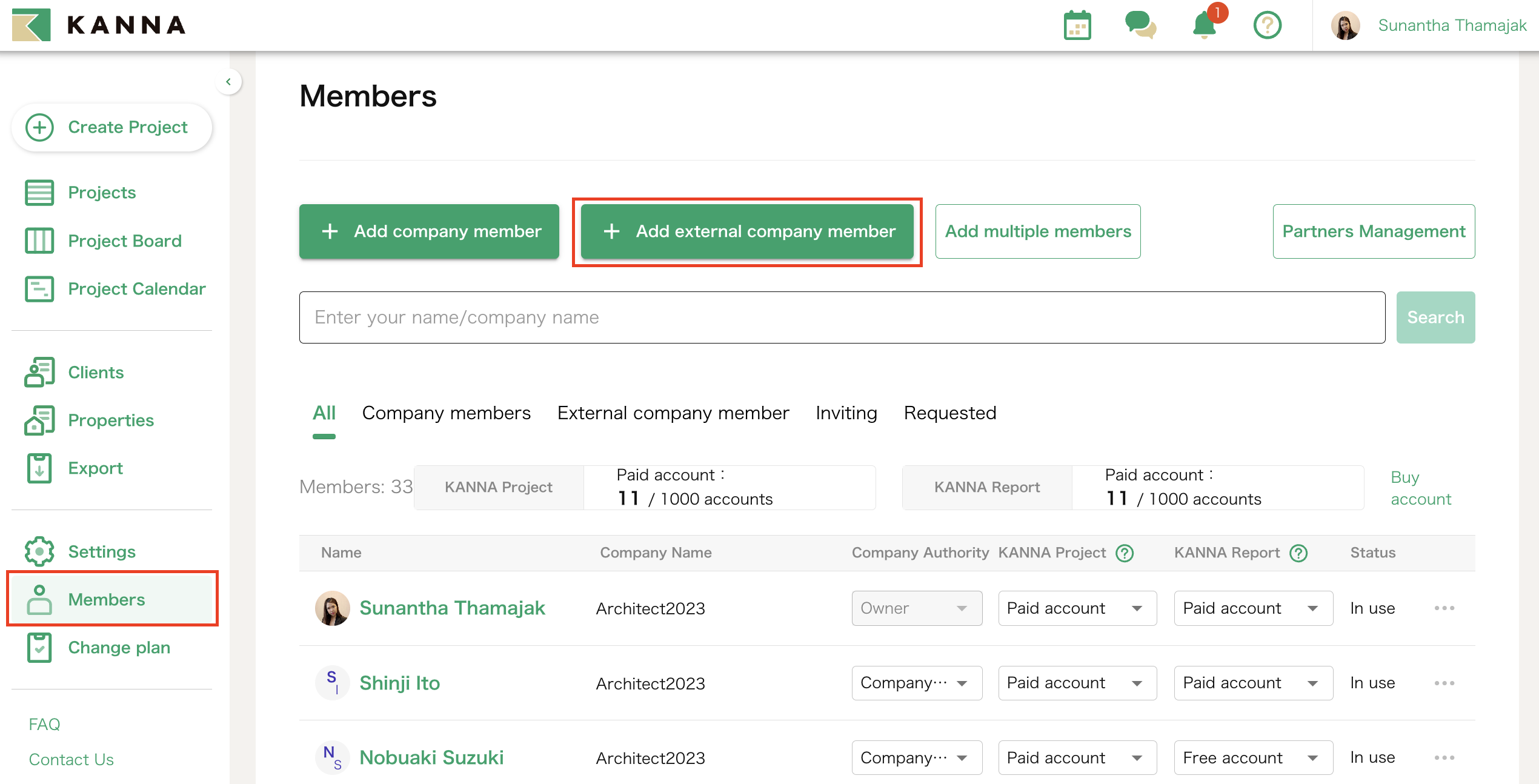
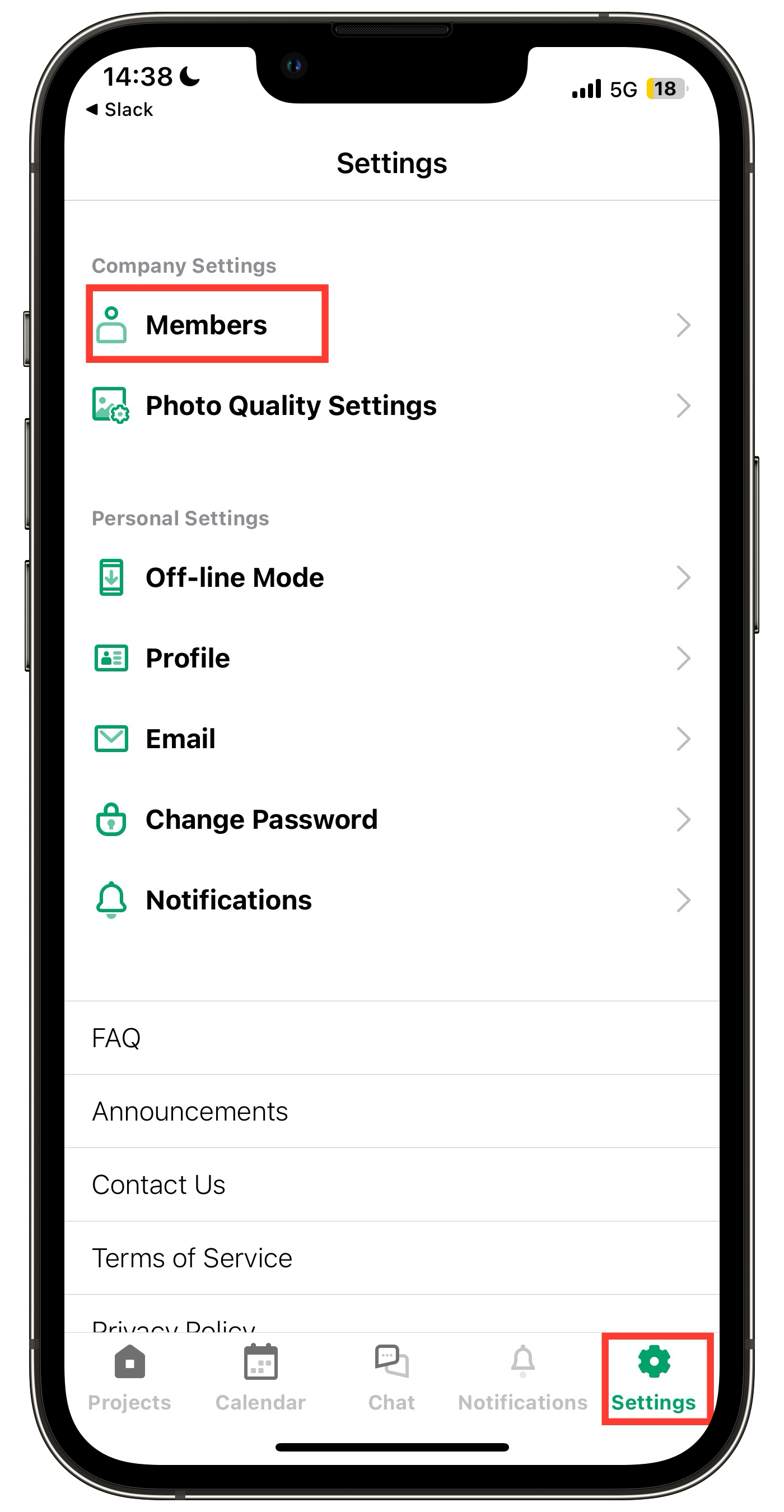
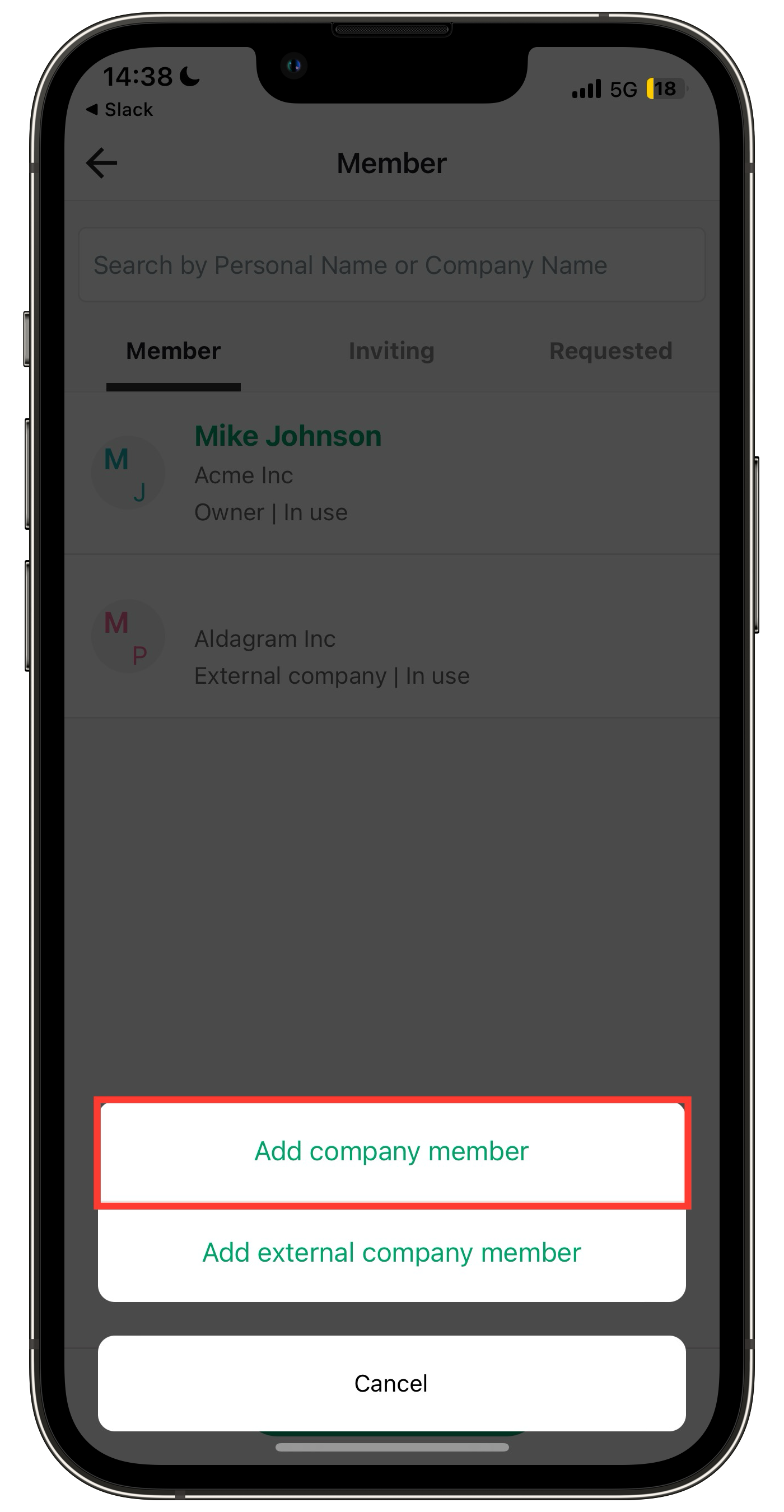
1. Click on "Members" and click on "Add external company Member".
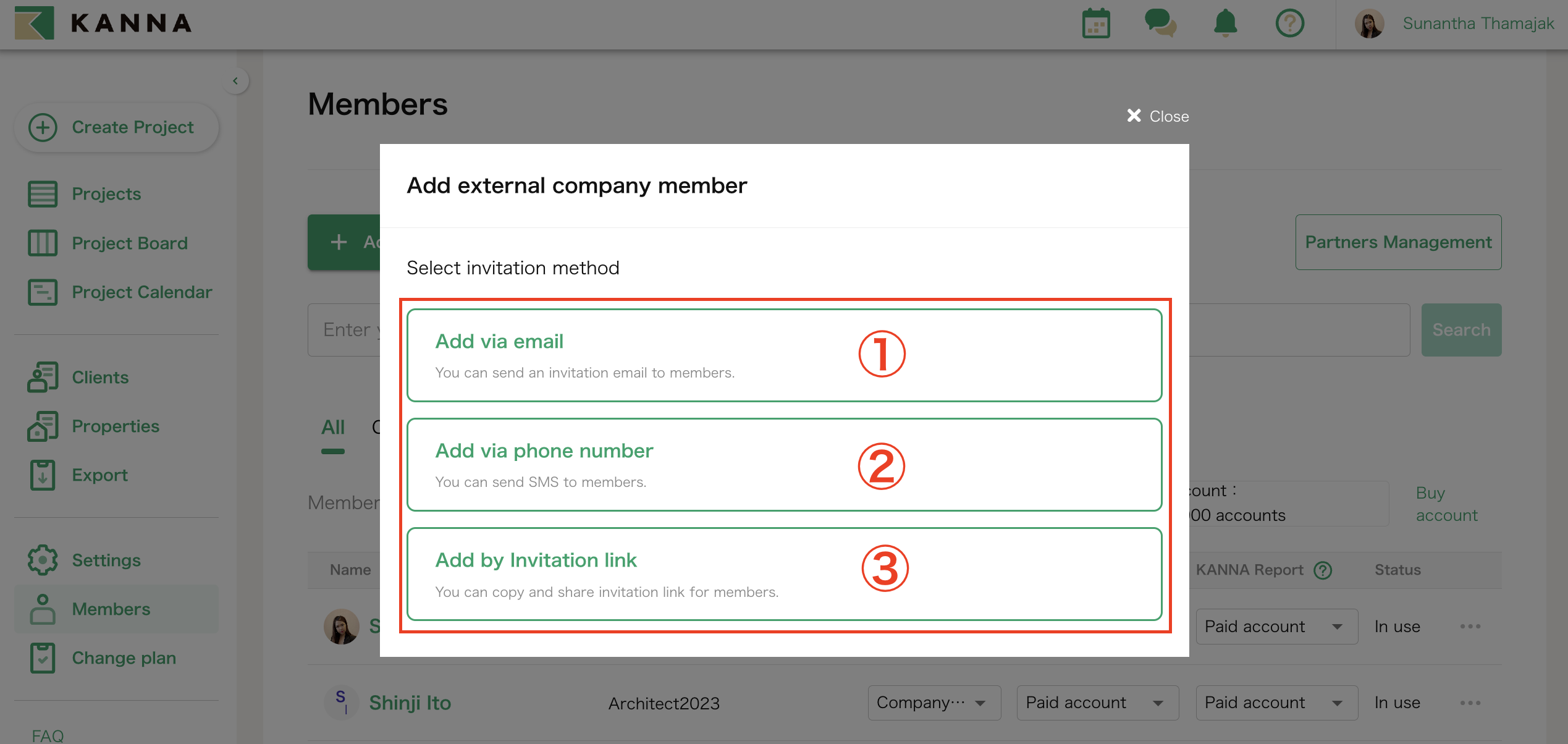
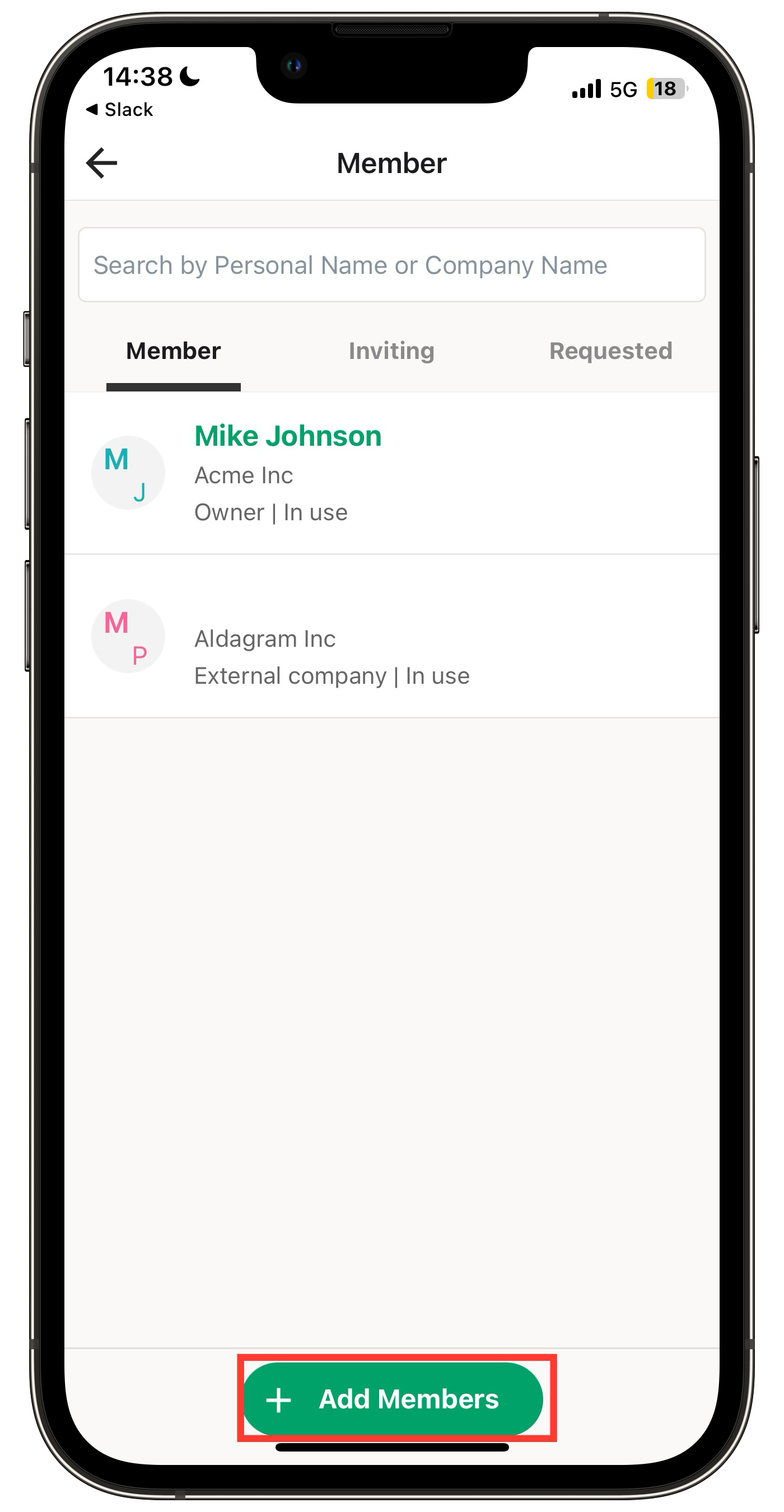
2. Tap [Add Member] and then [Add Another Company Member] and select the method of addition.
Select the method of addition from one of the following: (1) e-mail address, (2) phone number, or (3) invitation link.
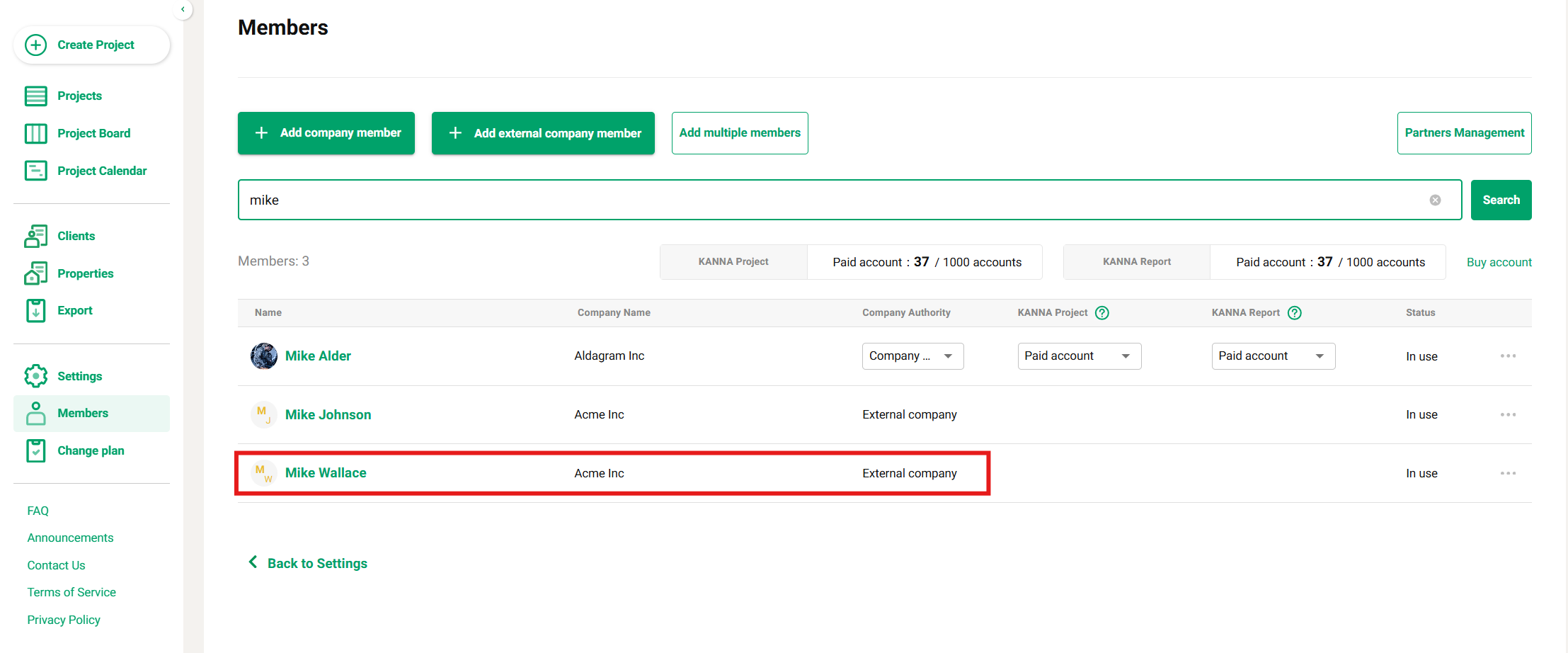
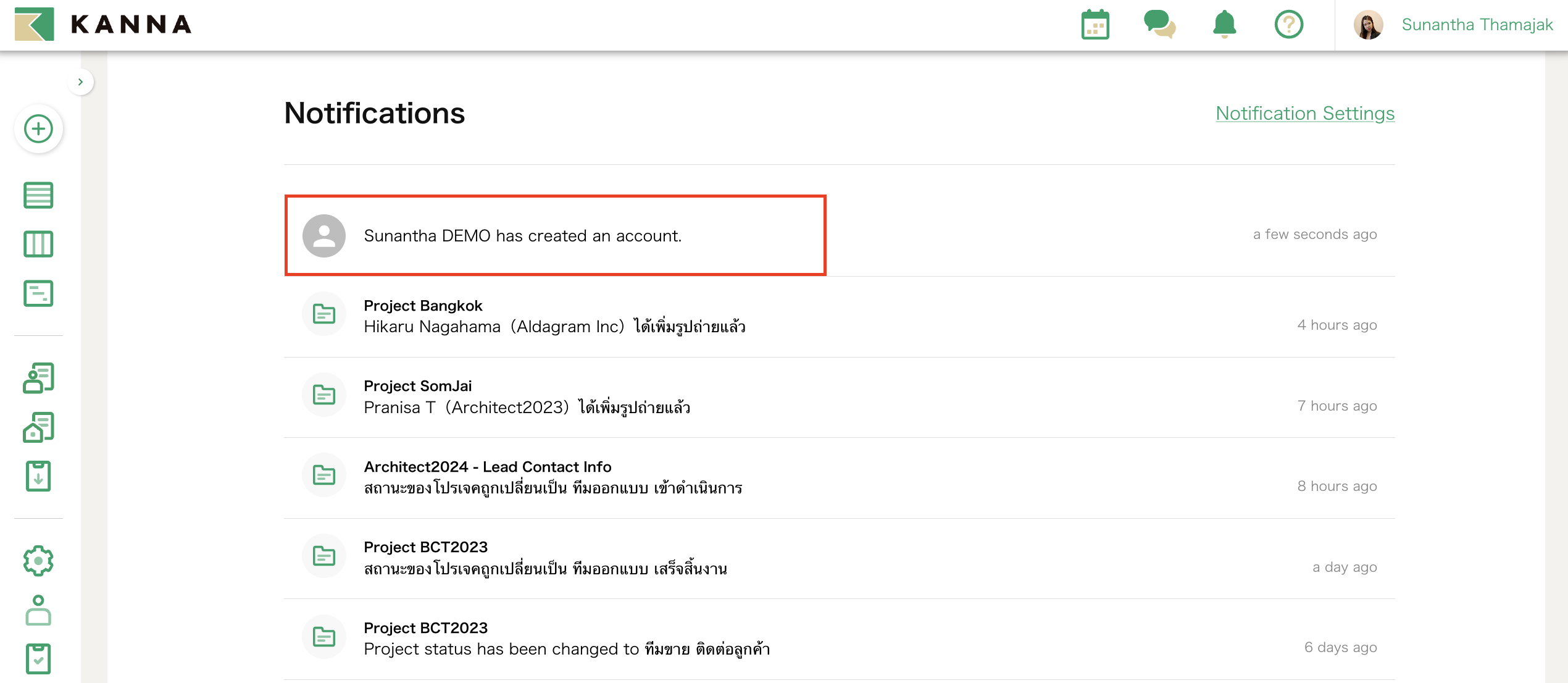
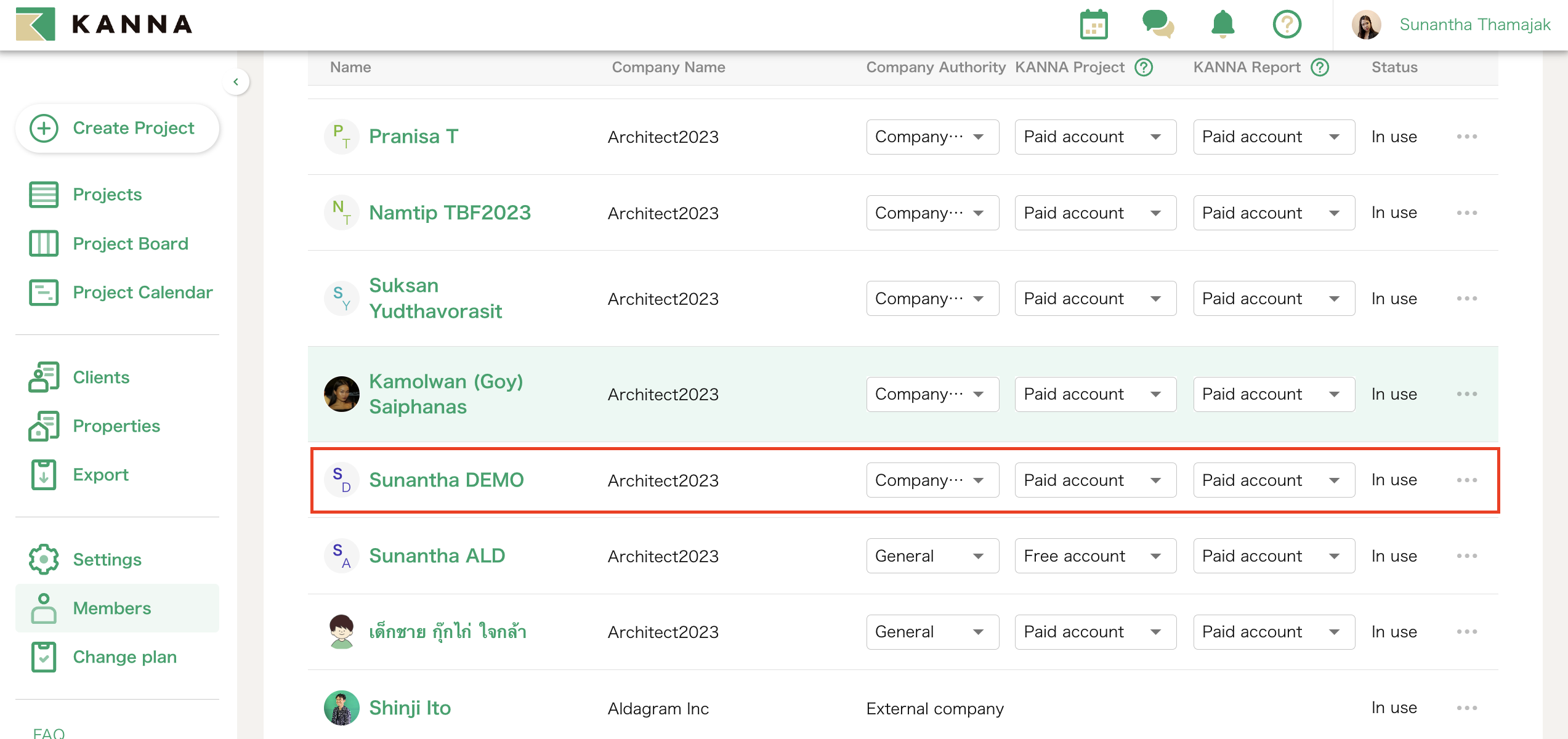
3. You will receive a notification when the account of the recipient of the invitation has been created.
You can also check the status of the account by clicking on "Members". (2nd image)
② Invite External Company Member (Invited side)
For detailed instructions on account registration, please refer to here.
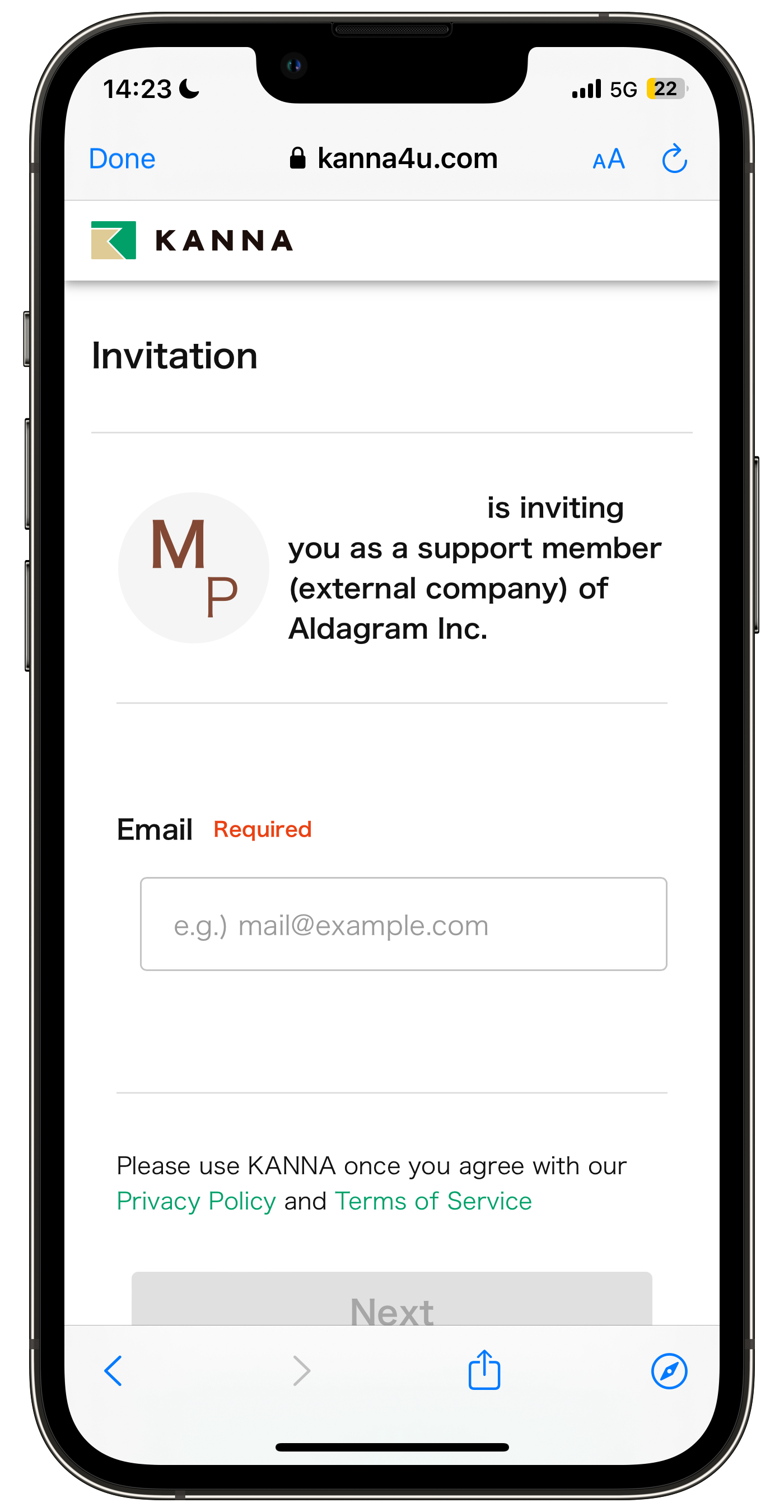
1. Open the link and register an account
Follow the instructions on the linked page to enter your company information and account details.
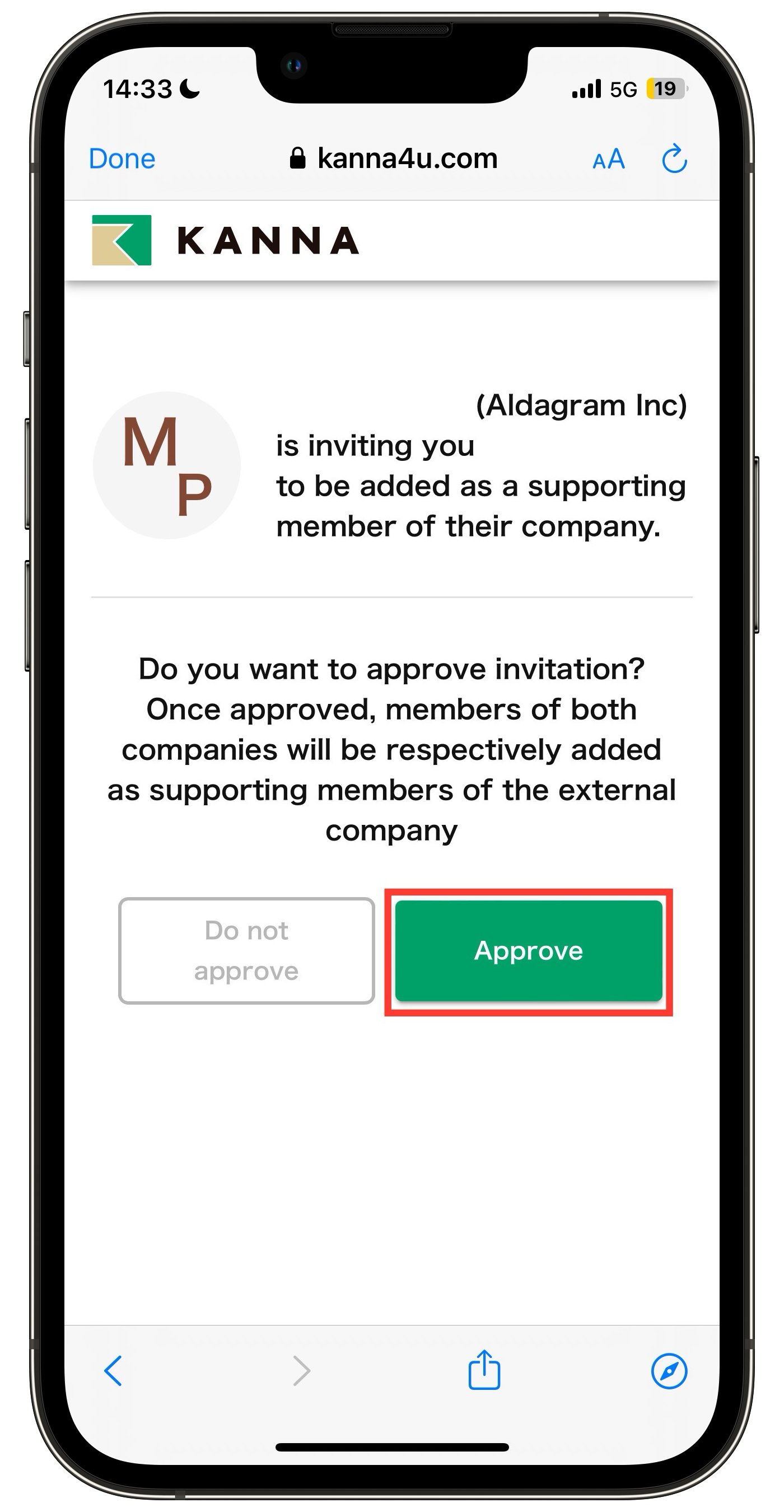
2. Tap Approve in response to the request from the inviting company.
③ Inviting Additional External Company Members
You can invite additional external members by using the account created in step ② (External Member Invitation - Invited Party) to send an Internal Member Invitation.
To do this:
- Go to Settings → Members → Add Members to perform the internal member invitation.
For detailed instructions on how to invite internal members, please refer to here.
④ Connecting with External Members (Partners Management)
This feature allows owners and company administrators to easily manage members from partner (external) companies. Owners or Company Admins of each company can centrally manage connection requests from internal members to partner companies.
Additionally, knowing who is registered as an external member enables smooth coordination when unregistering or updating members due to department transfers or other changes.
Note: This feature is only available to accounts with owner or company administrator permissions.
For detailed instructions on Partners Management, please refer to here.
Prerequisites
-
The Owner or a Company Admin of Company A invites Company B as external members, and Company B creates both company and user accounts (see How to add external members). Once Company B completes account creation, Company B will appear in the "Partners Management" screen of Company A.
-
The Owner or a Company Admin of Company B invites internal members within Company B to create accounts (see How to invite internal members).
-
The explanation assumes that Company B (the request sender) sends a request to Company A (the request approver).
Request Sender (Company B in the example above)
1. From Settings, click Partners Management.
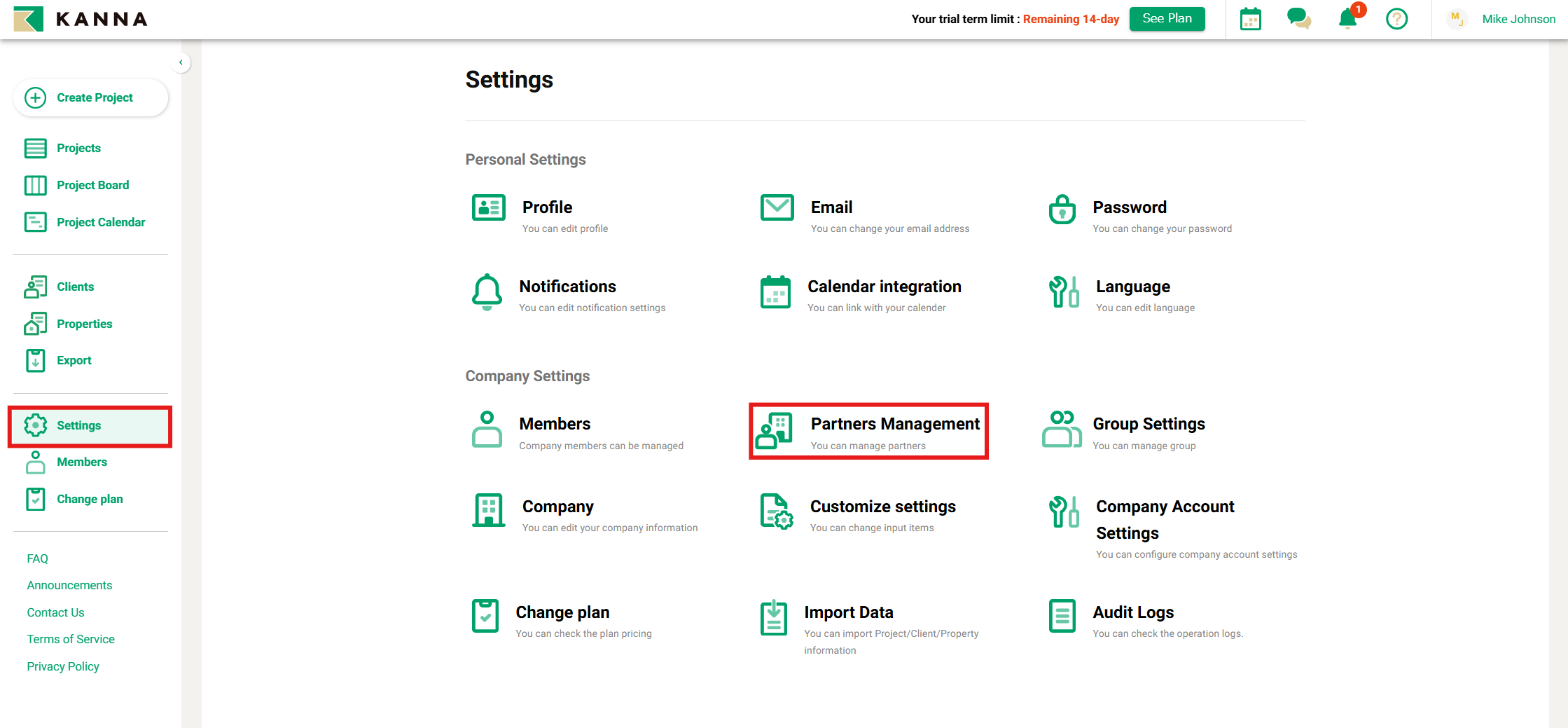
2. Click Request for the person you want to connect as an external member.
For example, if you want to connect Mike Wallace (an employee of Company B) to Aldagram Inc. (Company A).
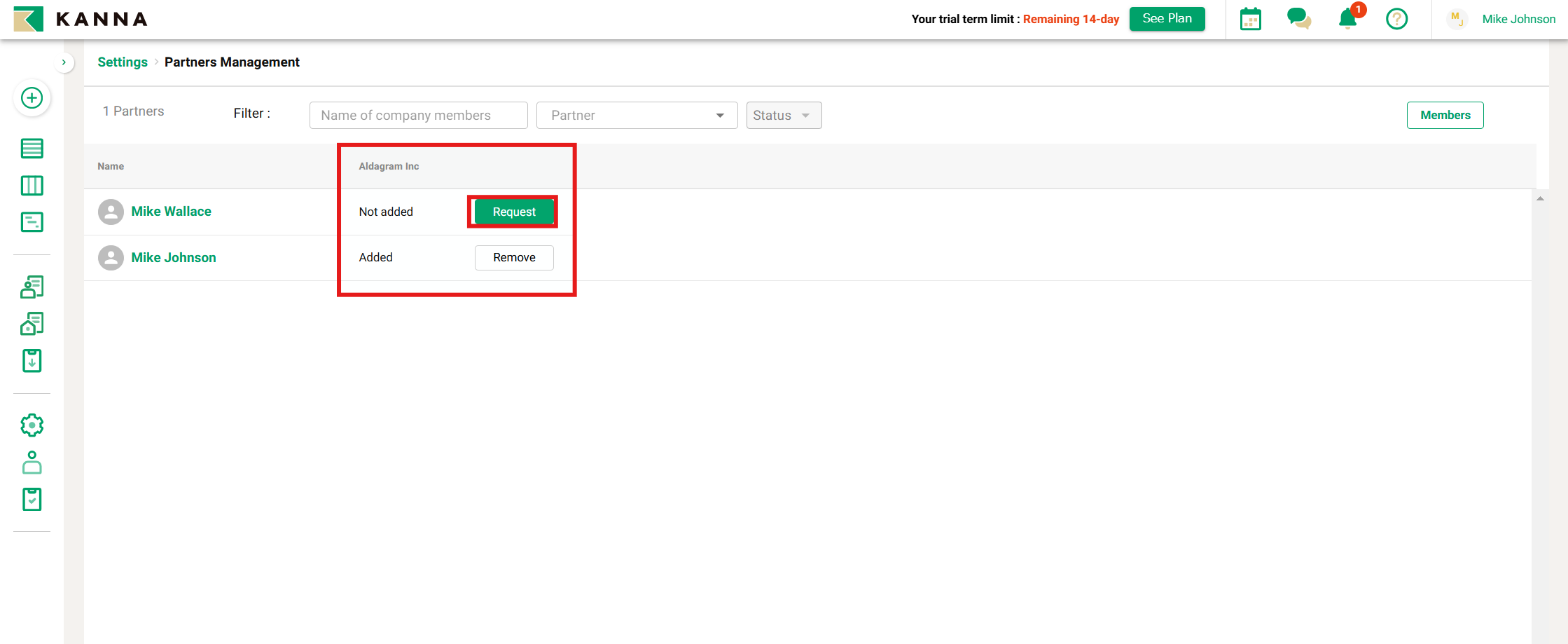
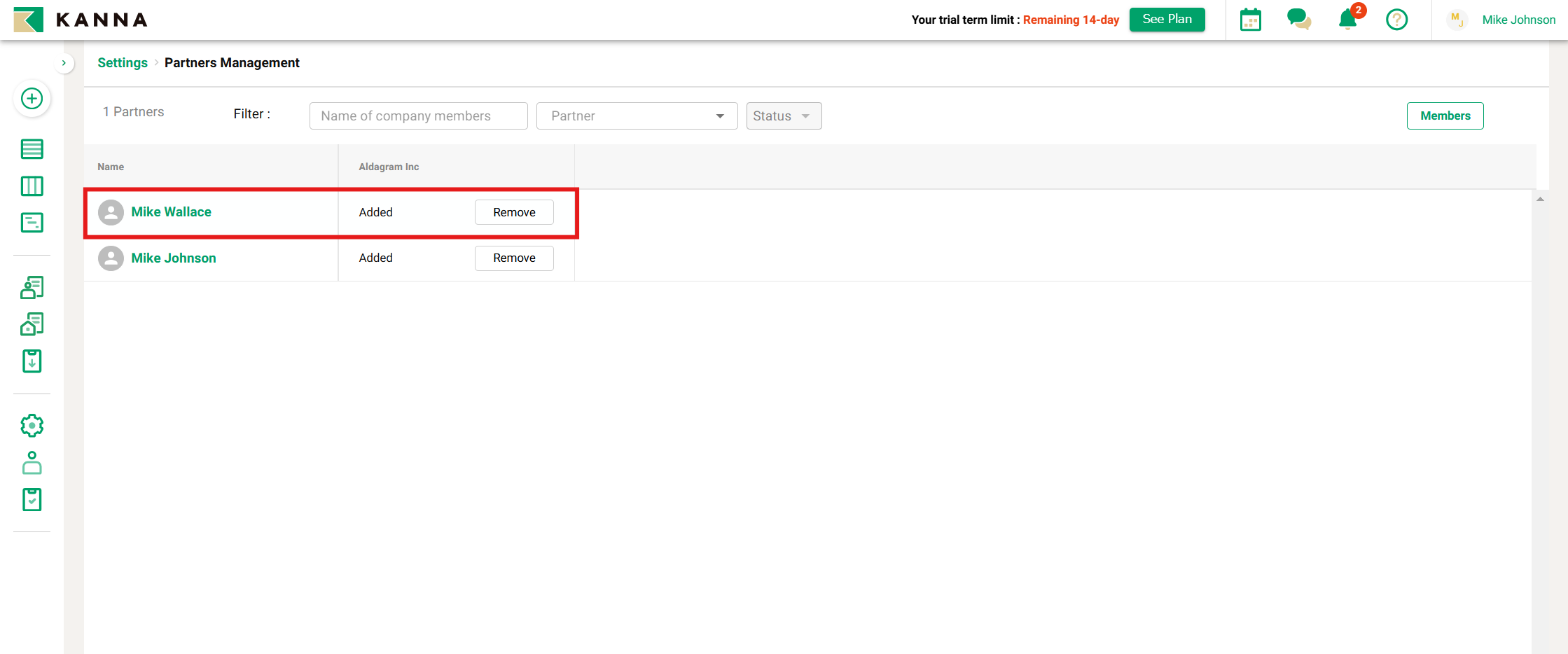
3. Once the request is approved by the target company, the process is complete, as shown in the image below.
In this example, the request has been approved by Aldagram Inc. (Company A).
Request Approver (Company A in the example above)
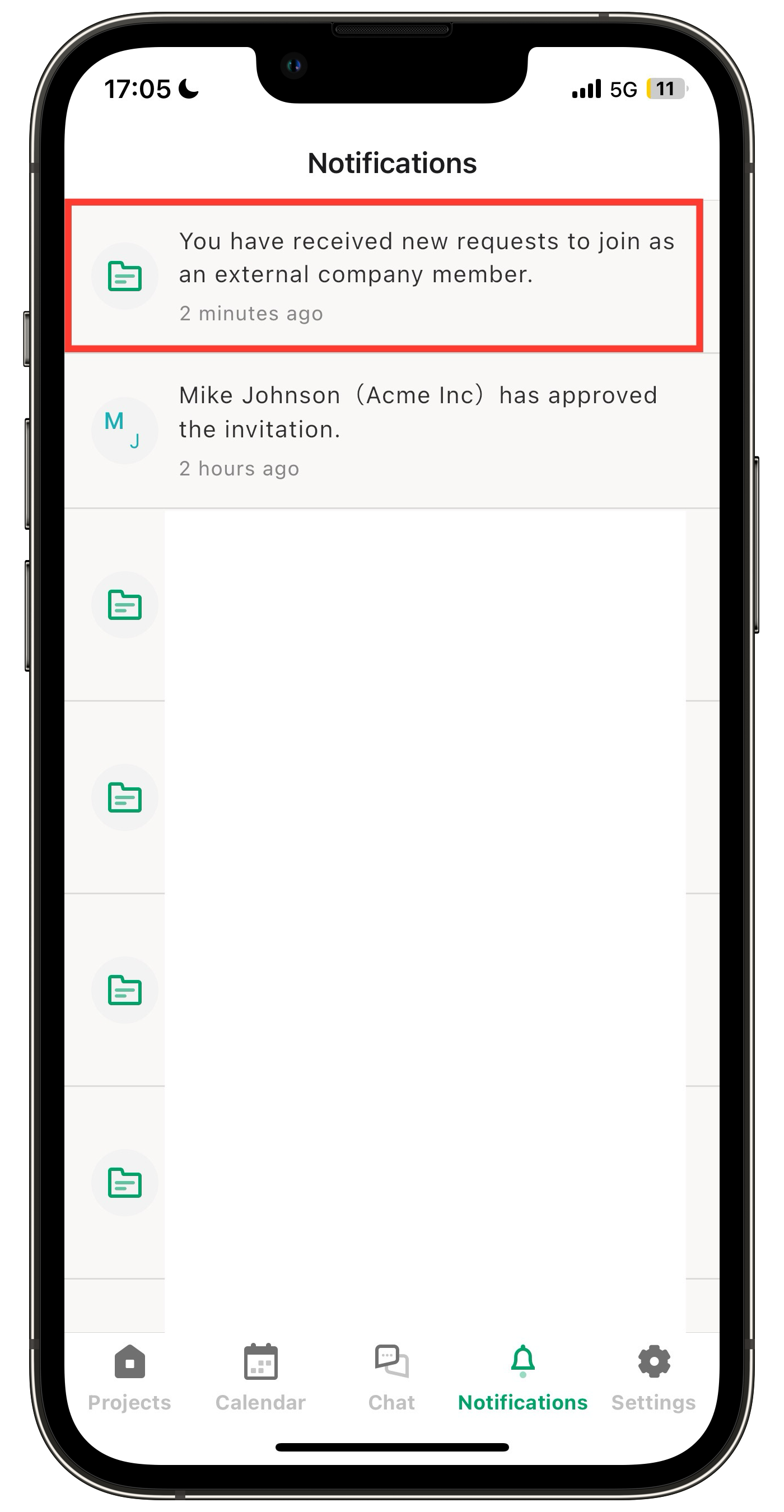
When a "Request to join as an external company member" is sent via the "Partners Management" screen or similar tools, the Owner and Company Administrators of the recipient company will receive notifications via email, push notifications, desktop notifications, and announcements.
Note: These notifications are not sent immediately but are batched and delivered every hour. (For example, requests sent between 12:00 and 13:00 will be notified at 13:00.)
Email
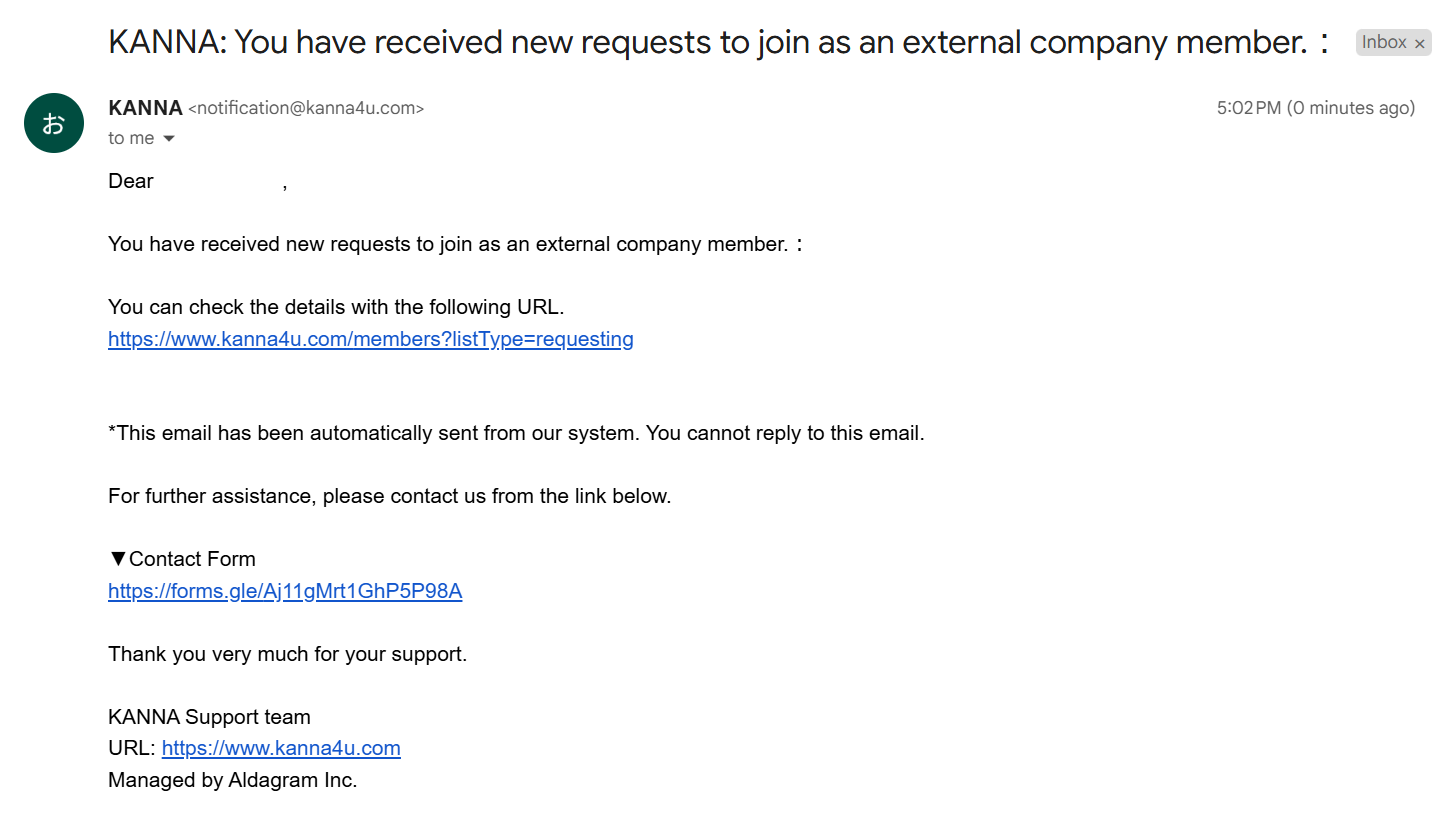
An email with the following text will be delivered
The URL in the email redirects to the Partners Management screen of the KANNA app.
Notification (Mobile App)
Notification (PC)
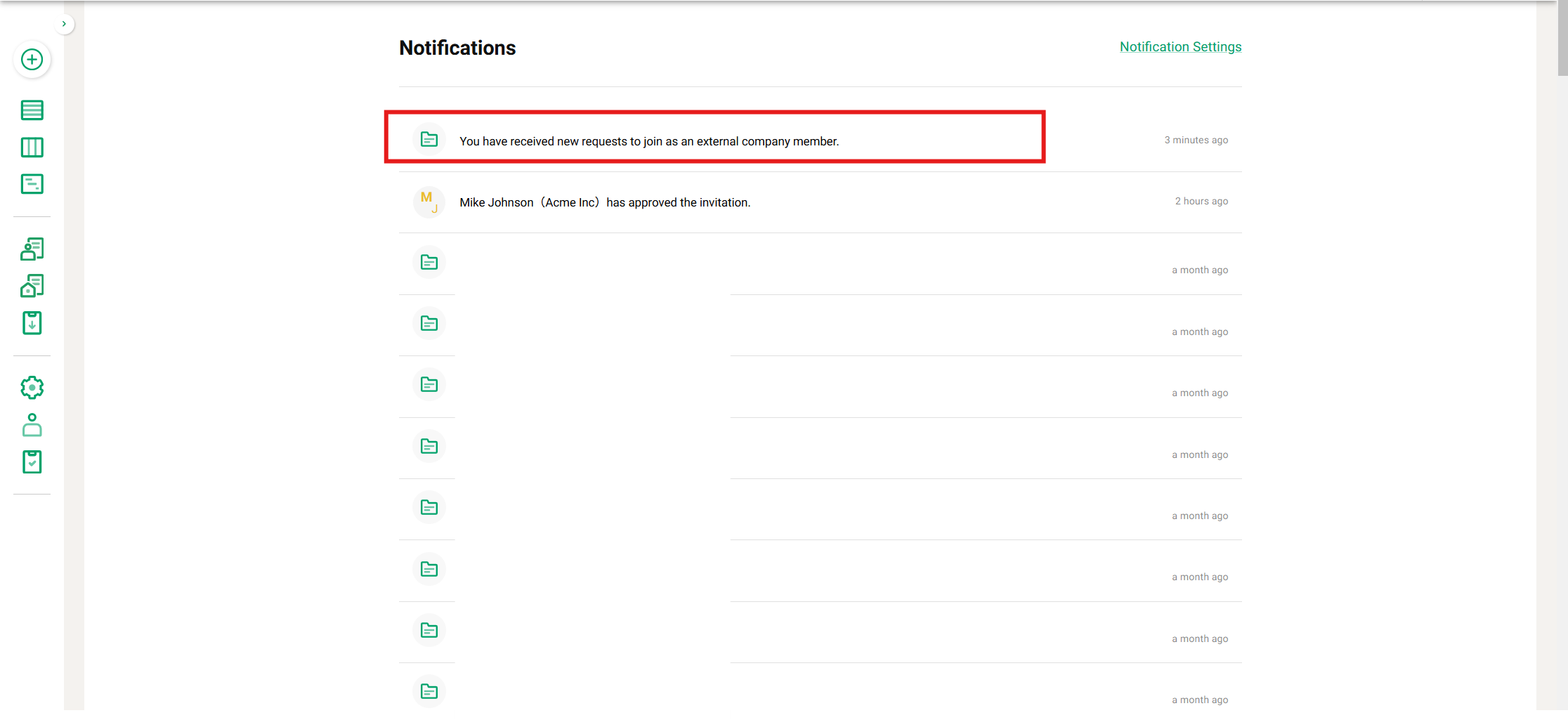
Approve a Request
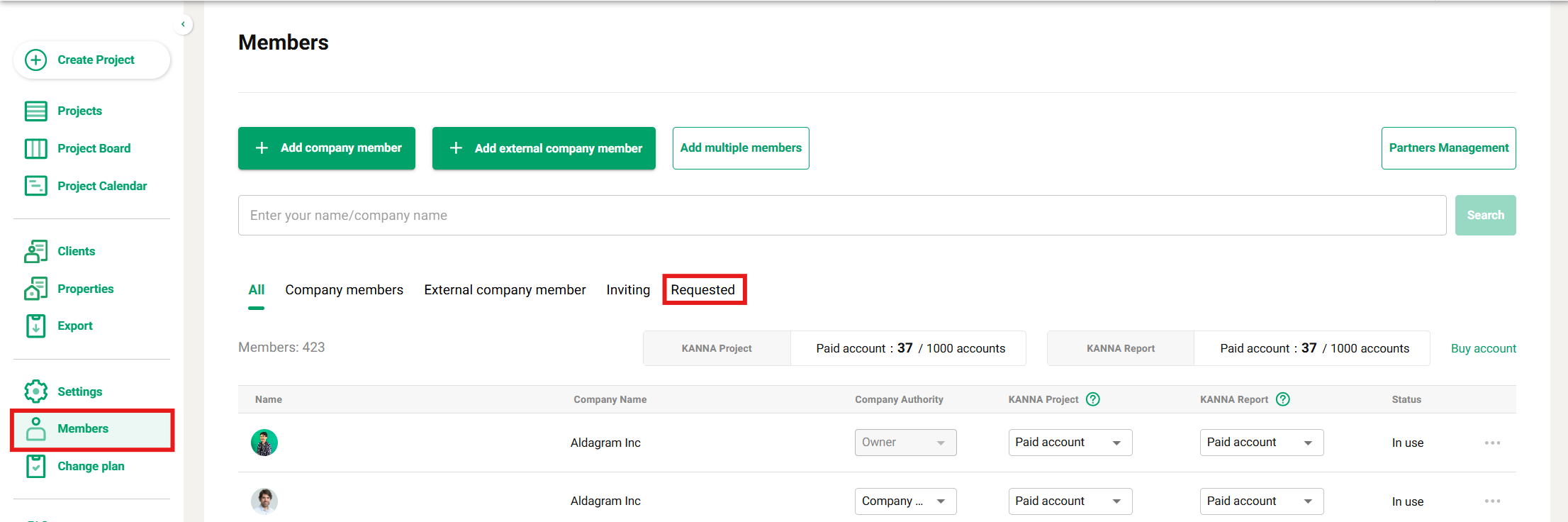
1. From Members, click Requested.
2. From Requested, click Approve.
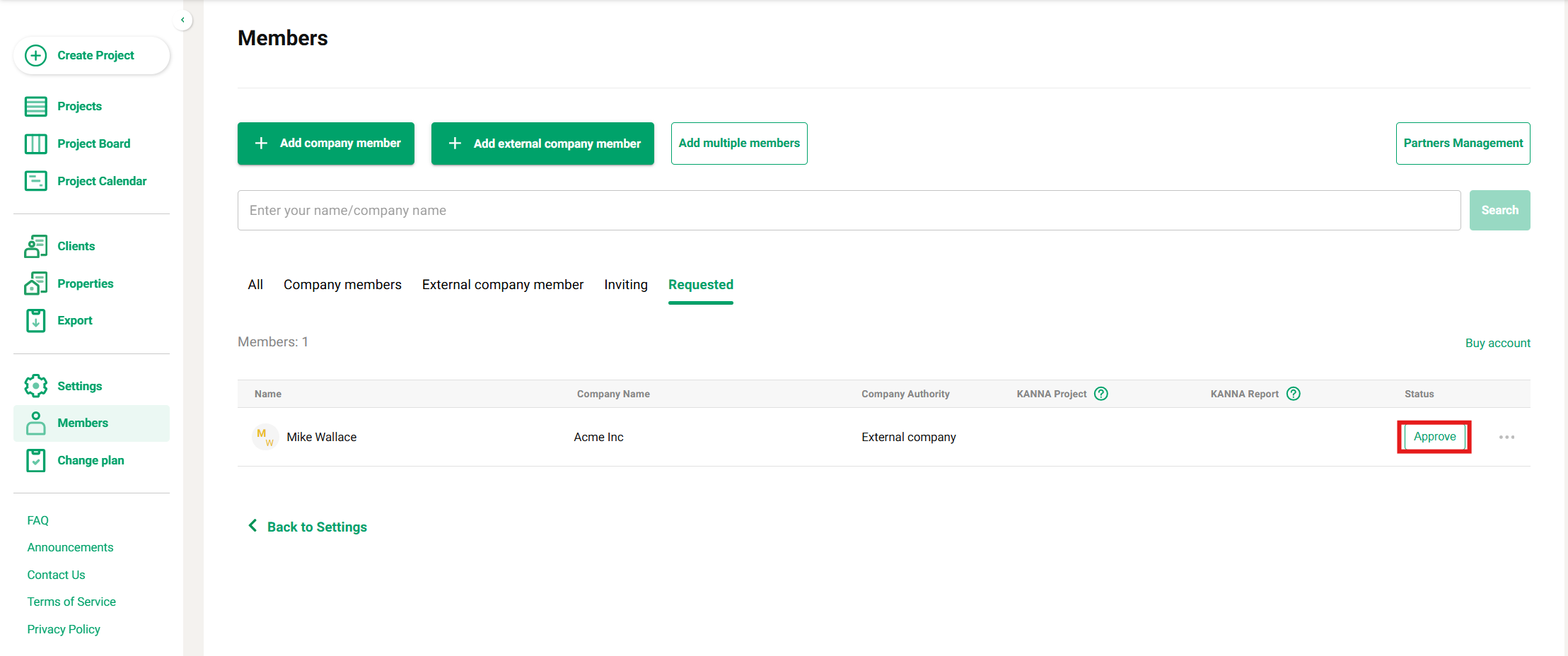
3. Completion
The member will now be displayed as an external member, allowing them to be directly added to projects as an external participant.