Glossary of Terms
Project ID, Property ID (UUID), Customer ID --> Unique IDs automatically generated by KANNA.
Project Management ID, Property Management ID, Customer Management ID --> IDs that can be set by the customer.
Usage
Import the property information managed by your company into KANNA in advance. At that time, include the Property Management ID when importing (with the idea that future projects will be linked to the property).
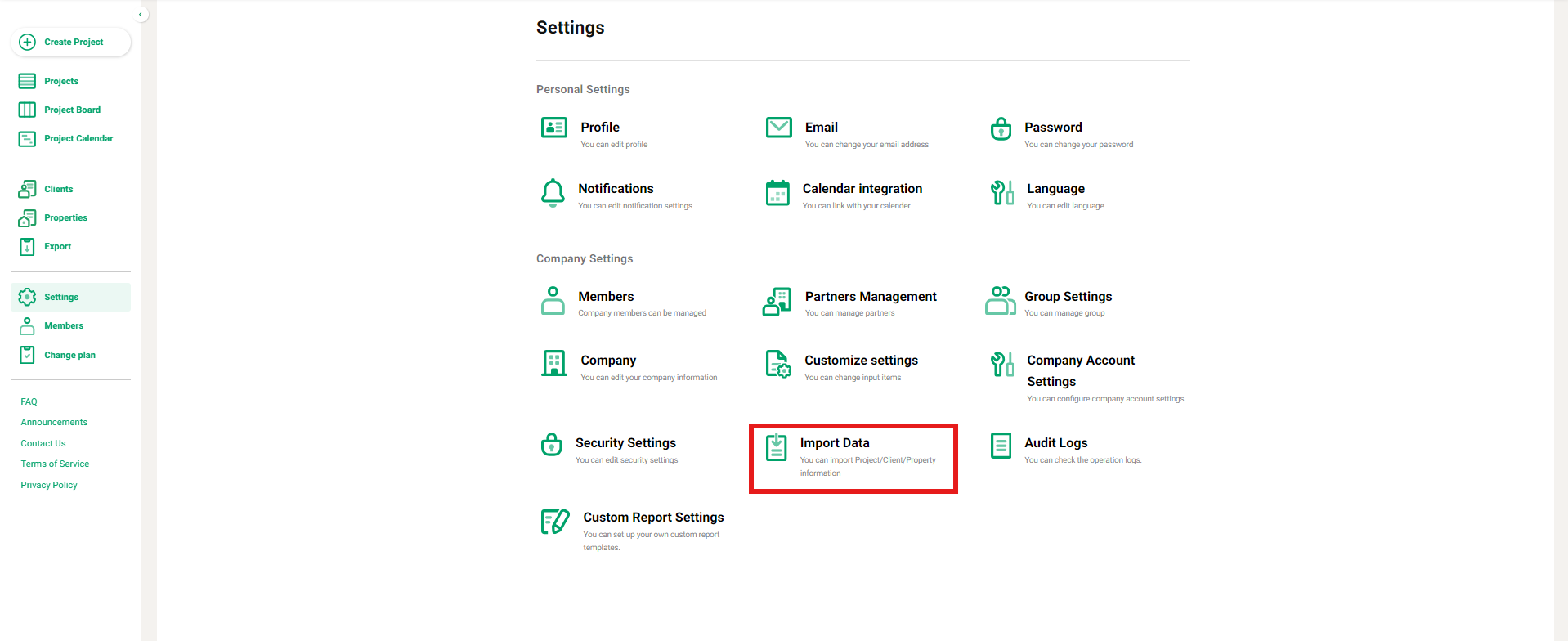
1. Click on "Import Data" from "Settings."
2. From "Property Info," click "Download" under "Download Excel template".
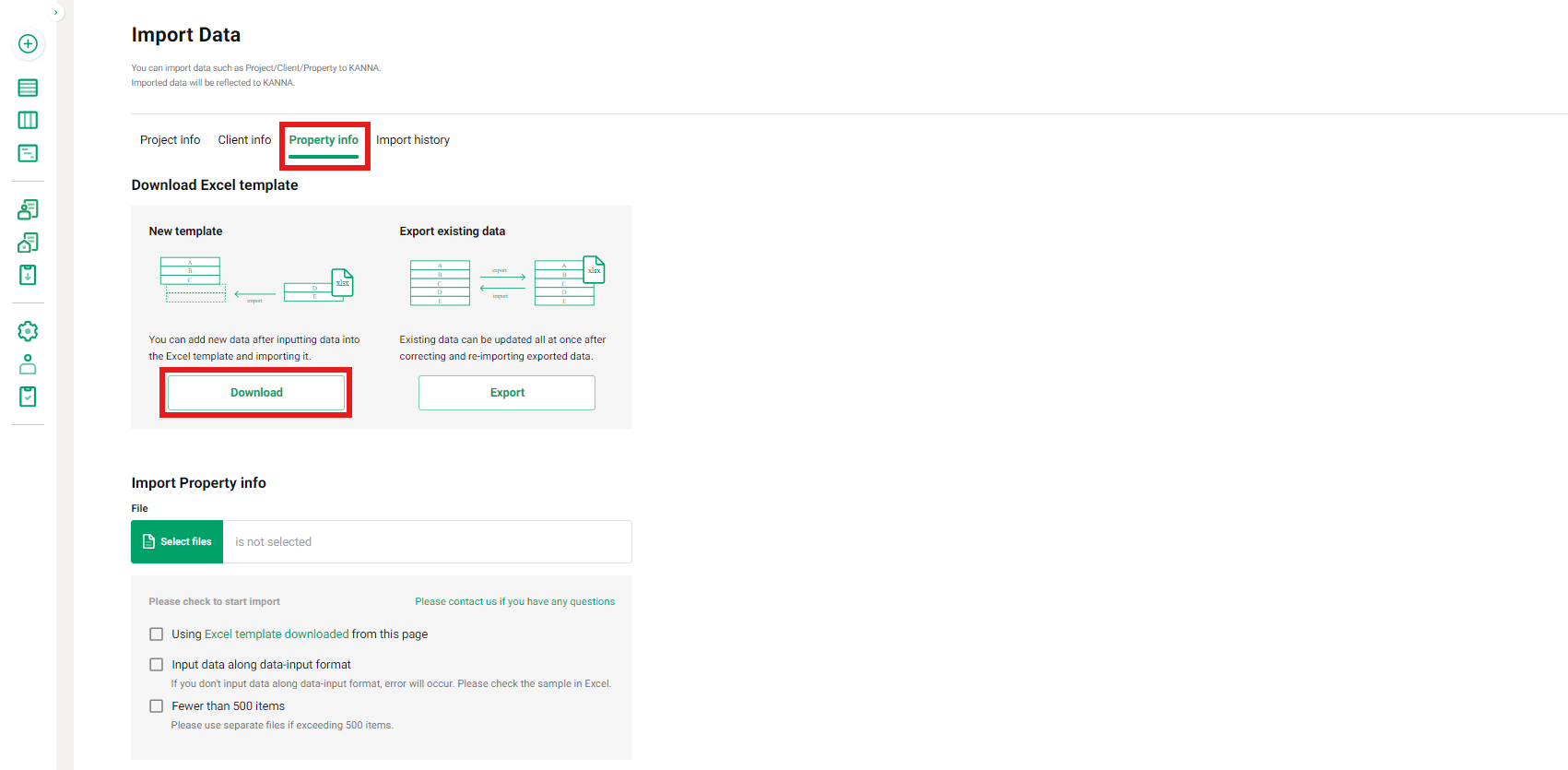
3. Fill in the information you want to import into the downloaded Excel template.
Enter the Property Management ID that your company manages independently. A unique Property ID (UUID) will be generated by the KANNA system after the import.
After the import, you can confirm that the Property ID (UUID) has been generated by exporting the property information from the same page.
Note: The process is complete once the import is successful. If an error is displayed, please check the cause of the error, correct it, and try importing again.
You can view the imported property information in the left menu bar under "Properties".

Note: The same Property Management ID cannot be entered for multiple properties. If multiple properties have the same Property Management ID, please prepare a different ID for each one.
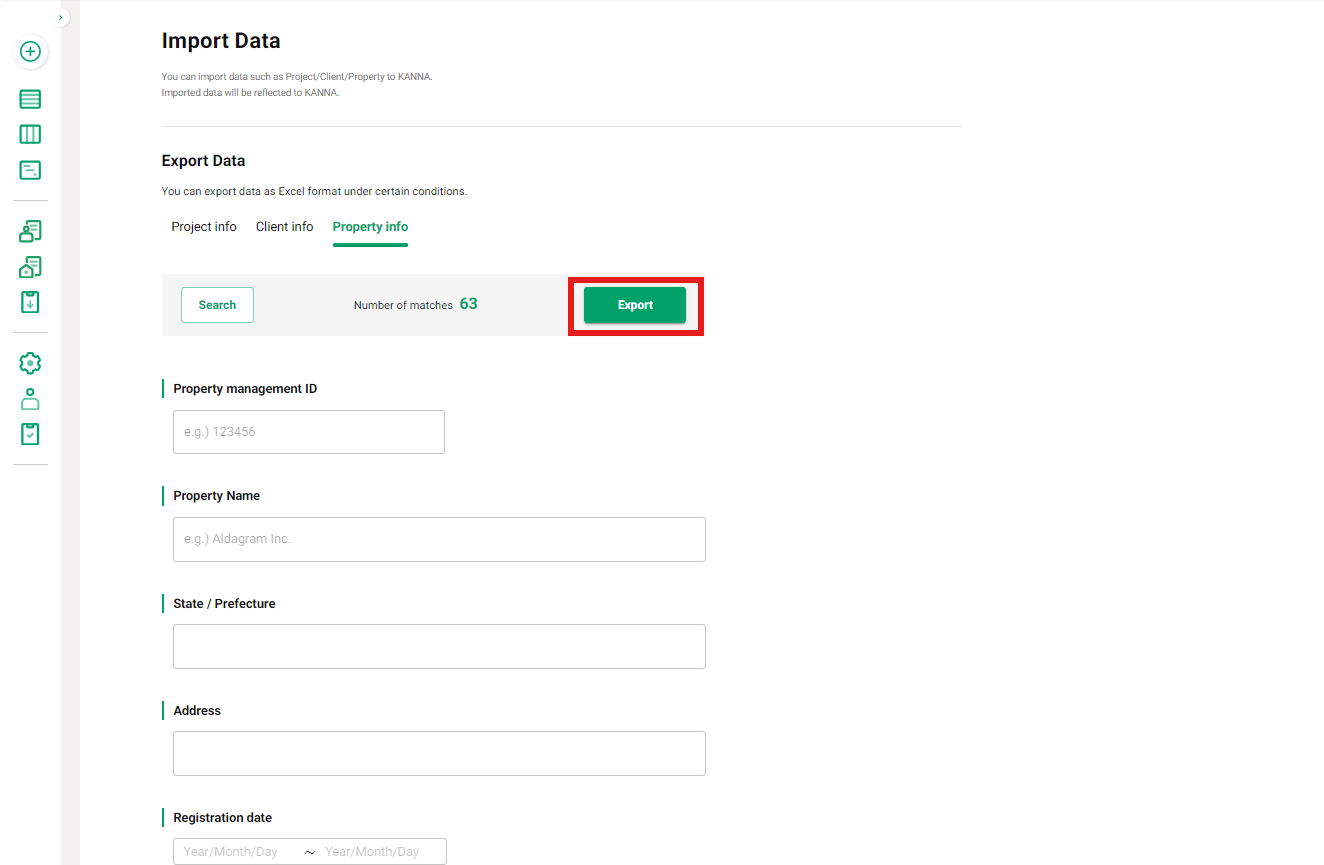
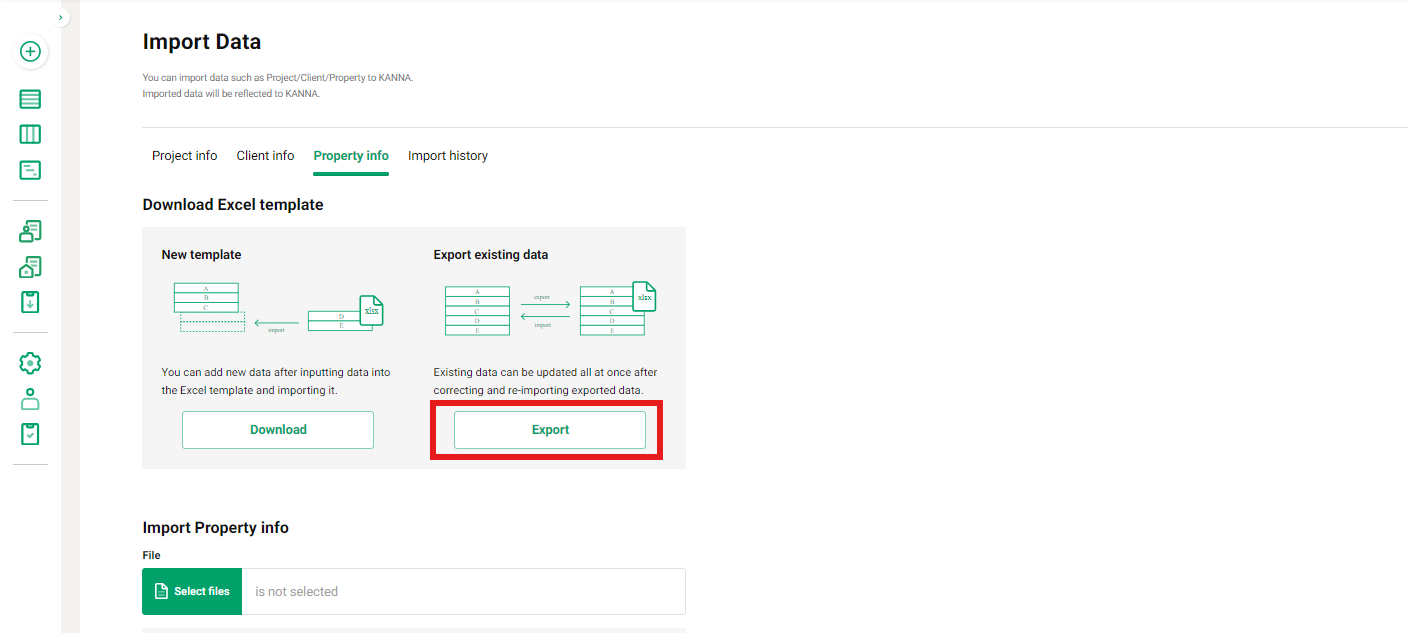
If you want to update the imported property information in bulk, use the export function to output the property information as a CSV file. At that time, a Property ID is generated for each property, so for properties you want to modify, change the other fields without altering the Property ID, and then reimport the file (please note that if you delete the Property ID, it will be generated as a new property).
4. Click "Export" from "Property Information" under the "Export data" header.
5. Enter the information for the items you want to update, then import the saved file.
You can confirm the updated items under "Properties" or "Property Details."
If properties were imported by mistake, they cannot be deleted in bulk; please delete them one by one from the "Property Details" section.
When using imports to create a project, you can link the project to the property by entering the Property Management ID (the same data as the Property Management ID already imported into KANNA), property information, project overview, and other relevant items before importing.
The idea is to link the Property ID to the project you want to associate it with.
Note: Similarly, if you want to link a project to a customer, first import the customer information as described above, and then import the project associated with the customer to establish the link.