Photos saved in the folders can be edited. You can add information by inserting texts, drawing with a pen, or cropping the image to focus on the necessary details to make it easier to share information, Also you can rotate pictures.
Smartphone
1. Open the photo you want to edit.
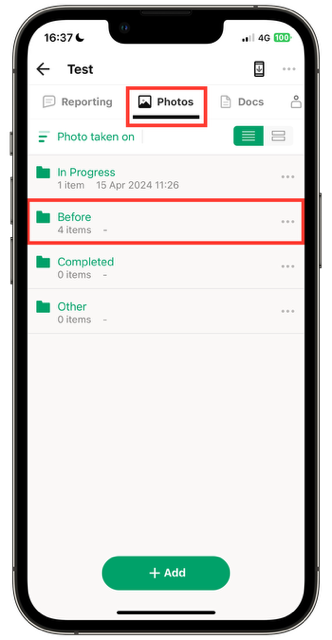
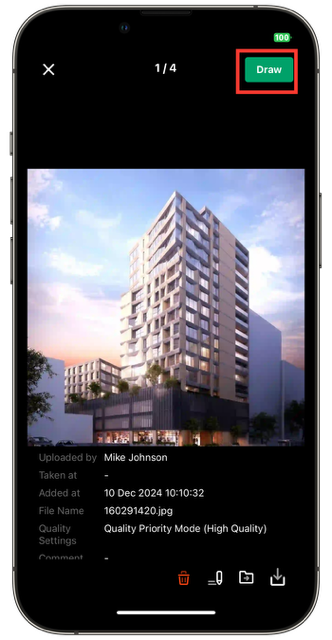
2. Tap "Draw" in the top right corner.
3. Tap the item you want to use from the following four options.
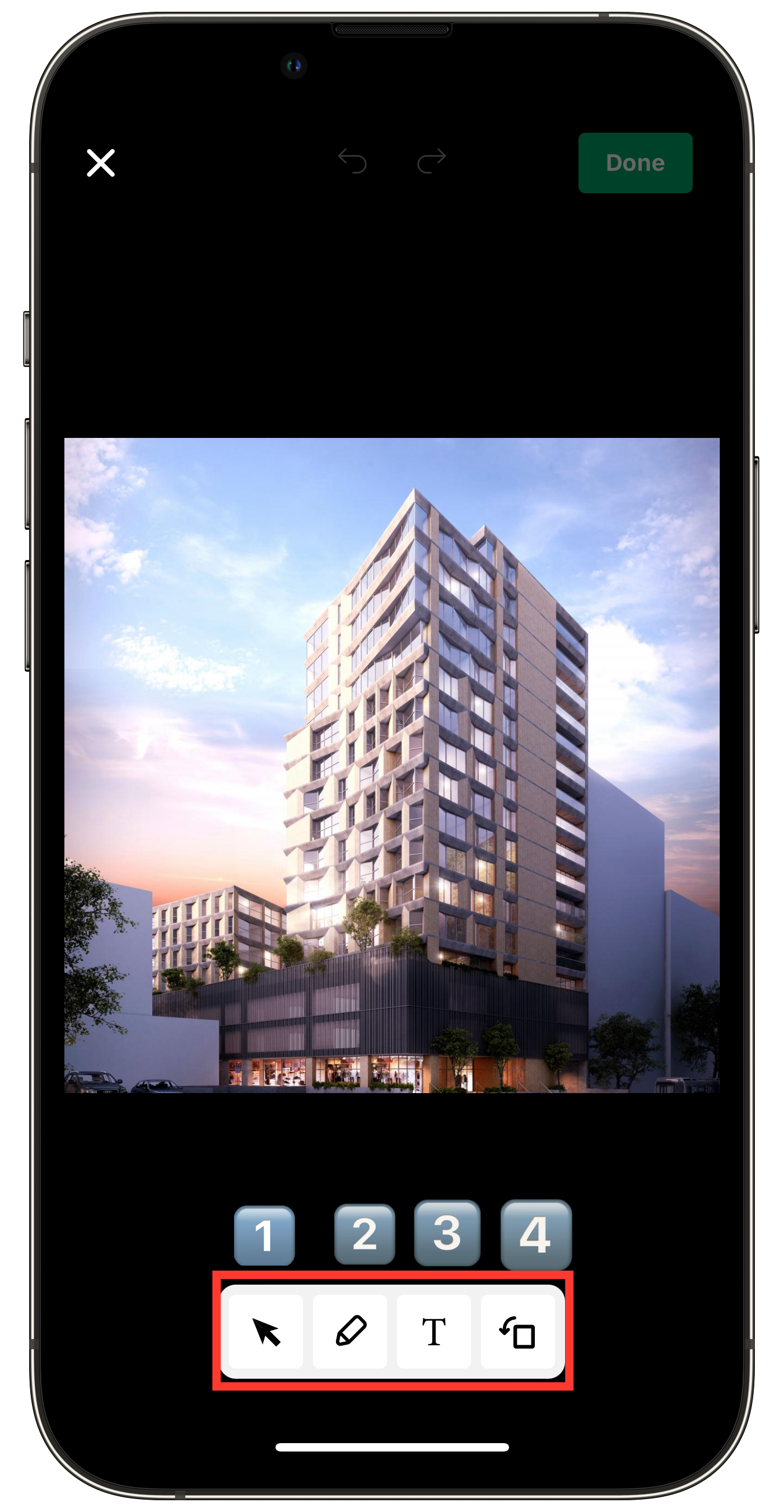
① Cursor
② Handwriting
③ Text
④ Photo Rotation
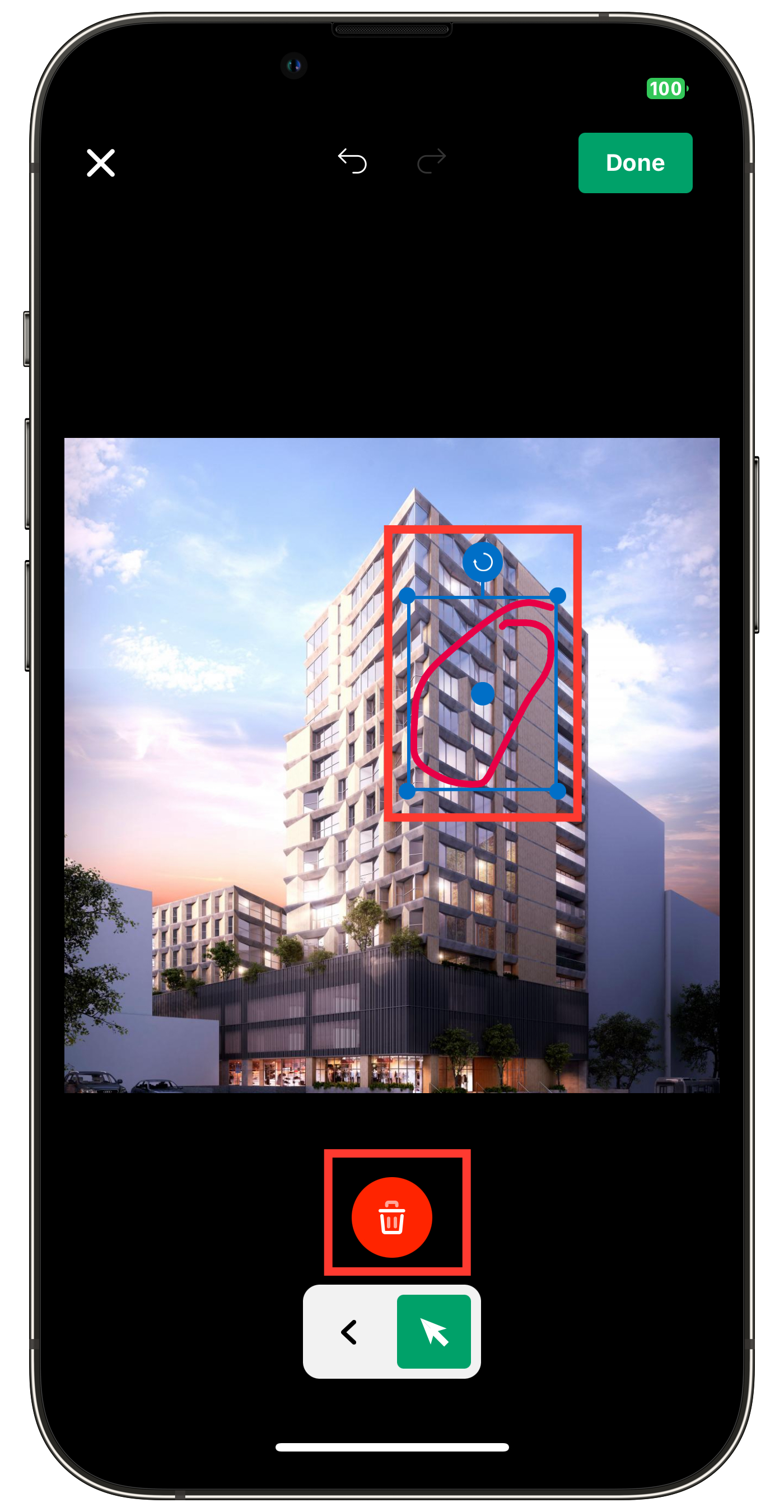
① Cursor
1. Select the area you want to edit.
Then you can choose either the handwritten or text input to edit.
2. Edit or delete the selected area.
By pressing and dragging the ● displayed in the selected area (the blue rectangle) you can resize, move, or rotate the selected area.
Additionally, pressing the trash can icon at the bottom will delete the selected area.
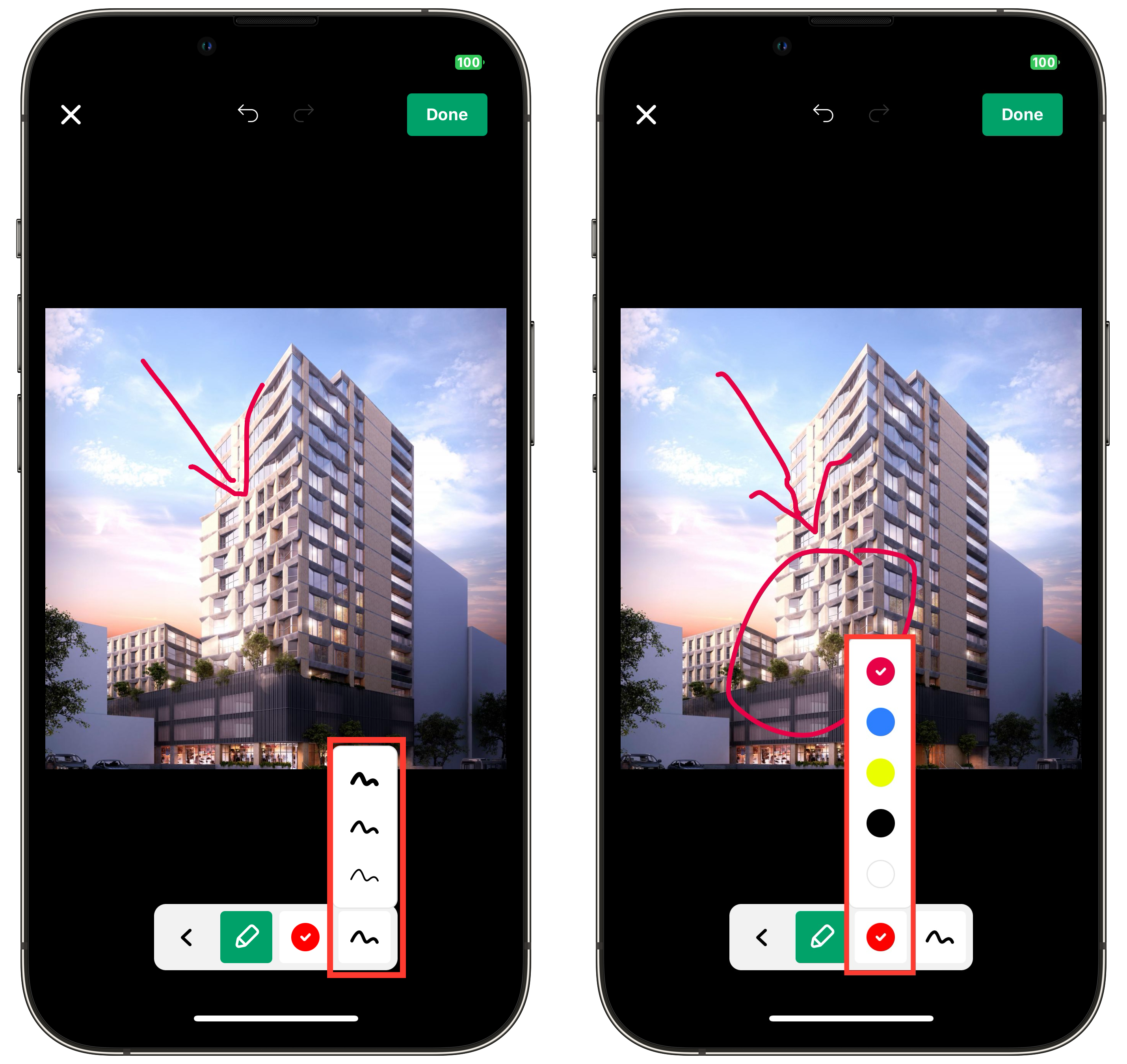
② Handwriting
You can write on the photo by hand. In handwriting mode, you can change the thickness and color of the lines.
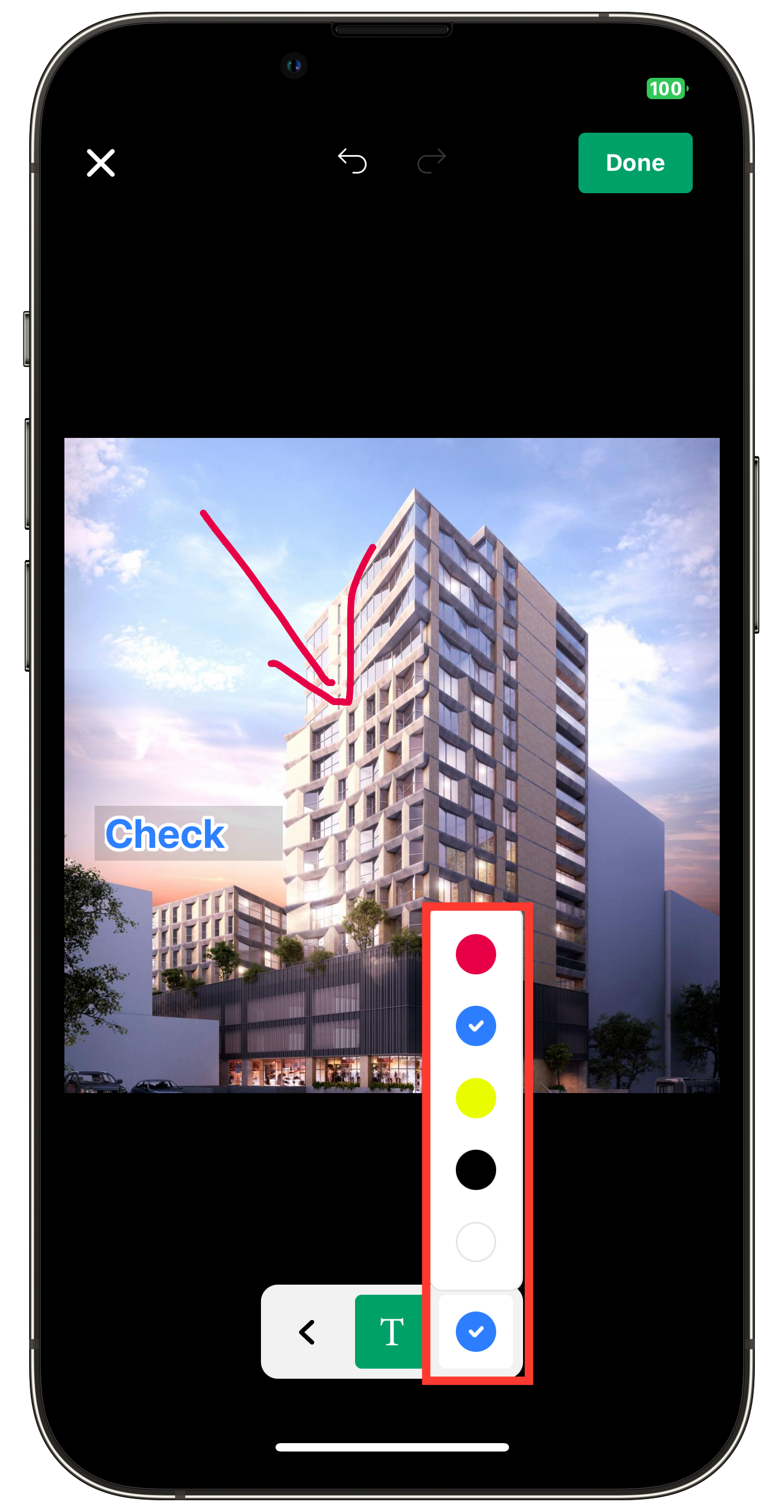
③ Text
In text input, you can only change the color of the text.
④ Photo Rotation
You can rotate the added photo.
Note: If you rotate the photo after adding lines or text, the added information will rotate along with it.
Tap the red-framed area at the bottom of the page to rotate the photo.
Tap the red-framed area at the top of the photo to undo the previous action.
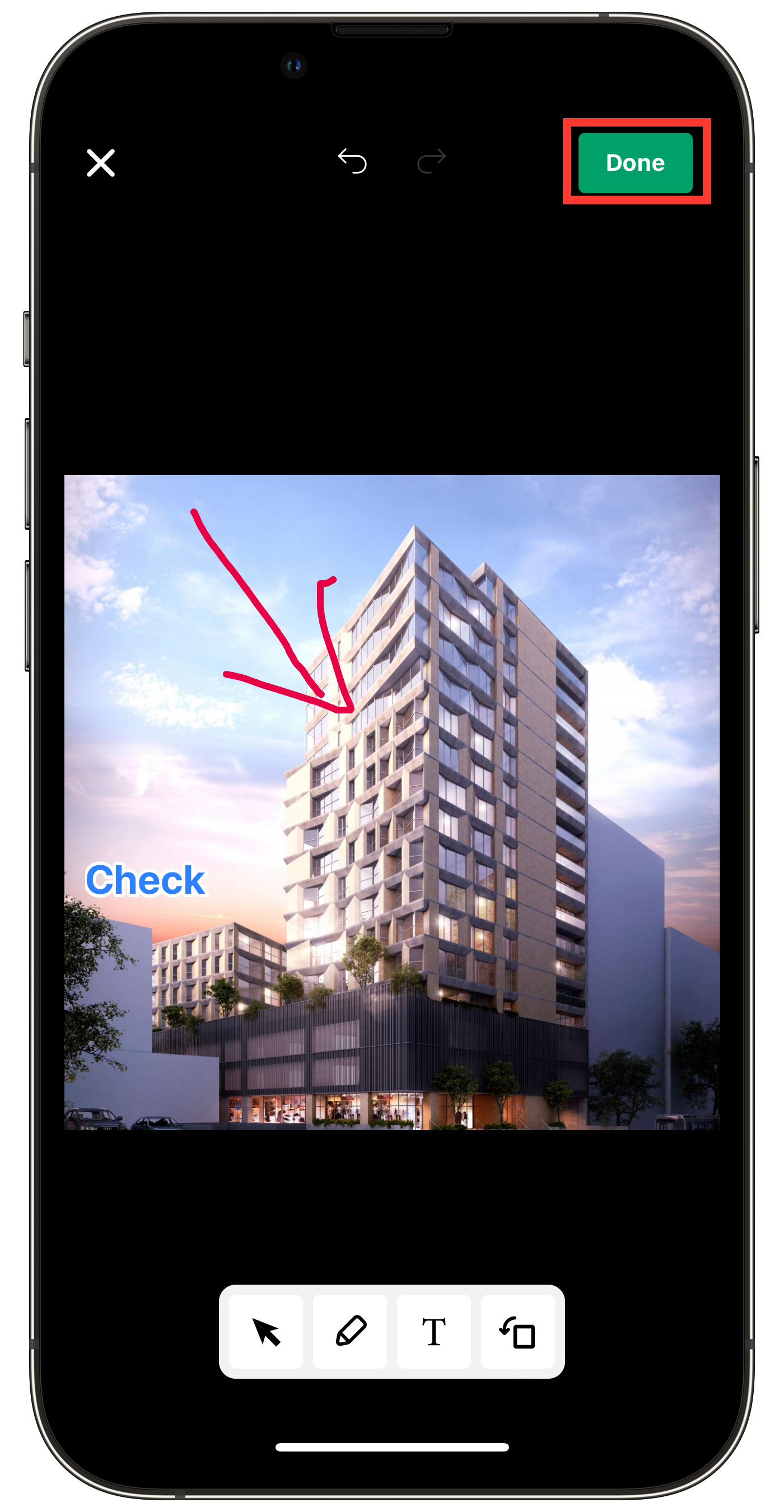
4. Tap "Done."
5. If necessary, enter a file name for the picture and tap "Save."
Note: It will be saved as a separate photo file from the original file before the editing.
Computer
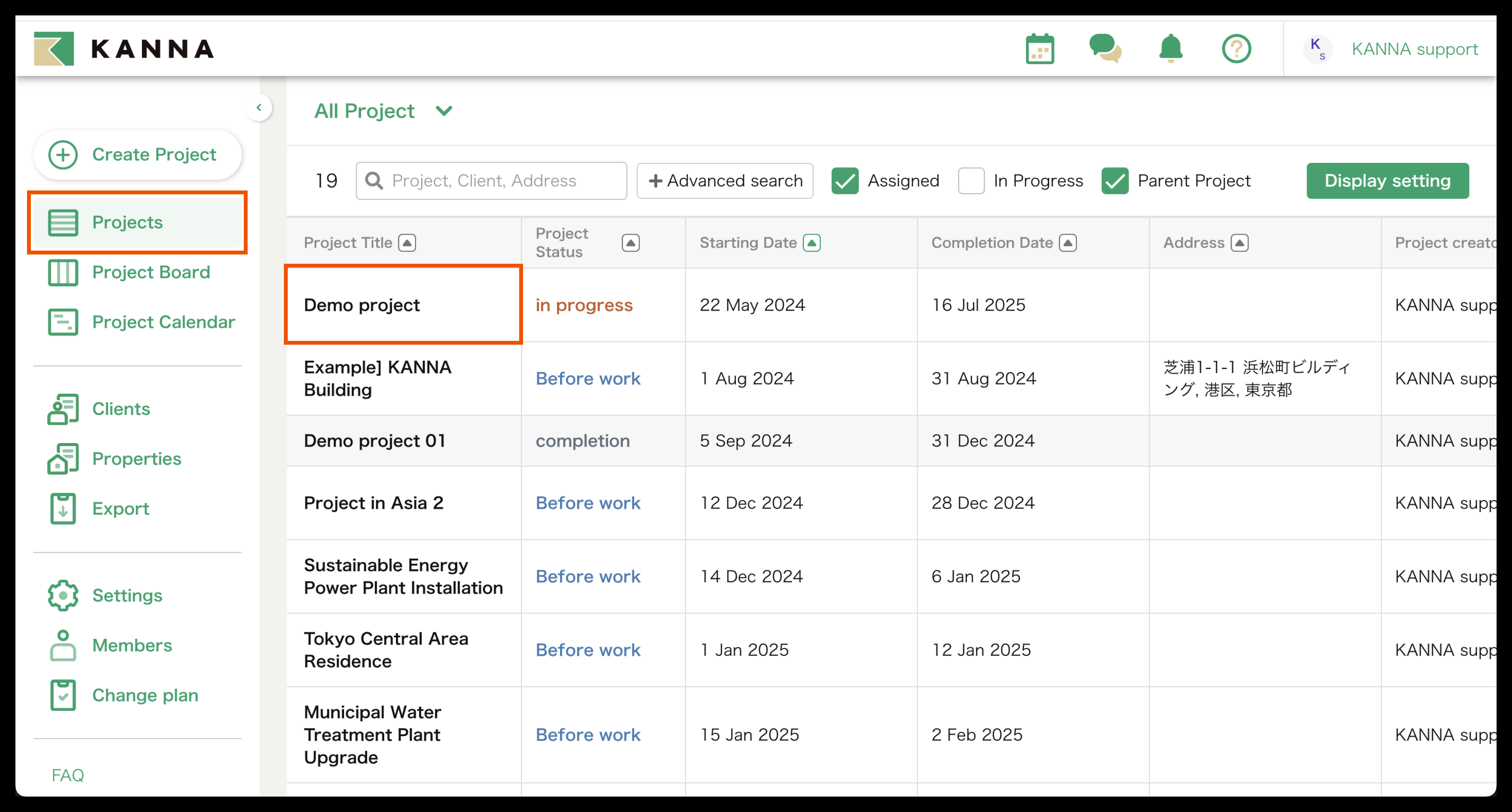
1. Click on the project you want to edit from the "Projects" menu
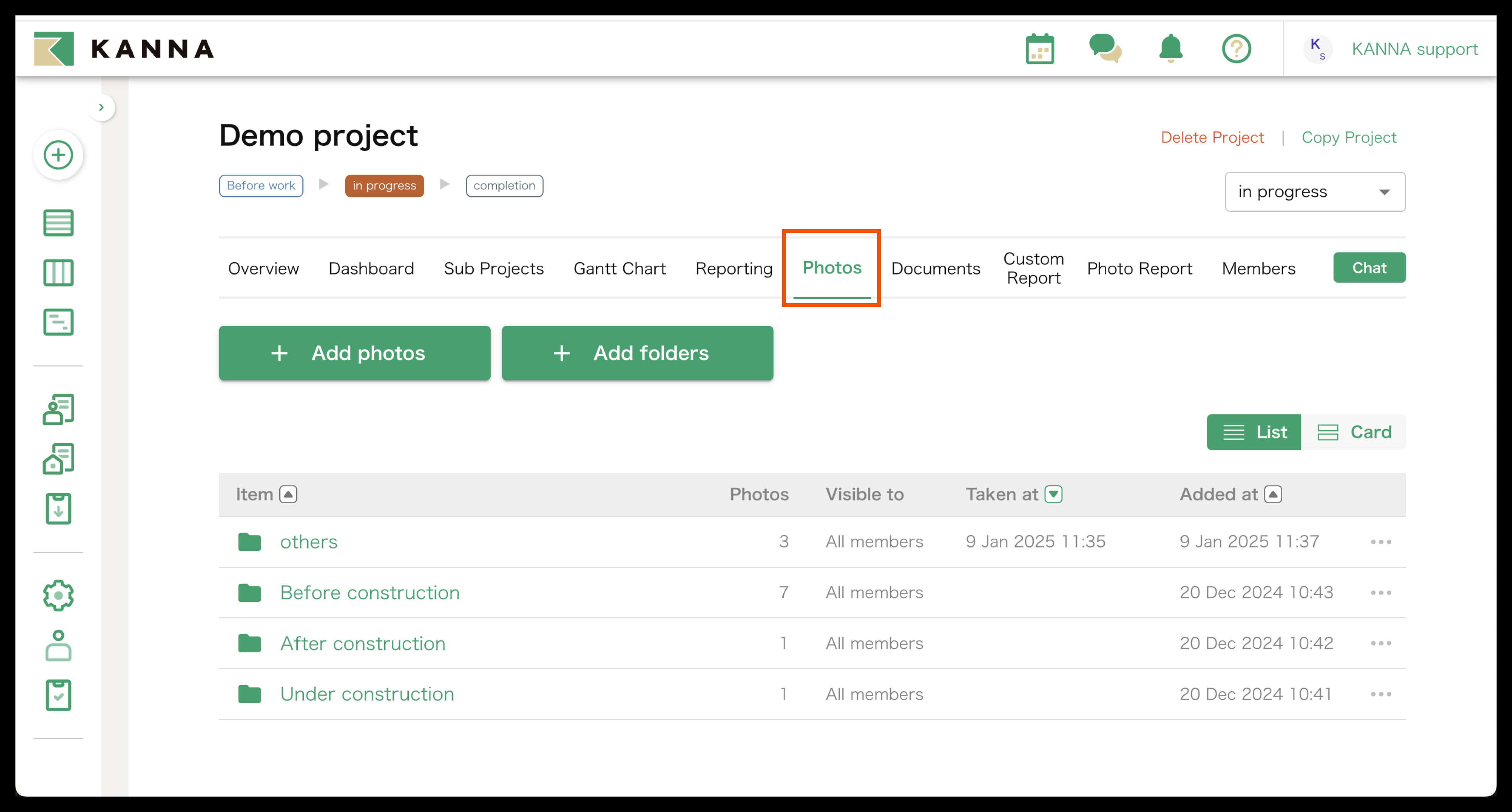
2. Click on "Photos".
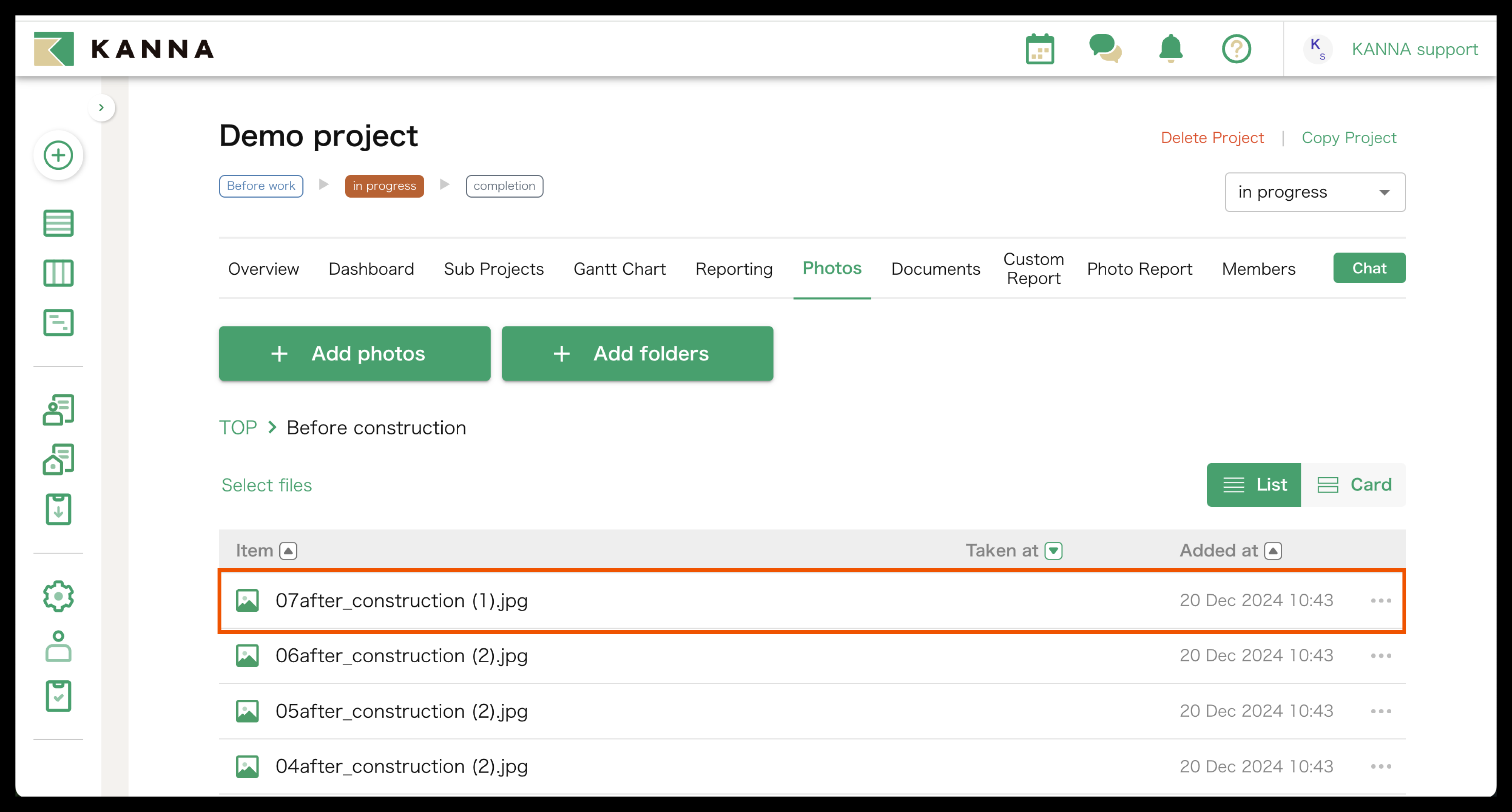
3. Open the photo file you want to edit.
4. Edit the photo
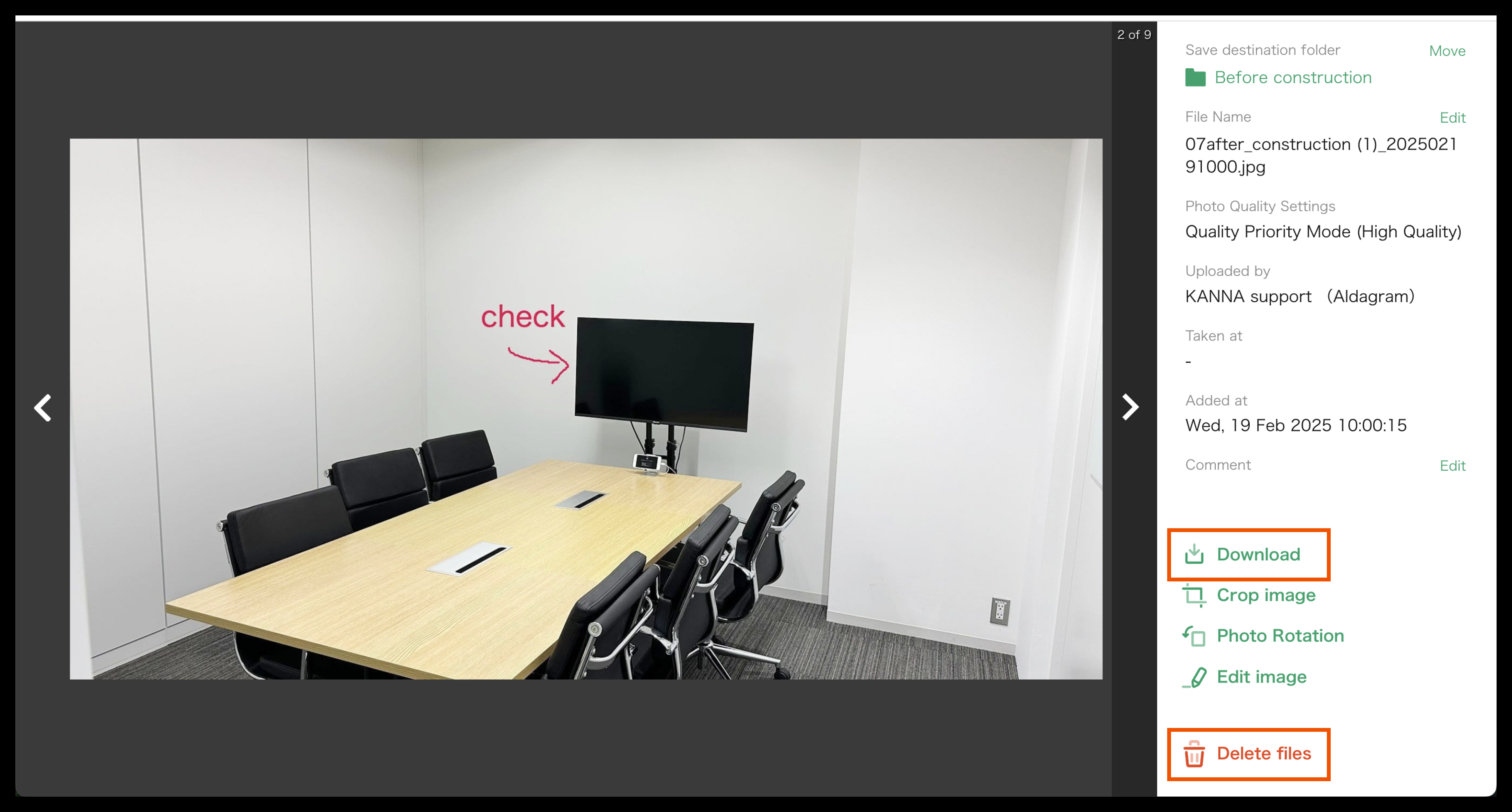
① Move the saved file to another file ② Change the file name and add comments, ③ Edit the photo
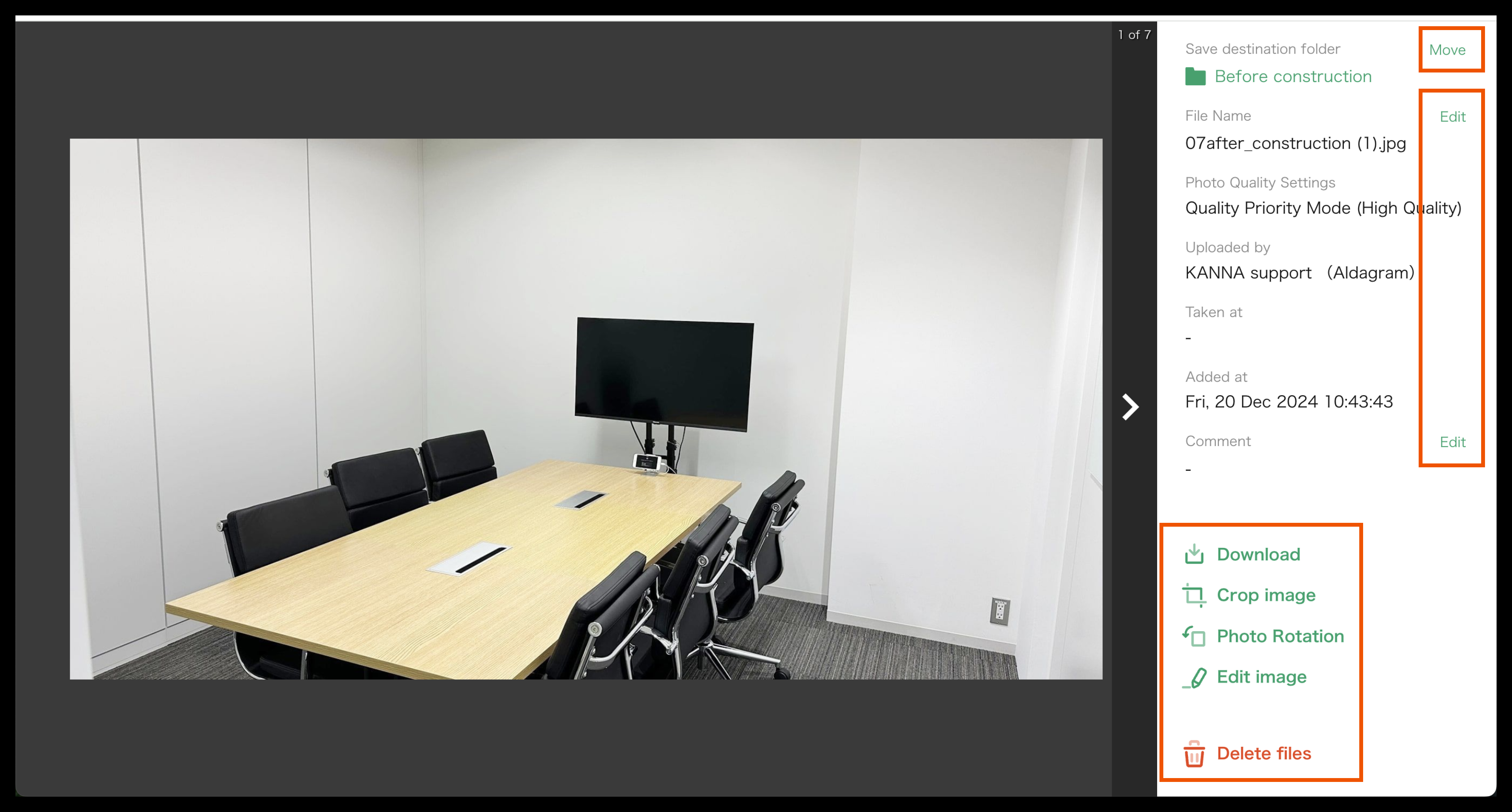
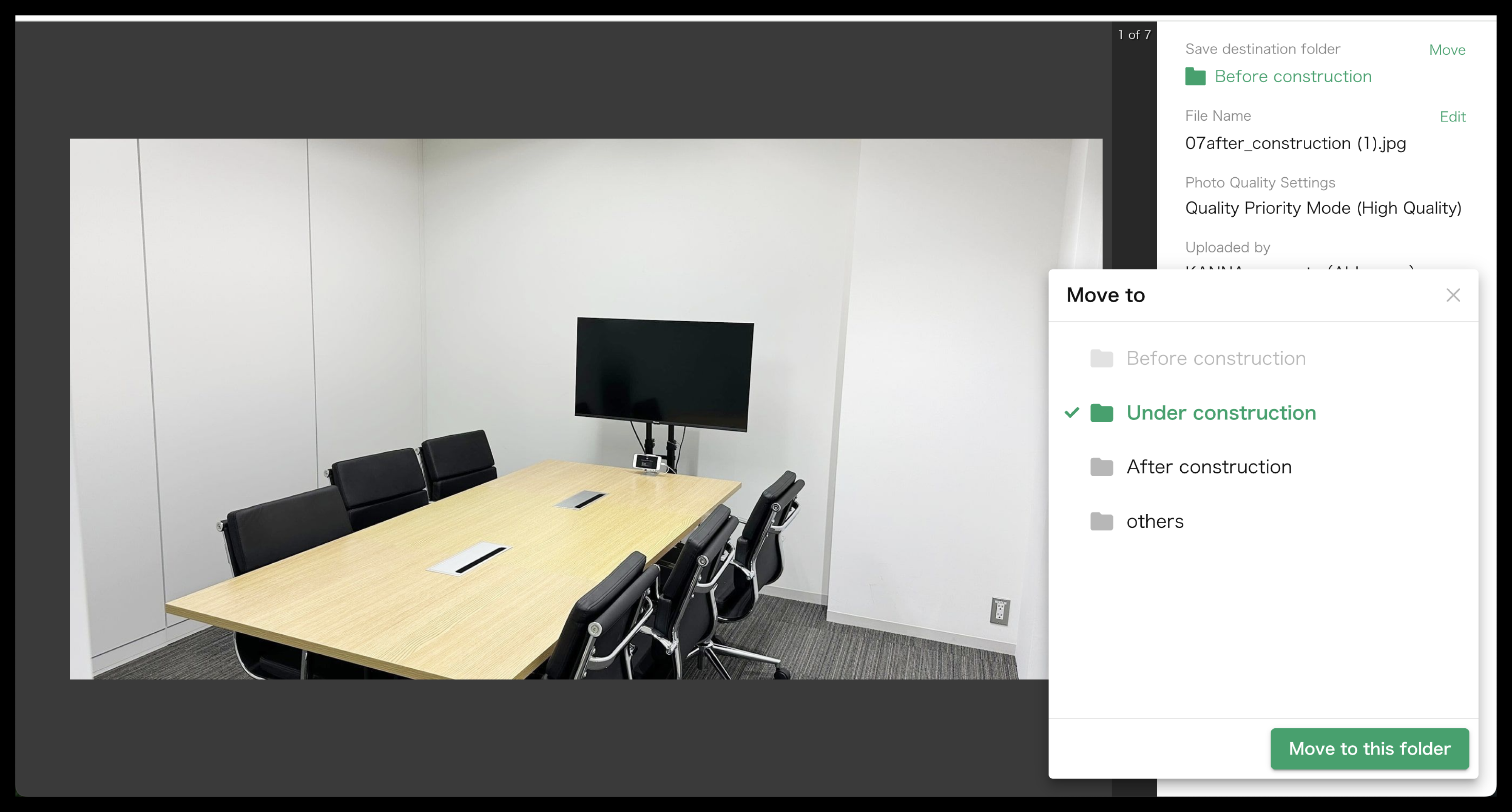
① Move the saved file to another folder
Tap "Move" in the top right, select the destination folder, and then tap "Move to this folder."
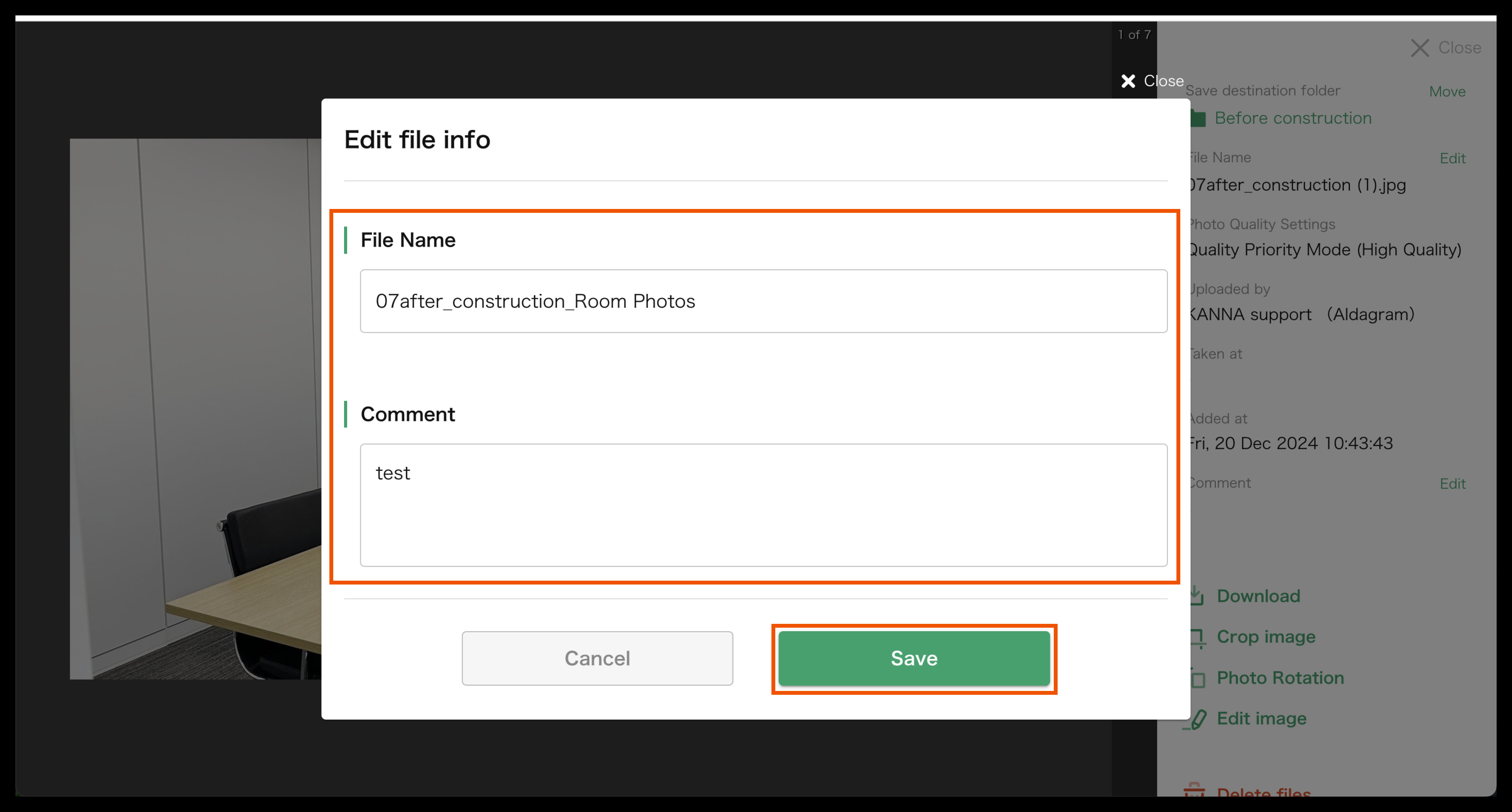
② Change the file name and add comments
Tap "Edit" on the right, enter the file name and comments, then tap "Save."
③ Photo editing
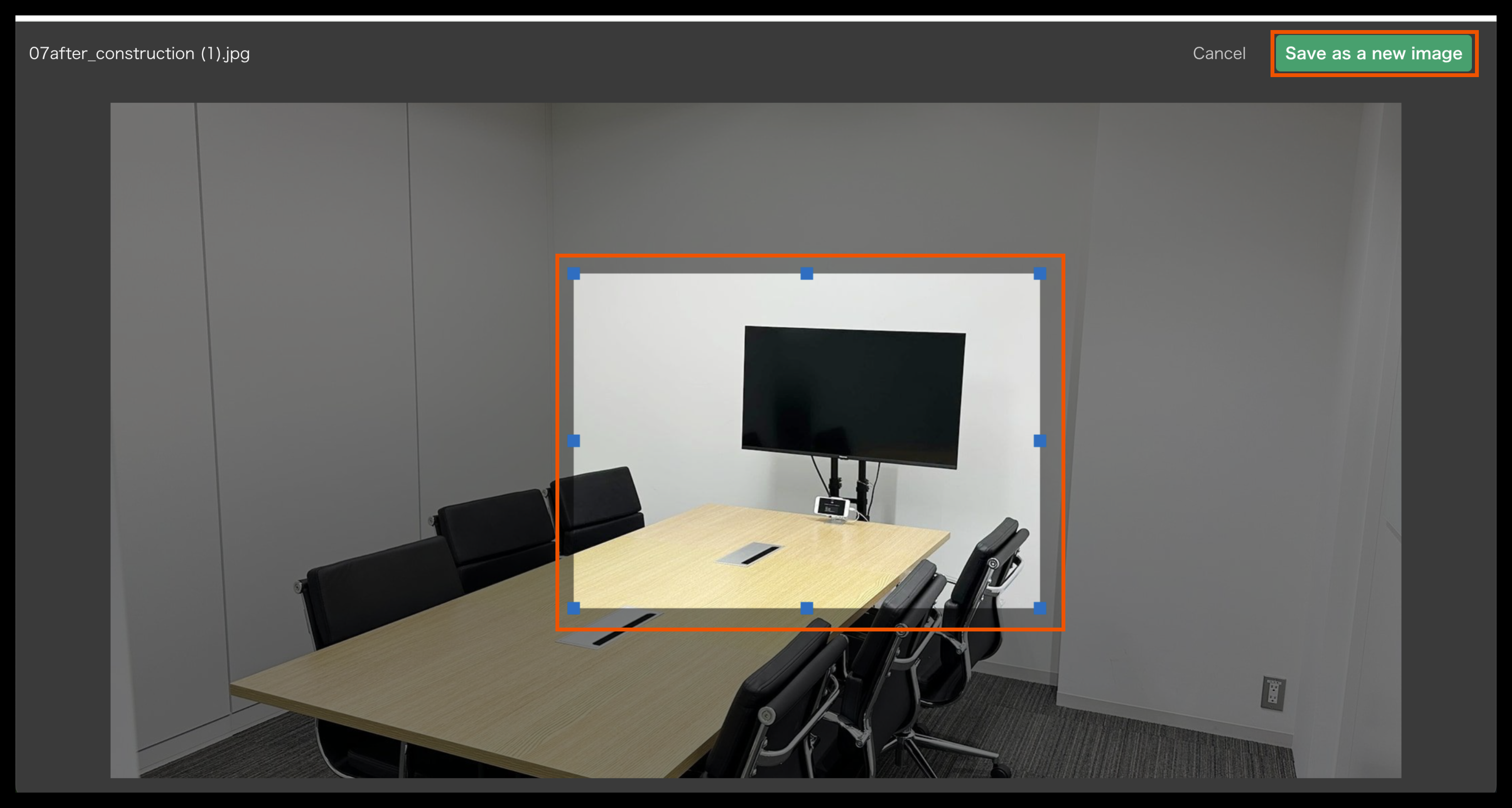
1. Crop the image
Tap "Crop Image", select the area you want to crop, and then tap "Save as a new image".
2. Photo Rotation
Click “Photo Rotation” and then click “Rotate 90° to the left” or “Rotate 90° to the right” in the red frame at the top of the page to rotate the image.
Click on “Save as a new image"
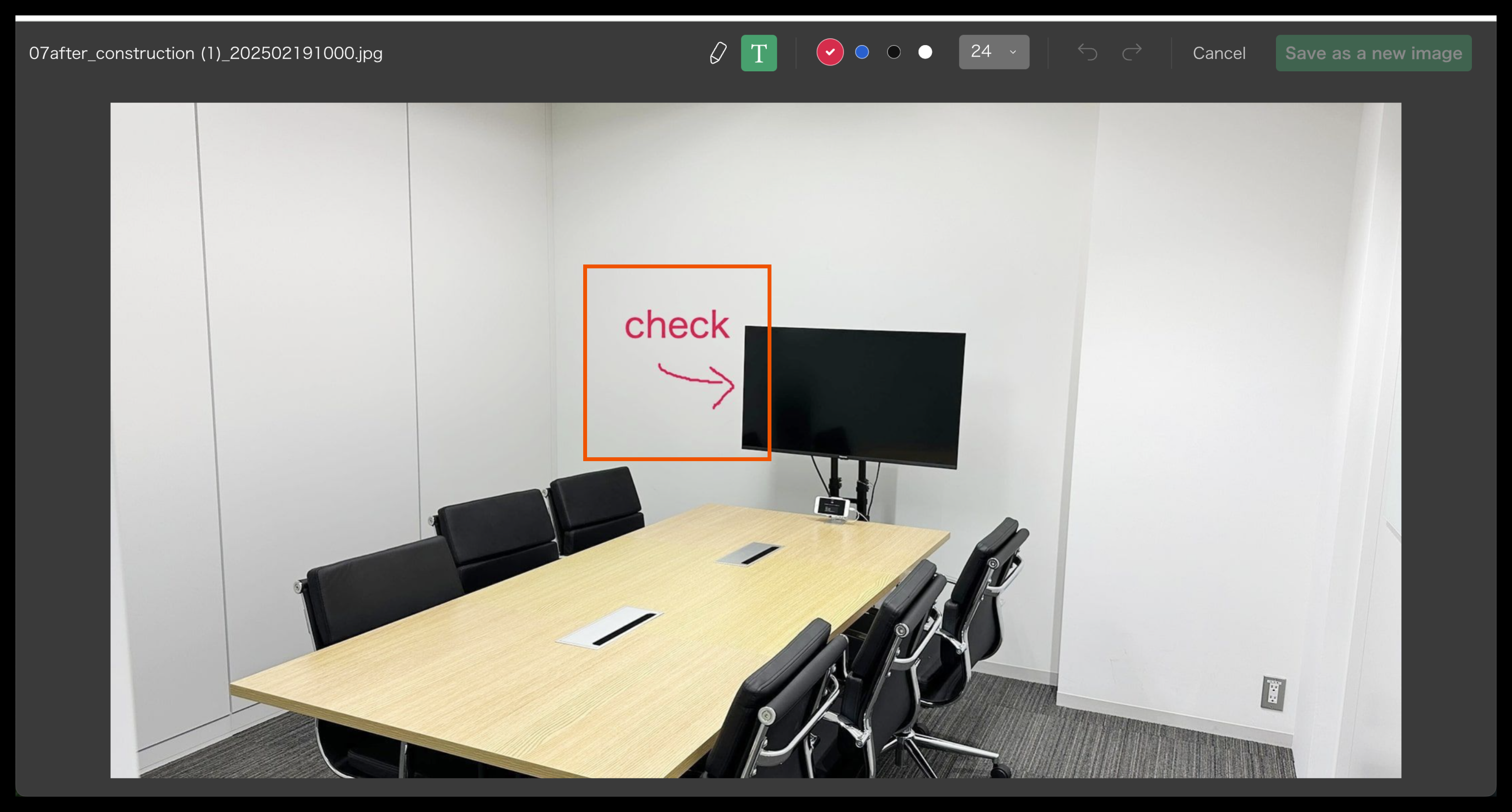
3. Write on the image
Tap "Write on Image," select either 🖊 (handwriting) or "T" (text) at the top center, write your text or draw, and then tap "Save as a new image."
4. Download or delete the file
Tap "Download" or "Delete Files".