In KANNA, you can add and create photo folders. By organizing photo storage locations into folders on-site, you can avoid issues such as losing track of where photos were saved or the chronological order of photos when returning to the office.
You can create folders up to 10 levels deep.
Note: Only "Project Admins" from your company or other companies can add folders.
If your permission level within a project is "General", you cannot create or add folders. (Reference article: What you can do with each authority (KANNA Project))
Additionally, the sharing settings for photo/document folders can be adjusted.
If you want to change the sharing settings, please refer to the following article: Photo/Document Folder Visibility Settings.
Add a photo folder on a smartphone
1. On the "Projects" menu, tap the project where you want to add a new folder.

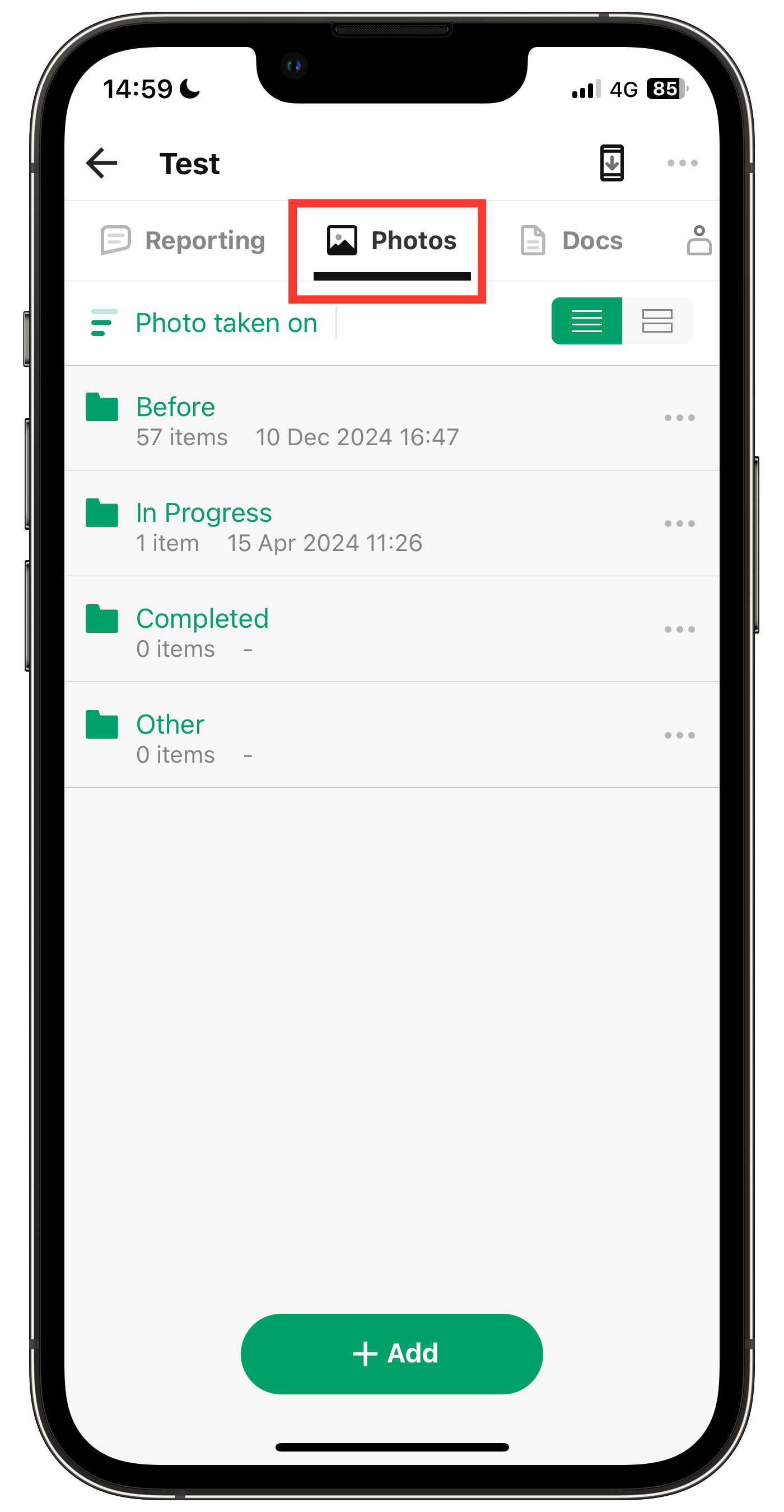
2. Tap "Photos".
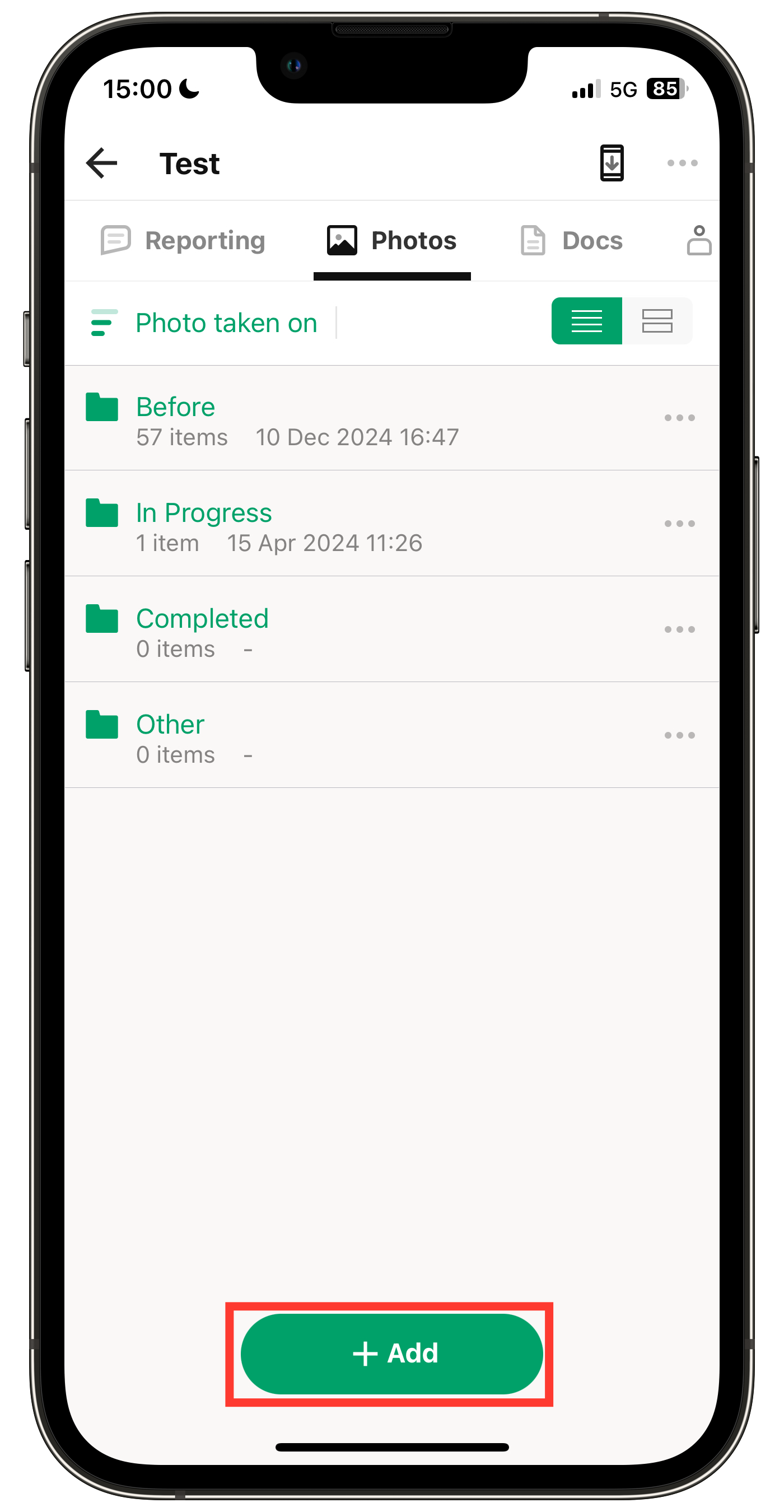
3. Tap "+ Add".
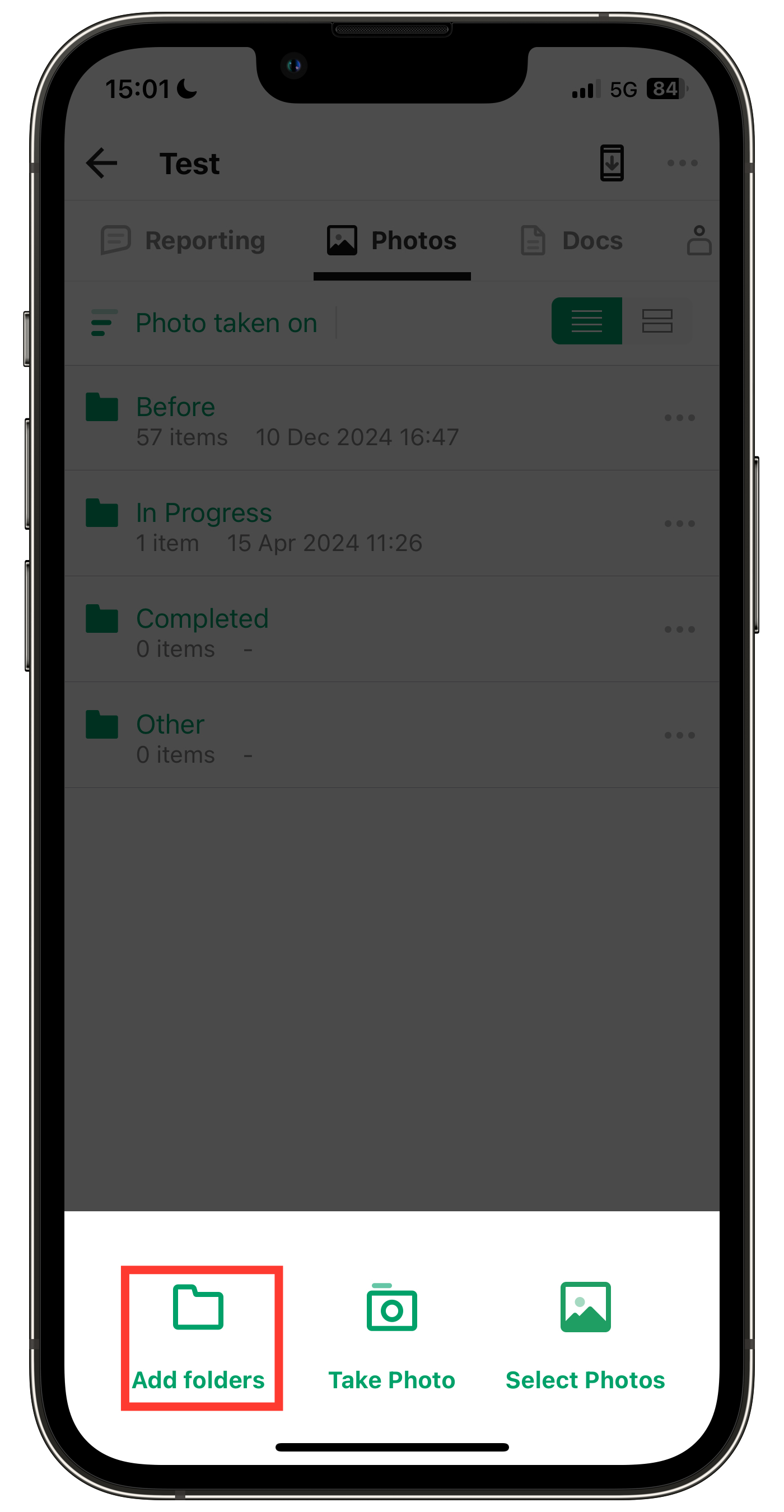
4. Tap "Add Folders".
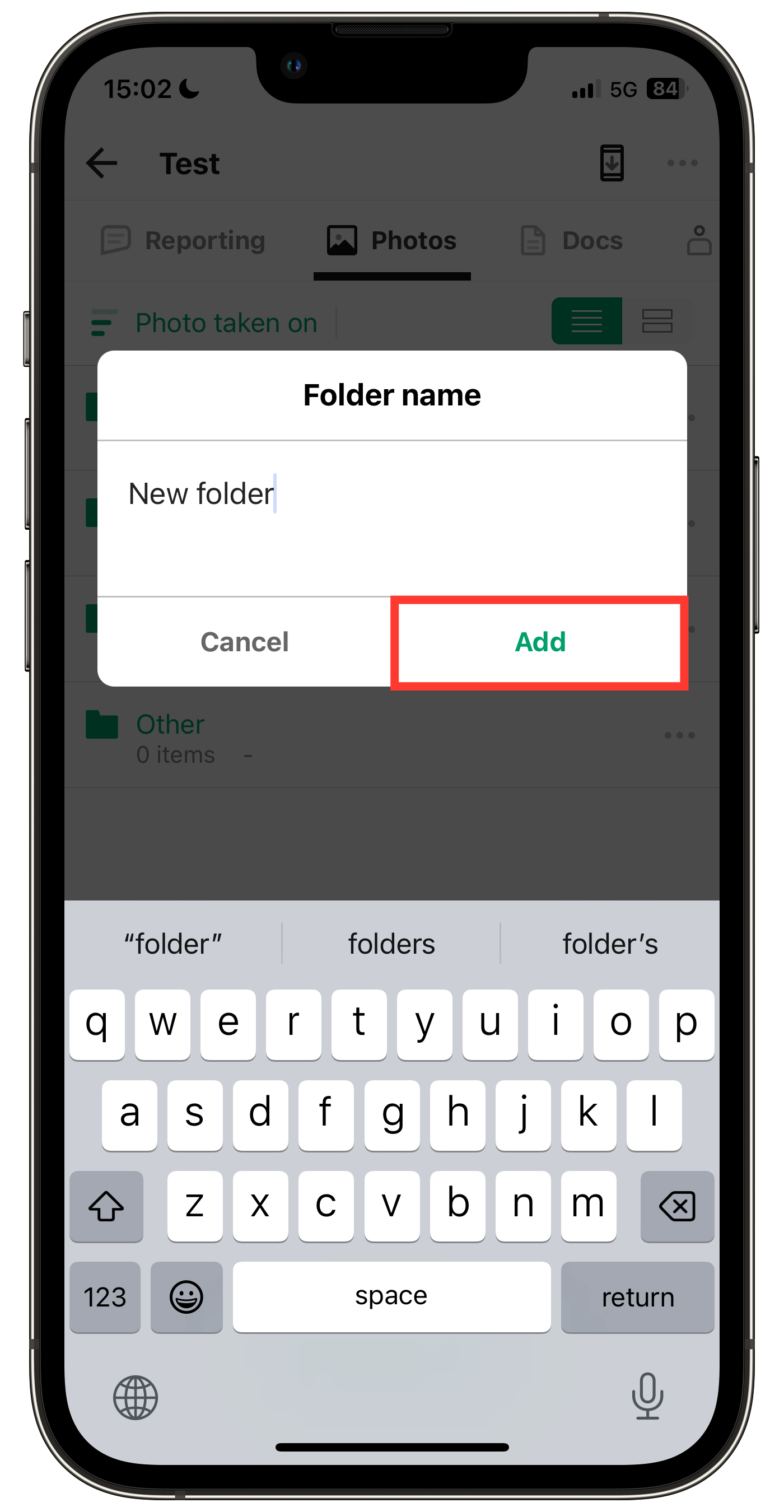
5. Enter the folder name and tap "Add".
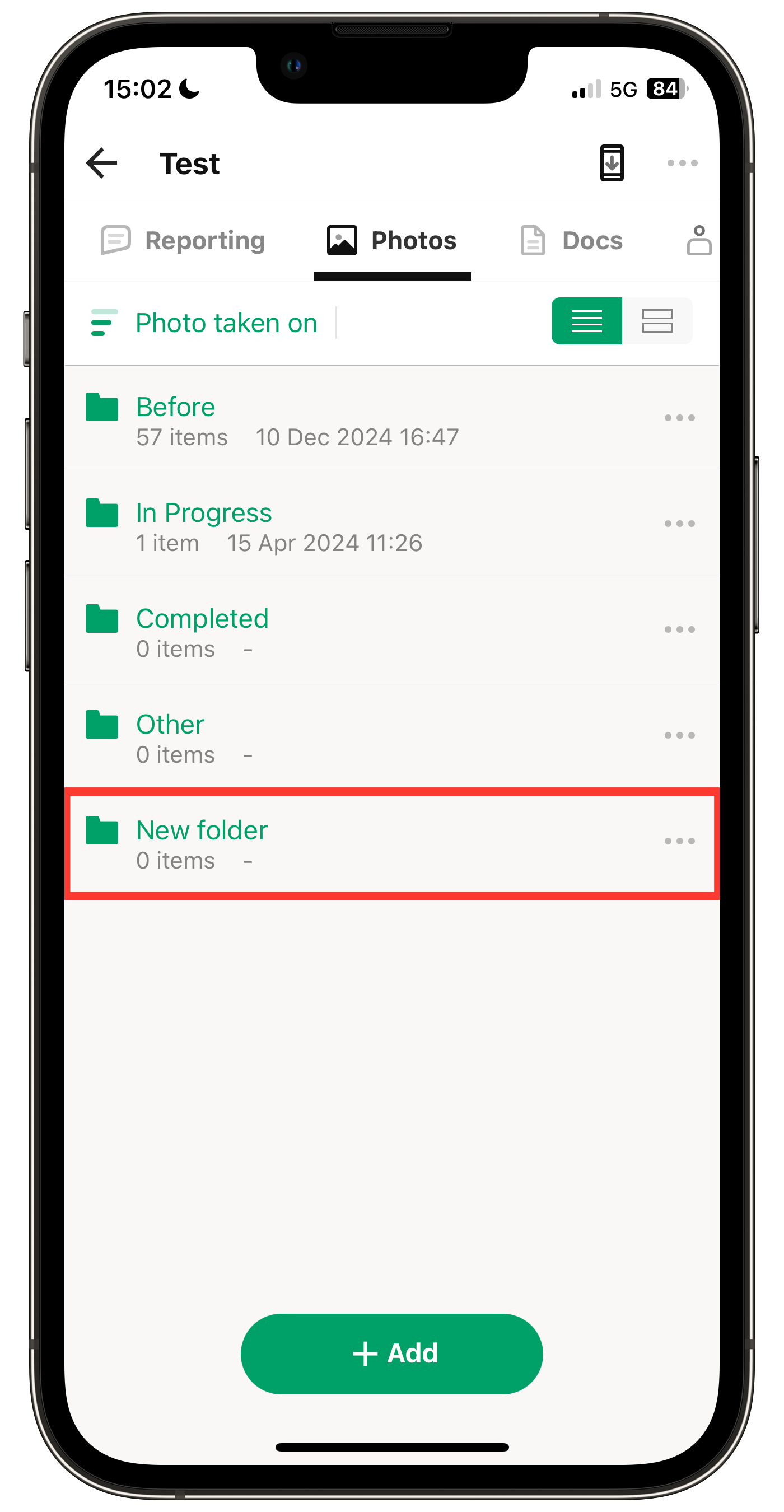
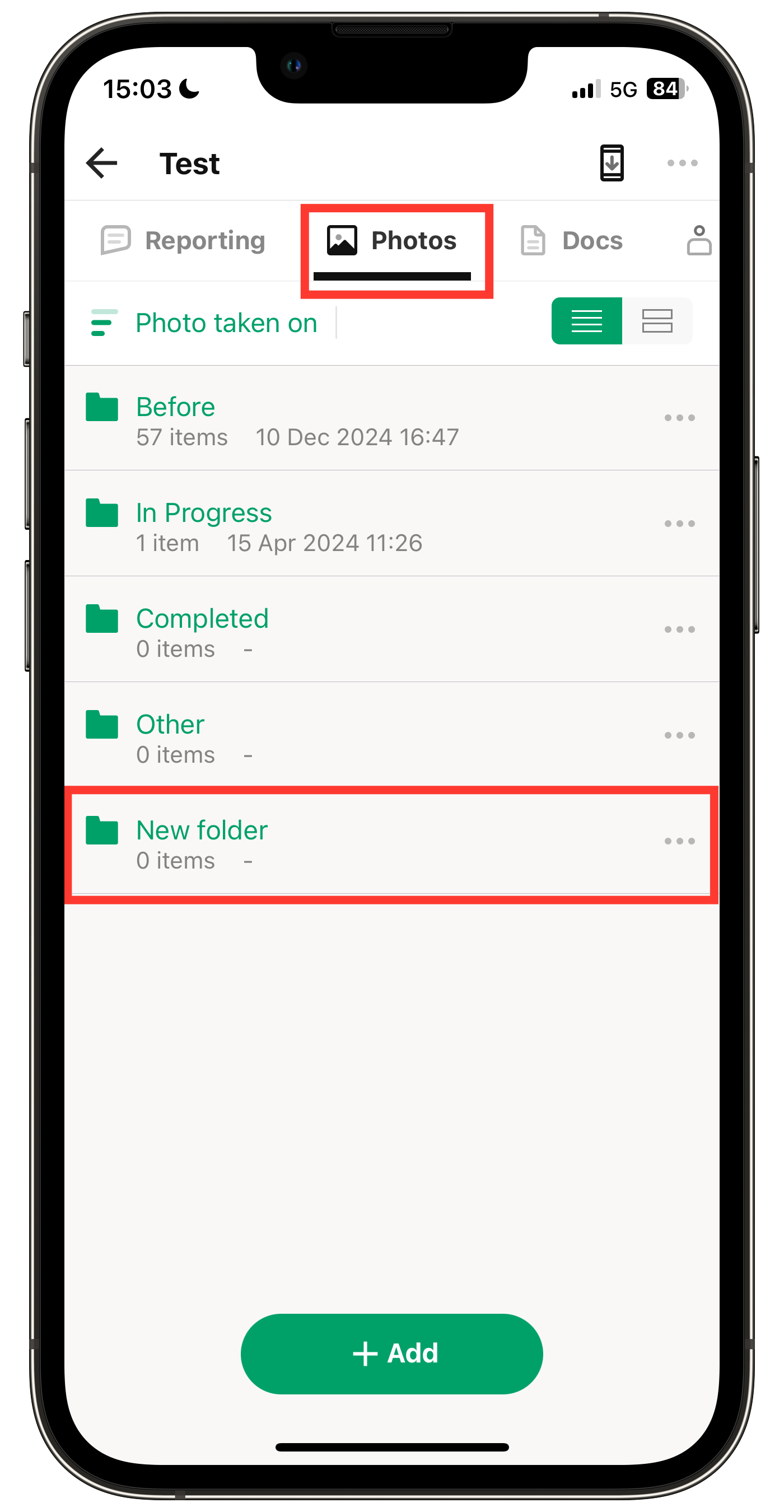
6. Folder addition complete.
Create a Folder Hierarchy (Smartphone)
You can create additional folders within a folder to build a hierarchy.
1. Open the folder where you want to create a subfolder from Photos.
For example, tap the "Site" folder in the image.
2. Tap "+ Add" and select Add Folders.
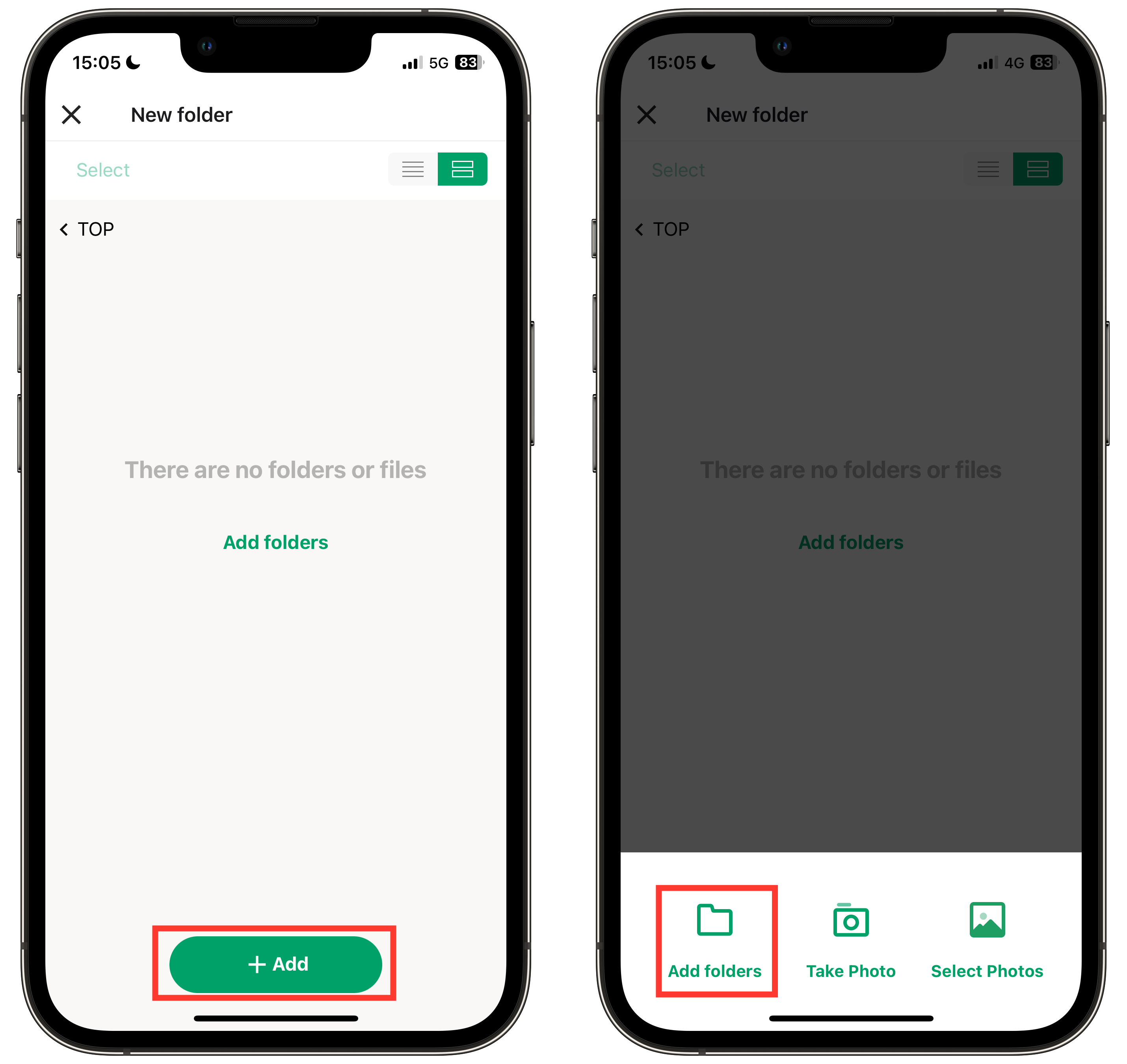
3. Enter the folder name and tap Add.
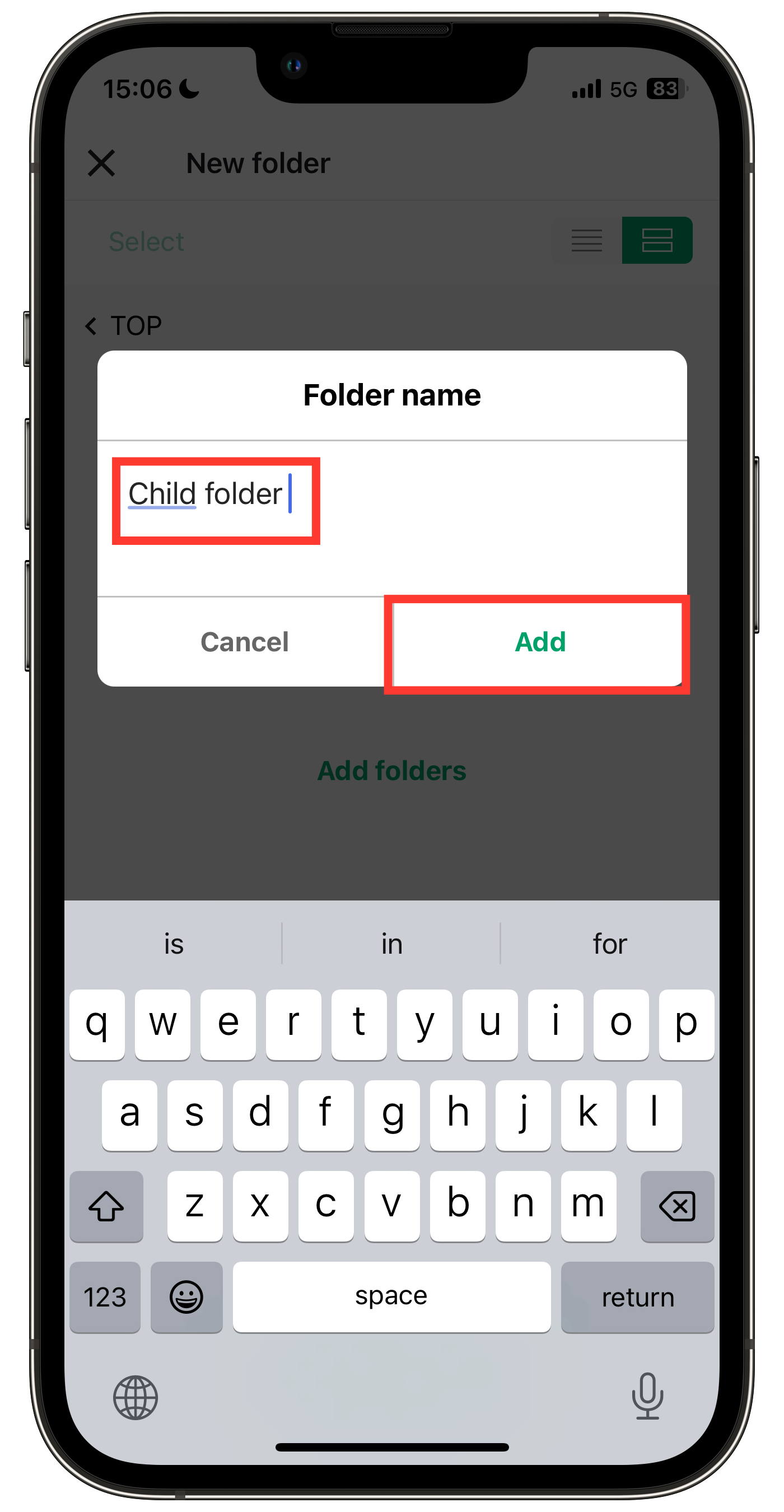
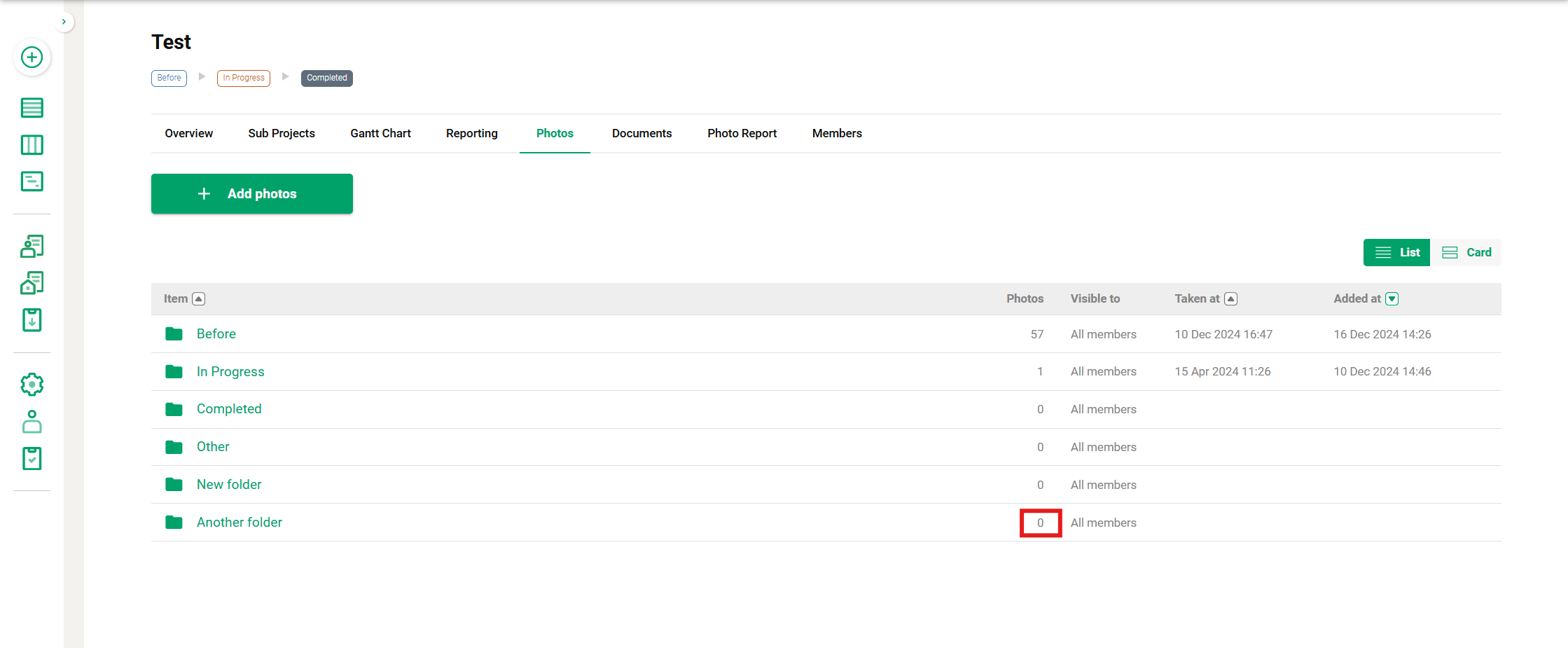
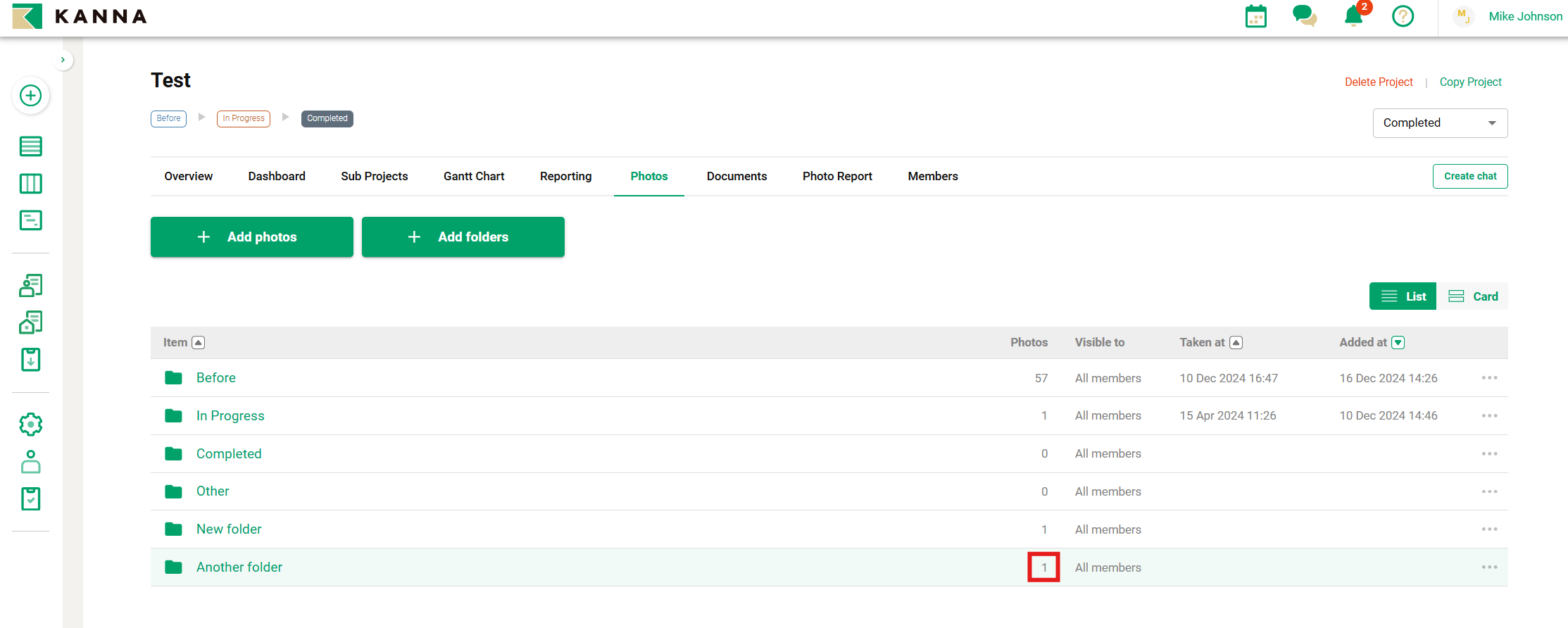
Note: For members from external companies, the number of files in subfolders will display as 0 until they open the parent folder containing the files.
(Example) If there is one file in a subfolder.
(Left) External company members (Right) Own company members
Add a Photo Folder from a Computer
1. Select a project from the Projects menu and click Photos.
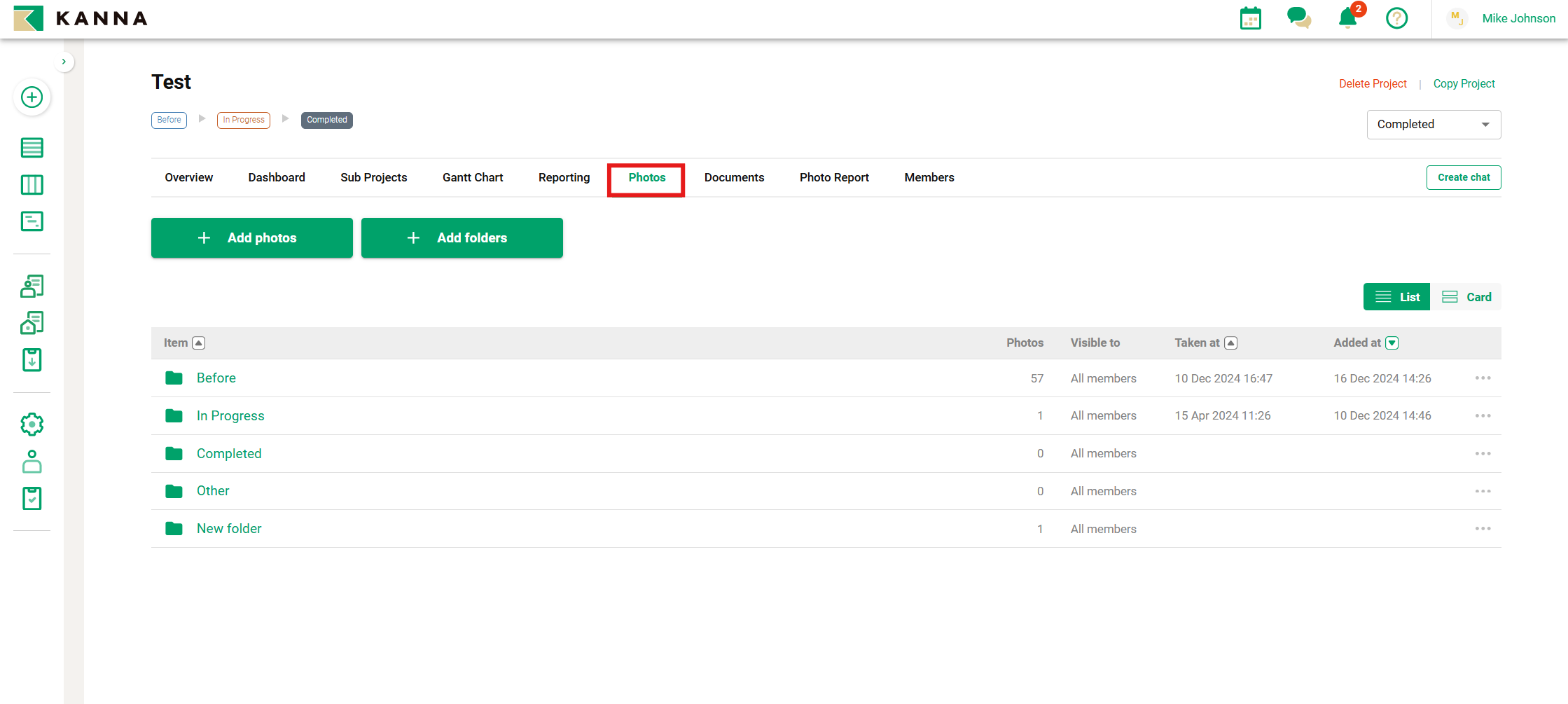
2. Click "+ Add Folders".
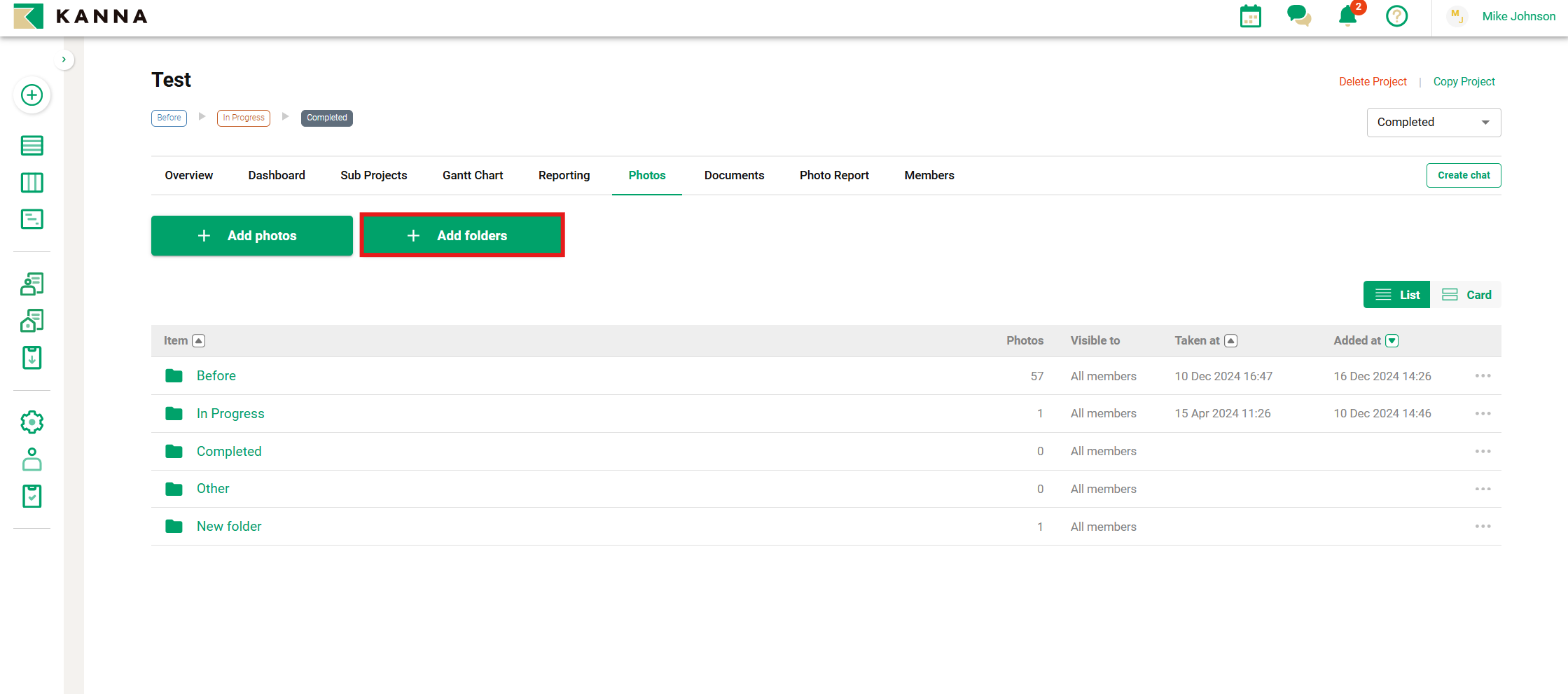
3. Enter the folder name and click Add.
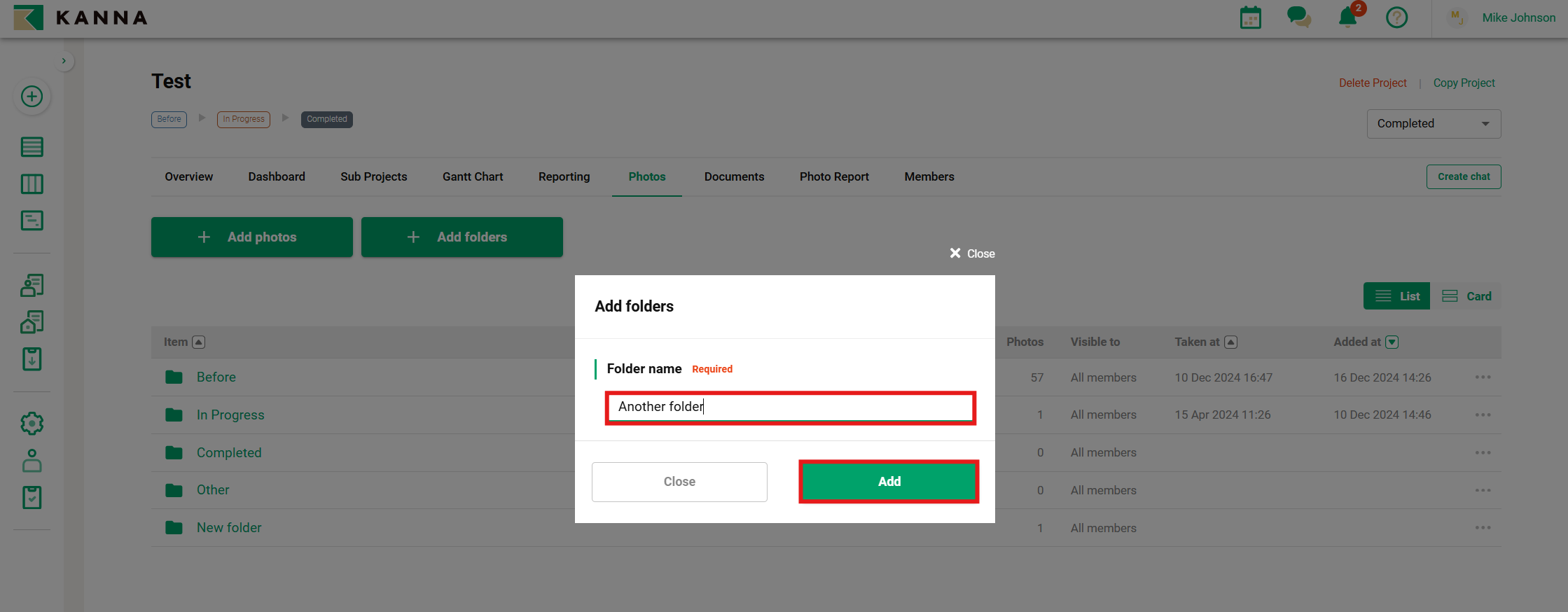
4. Folder addition complete.
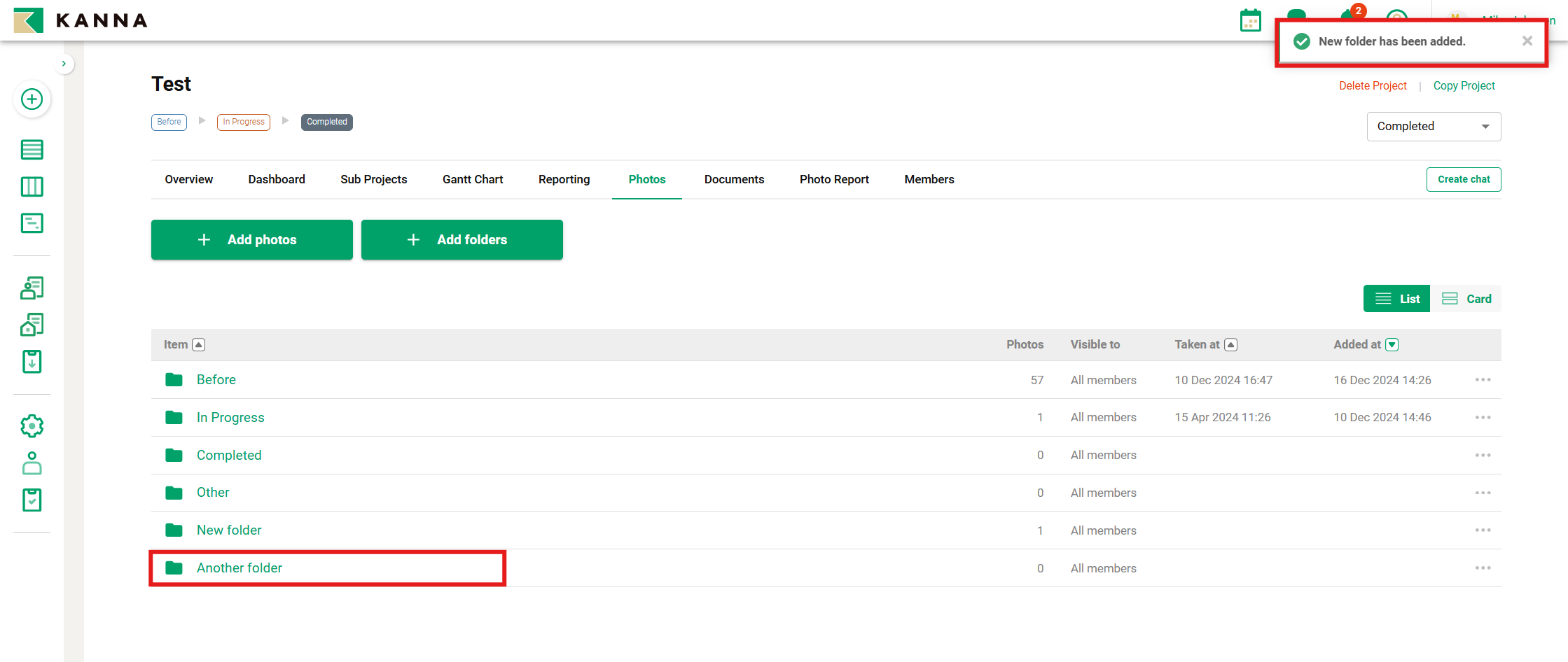
Create a Folder Hierarchy (PC)
You can create additional folders within a folder to build a hierarchy.
1. Open the folder where you want to create a subfolder from Photos.
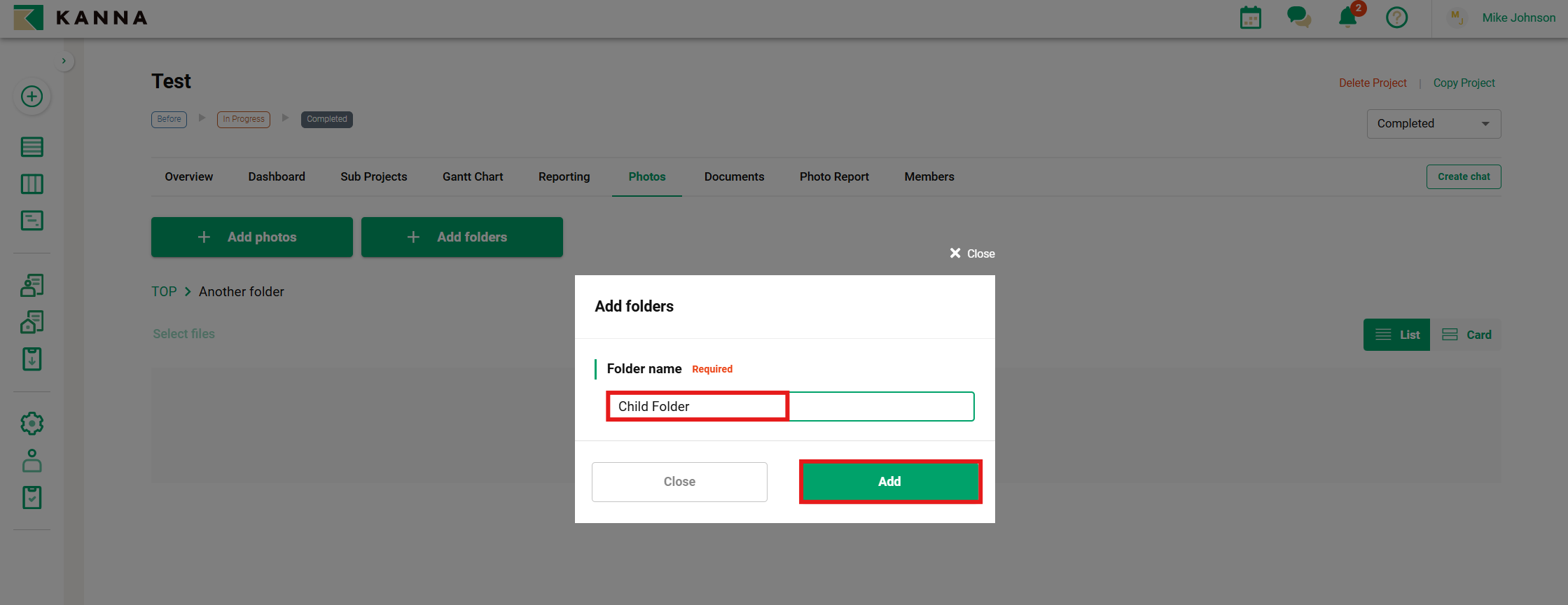
For example, click the "Another Folder" folder in the image.
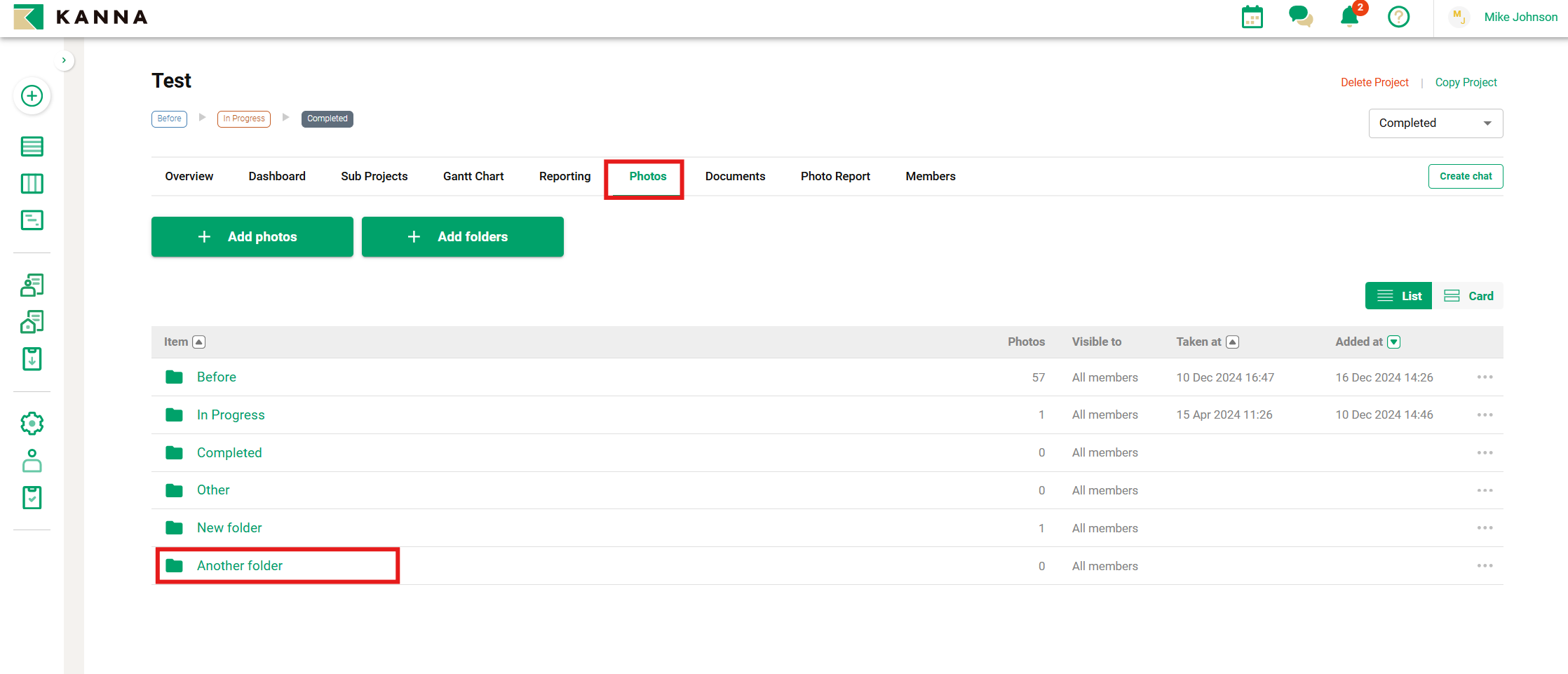
2. Click "+ Add Folders".
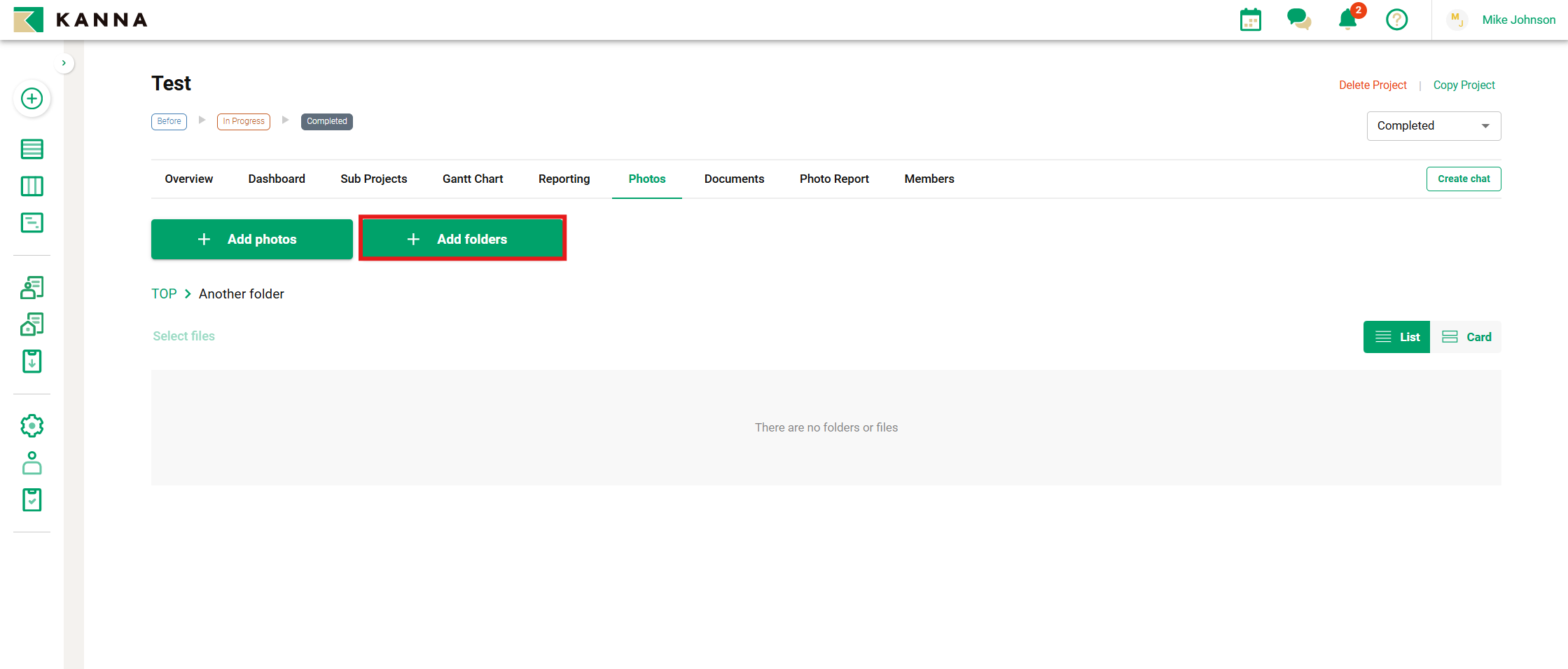
3. Enter the folder name and click Add.
Note: For members from external companies, the number of files in subfolders will display as 0 until they open the parent folder containing the files.
(Example) If there is one file in a subfolder.
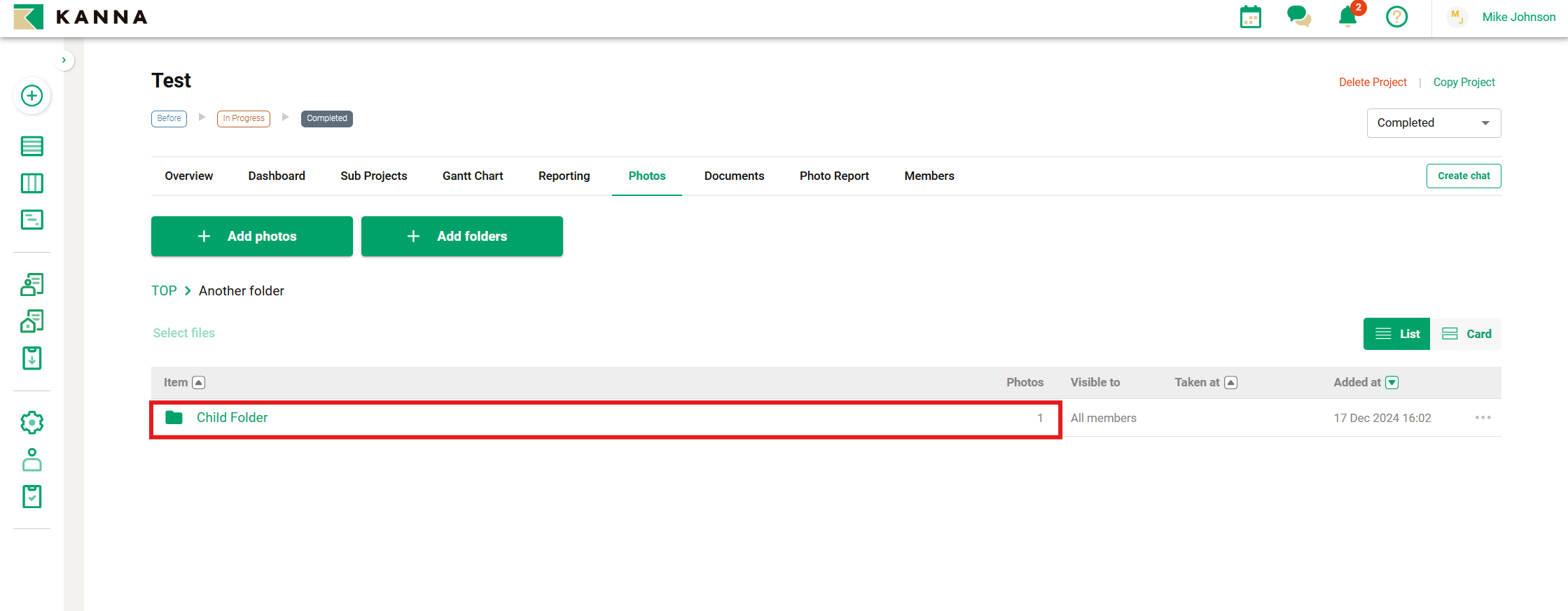
(Top) External company members, (Bottom) Own company members