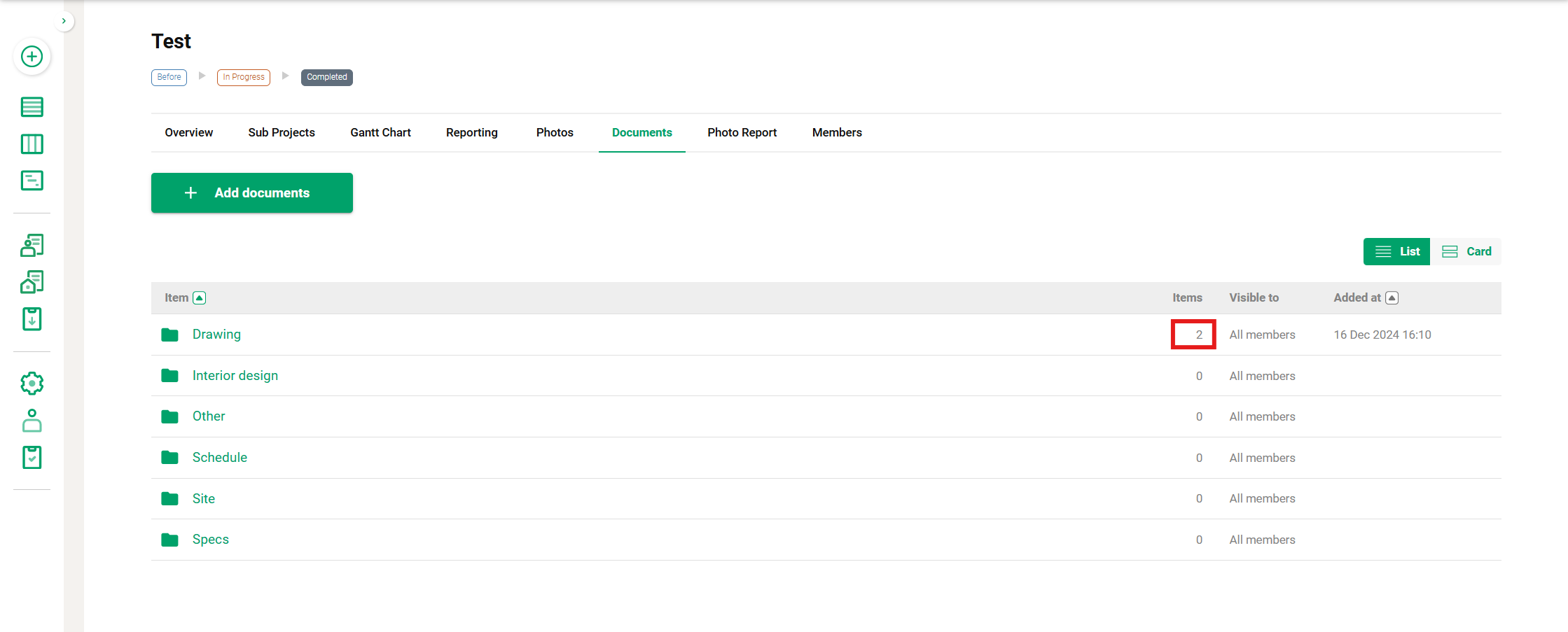
By adding folders, you can create folder hierarchies.
Note: You can create up to a maximum of 100 folders.
Additionally, you can set the sharing settings for each document folder.
- Public to All: The folder is shared with all members in the project.
- Restricted Access: You can select specific companies within the project to share the folder with.
Note: Only "Project Admins" from your company or external companies can create folders.
If your project permission level is General, you will not be able to add folders.
(Reference article: What you can do with each authority)
Add from a Smartphone
1. Tap the project where you want to add a folder from the Projects menu.
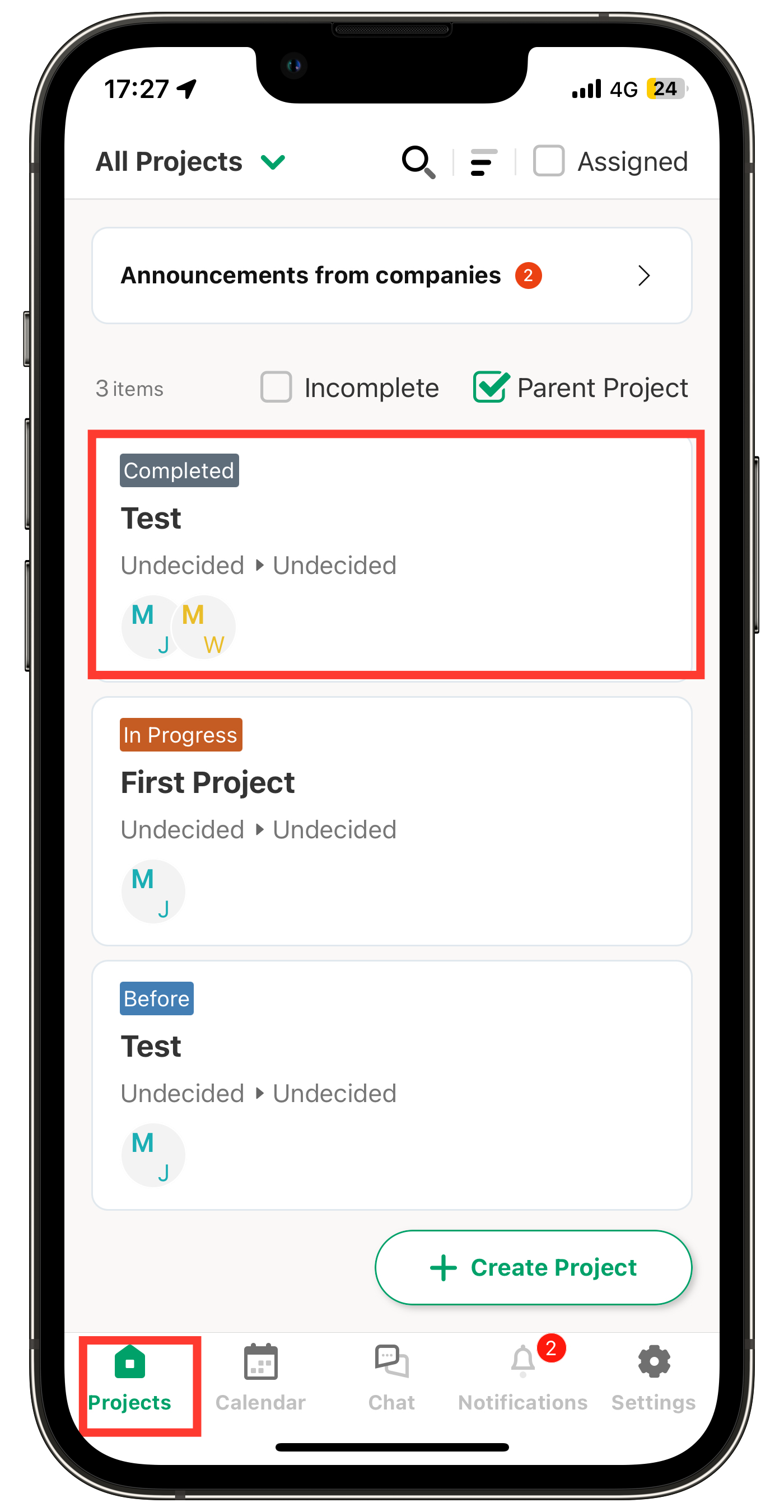
2. Tap Docs.
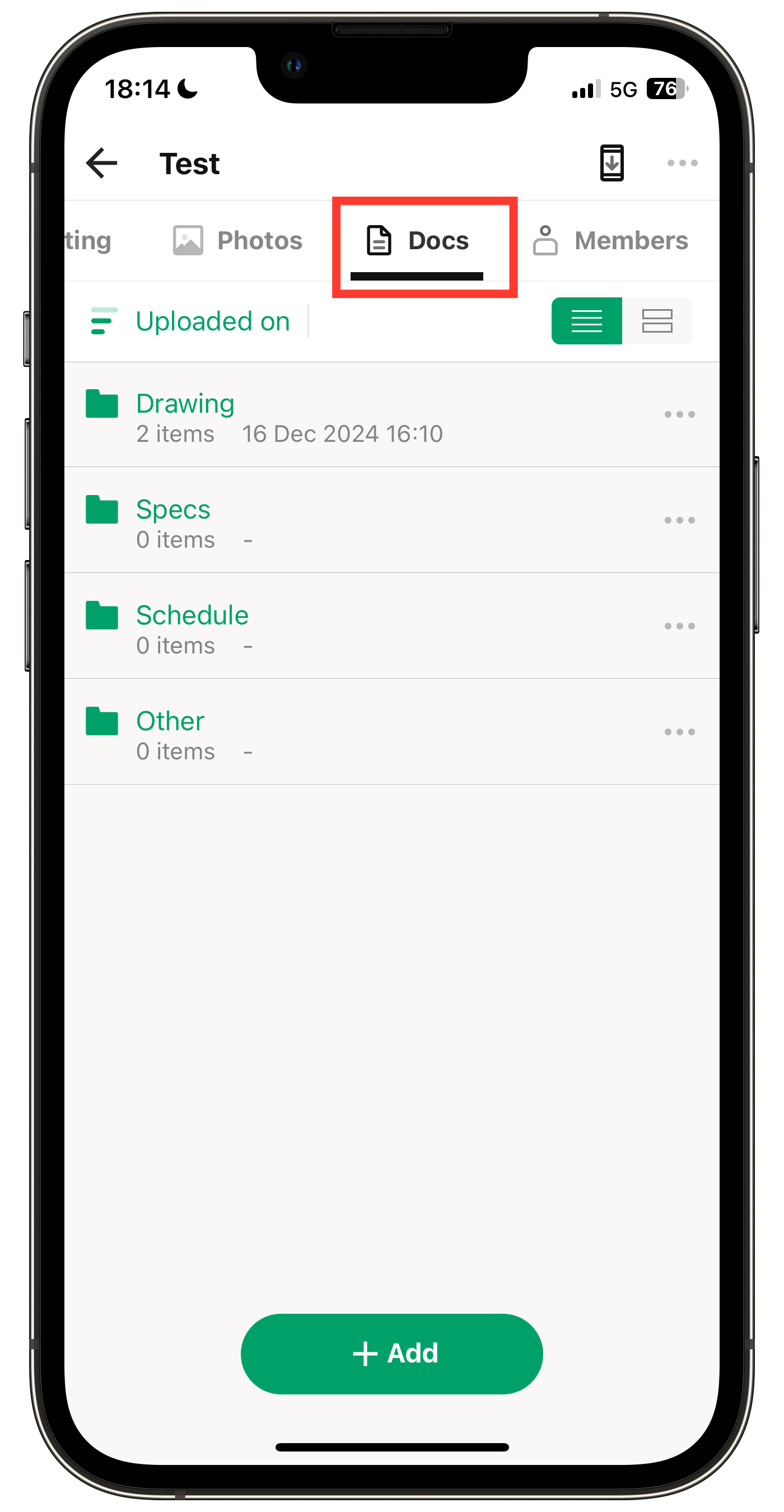
3. Tap "+ Add" at the bottom.
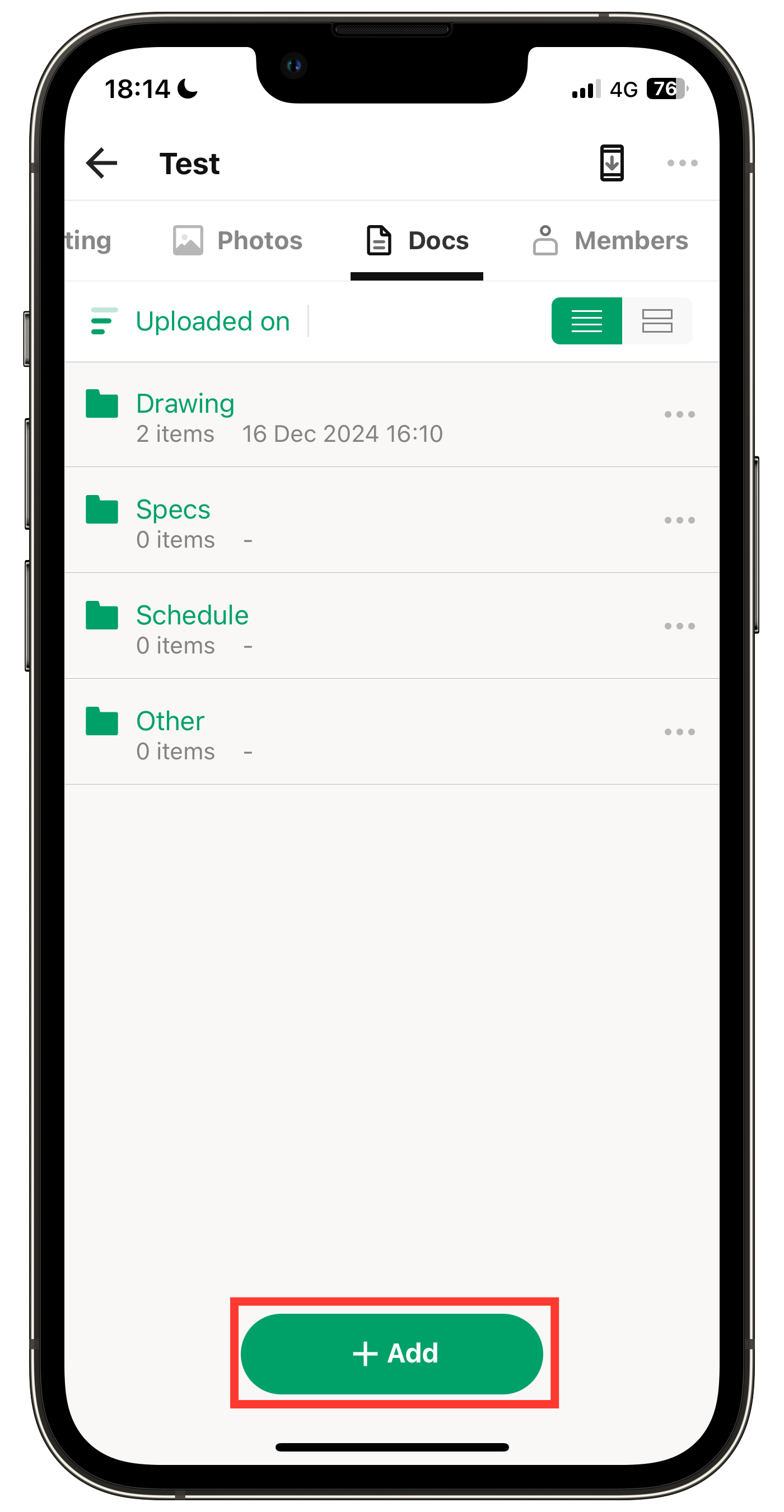
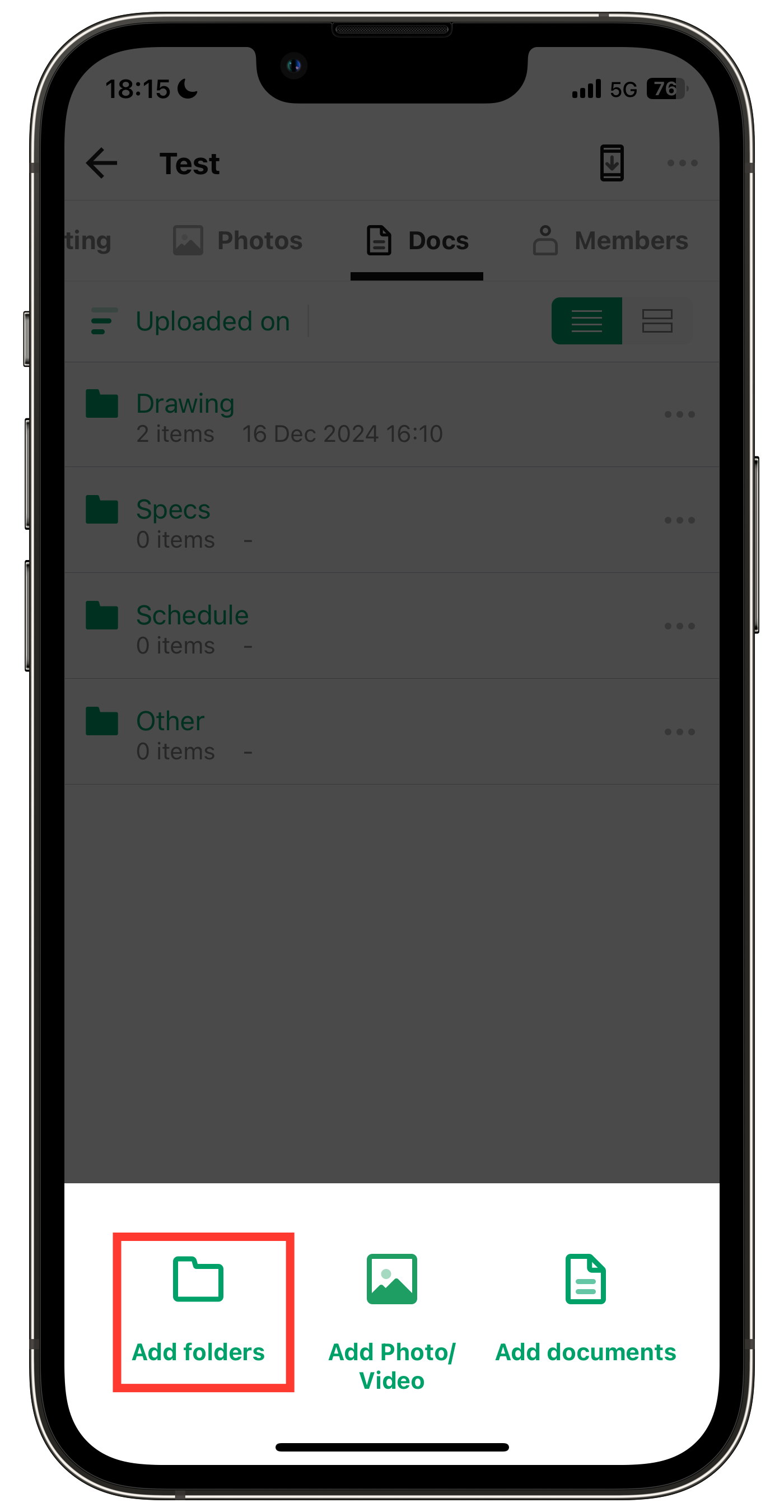
4. Tap Add Folders at the bottom.
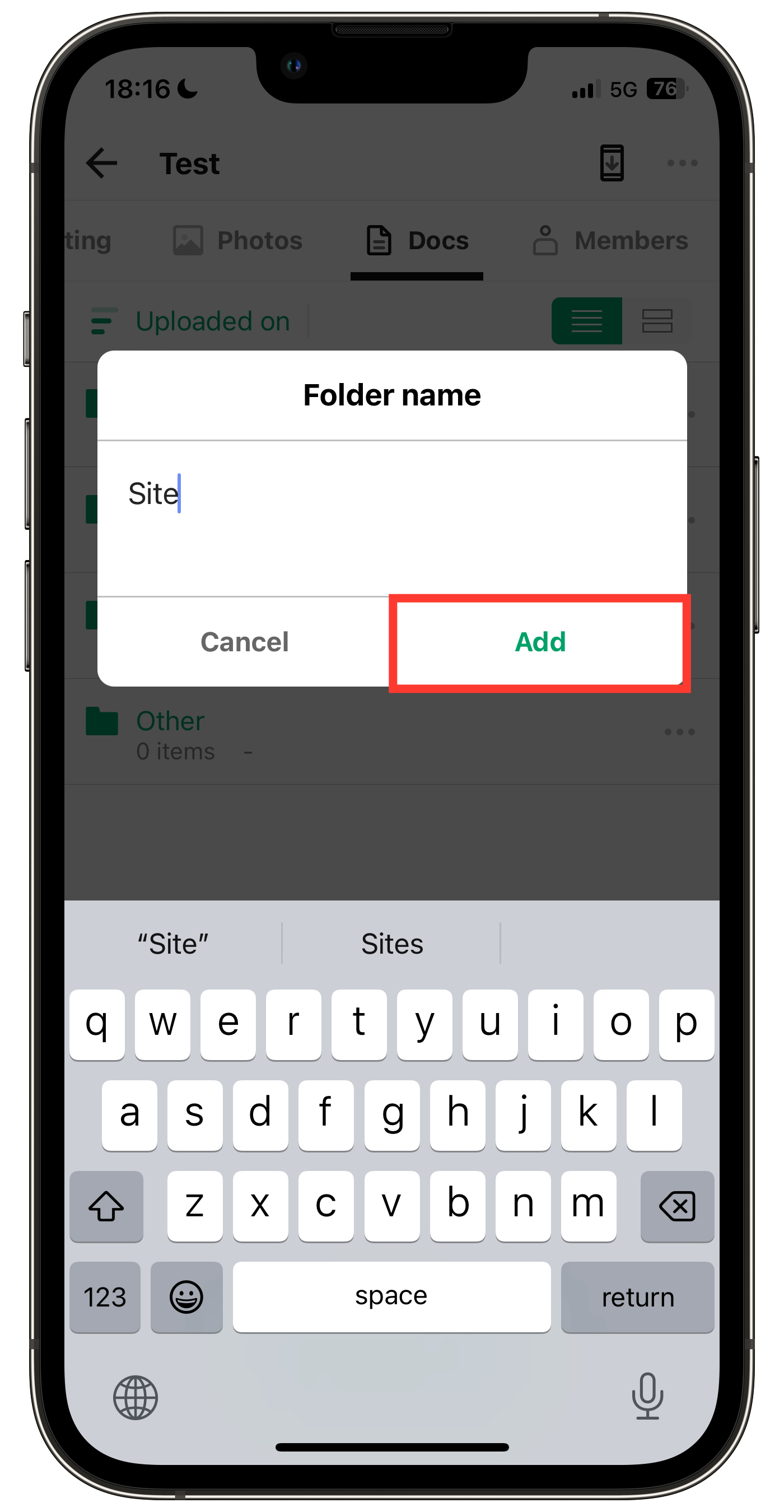
5. Enter the folder name and tap Add.
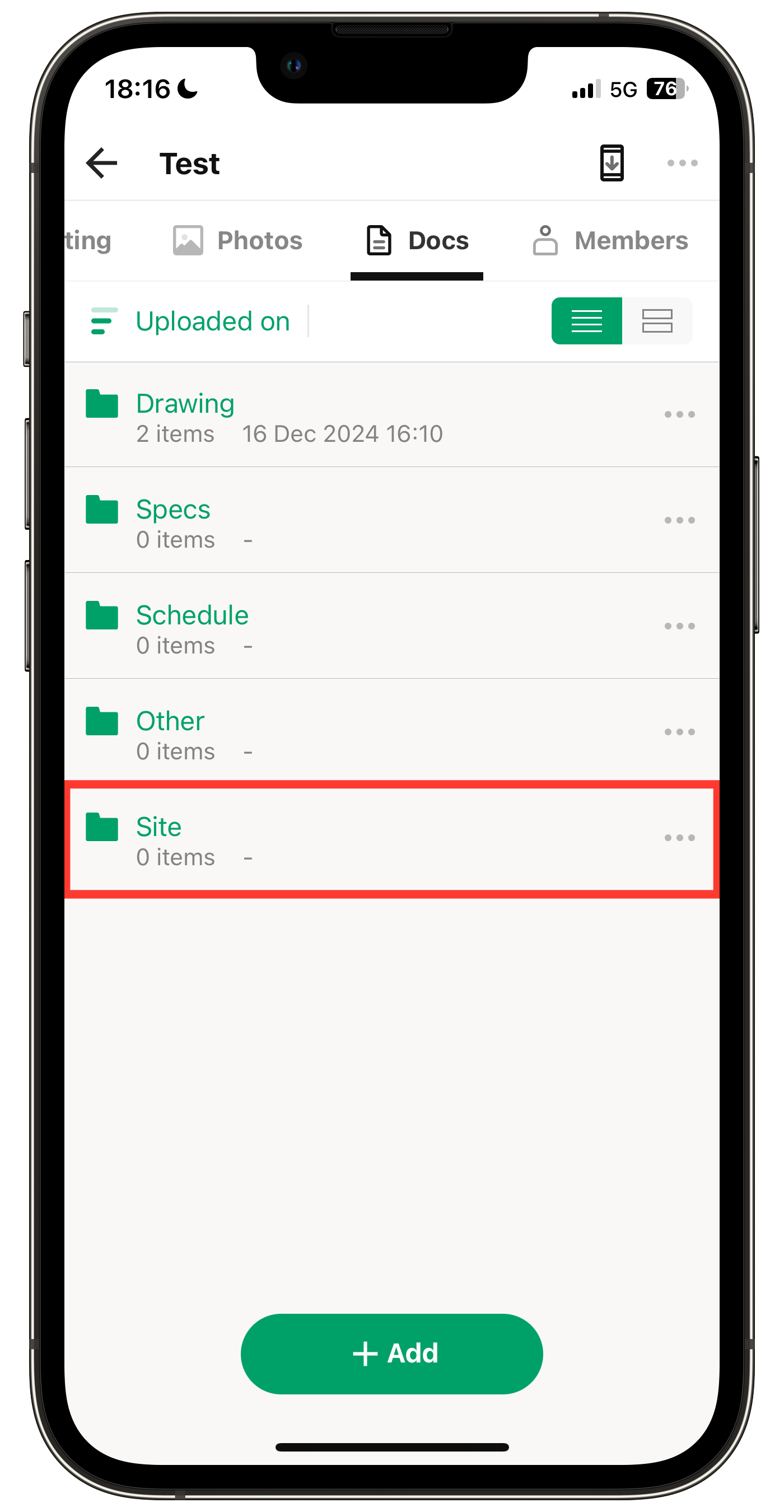
6. Folder addition complete.
Create Folder Hierarchy (Smartphone)
You can create additional folders within a folder to build a hierarchy.
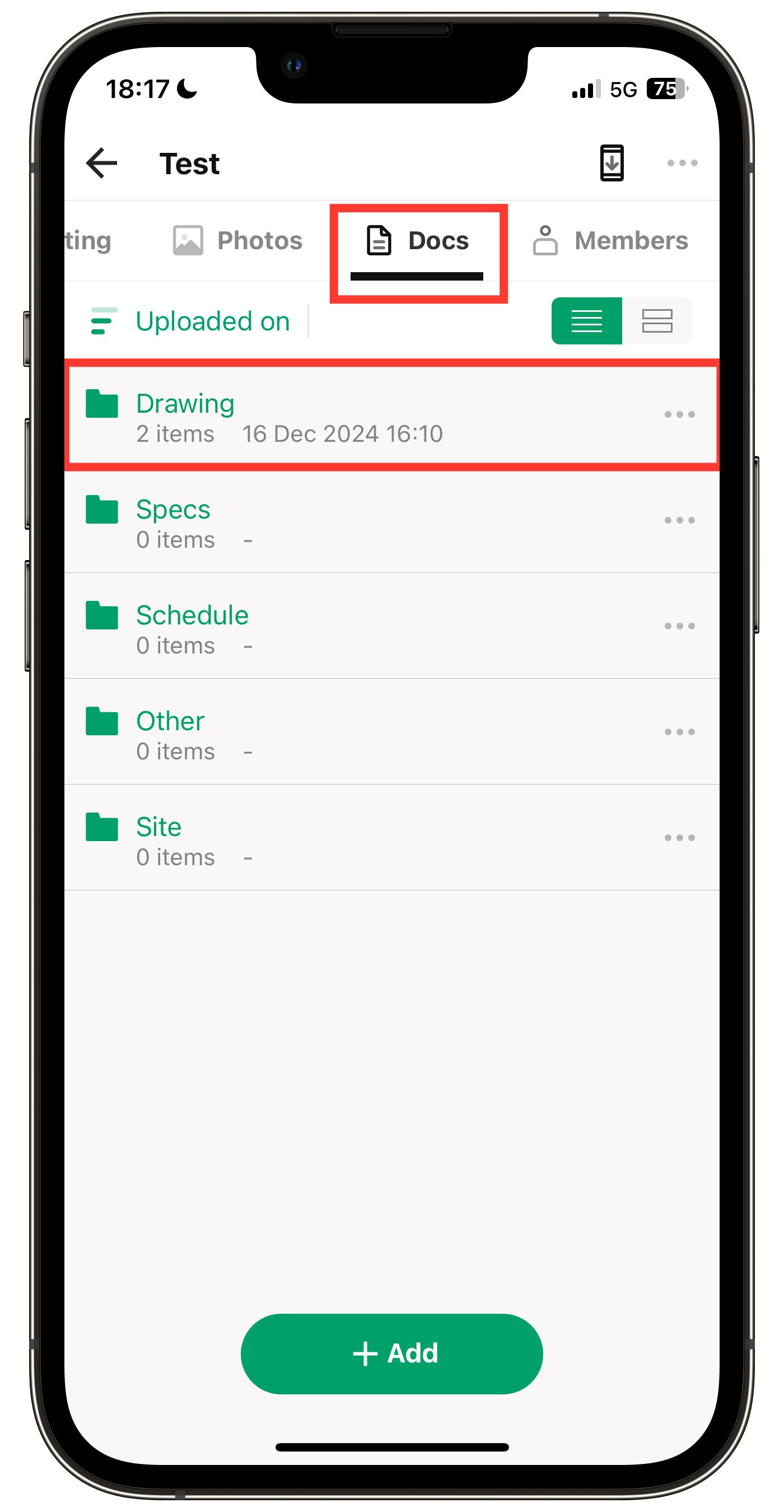
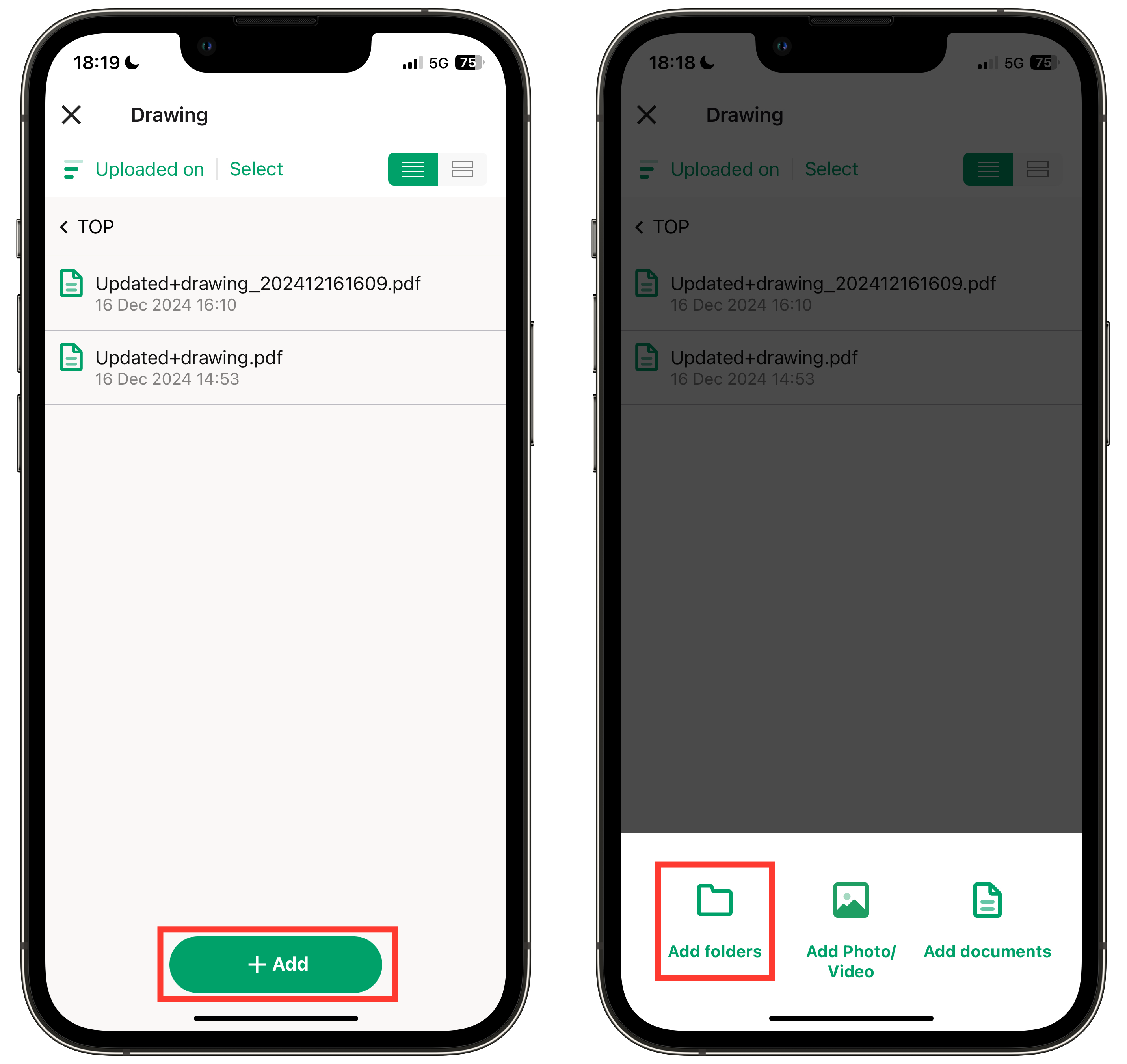
1. Open the folder where you want to create a subfolder from Docs.
For example, tap the "Drawing" folder in the image.
2. Tap "+ Add" and select Add Folders.
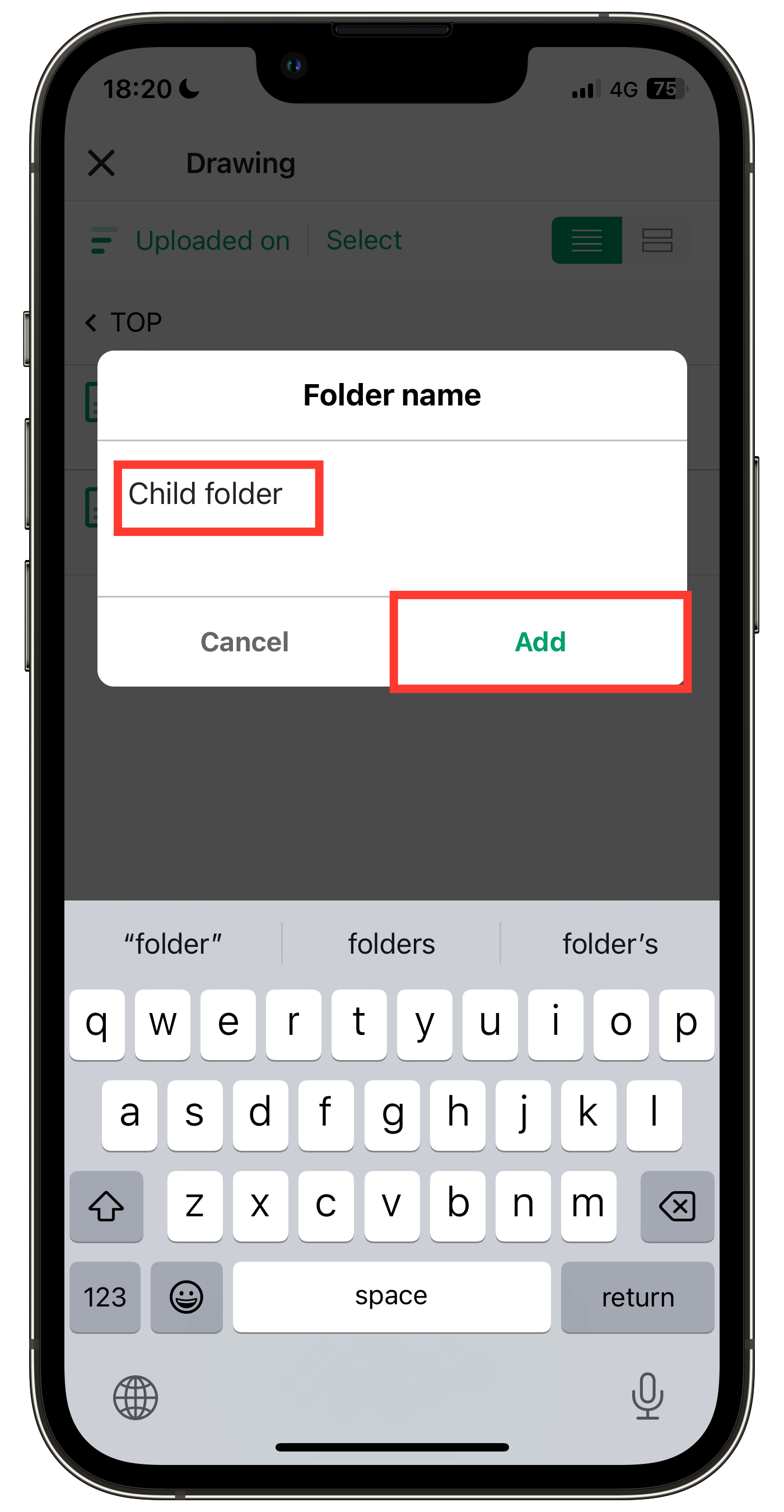
3. Enter the folder name and tap Add.
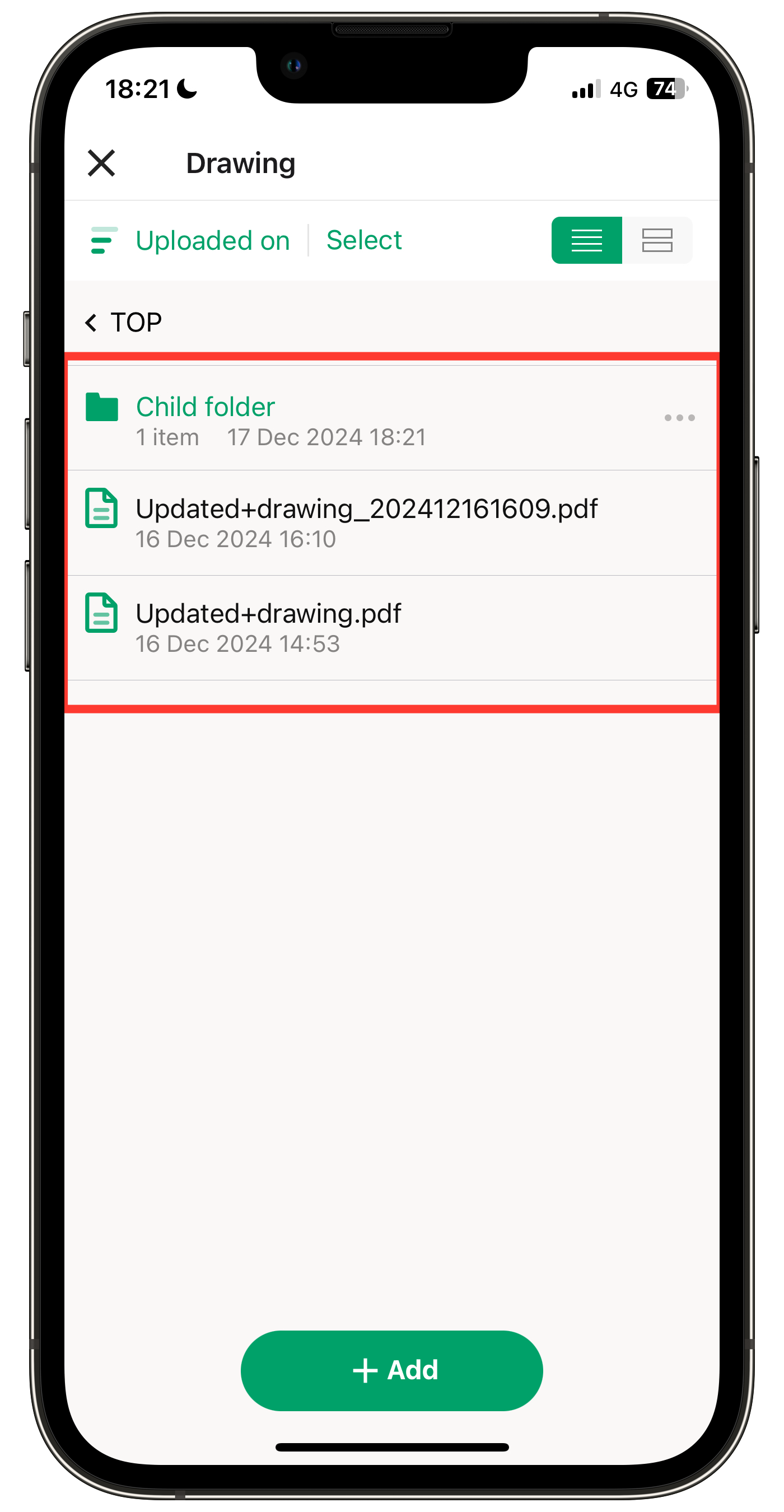
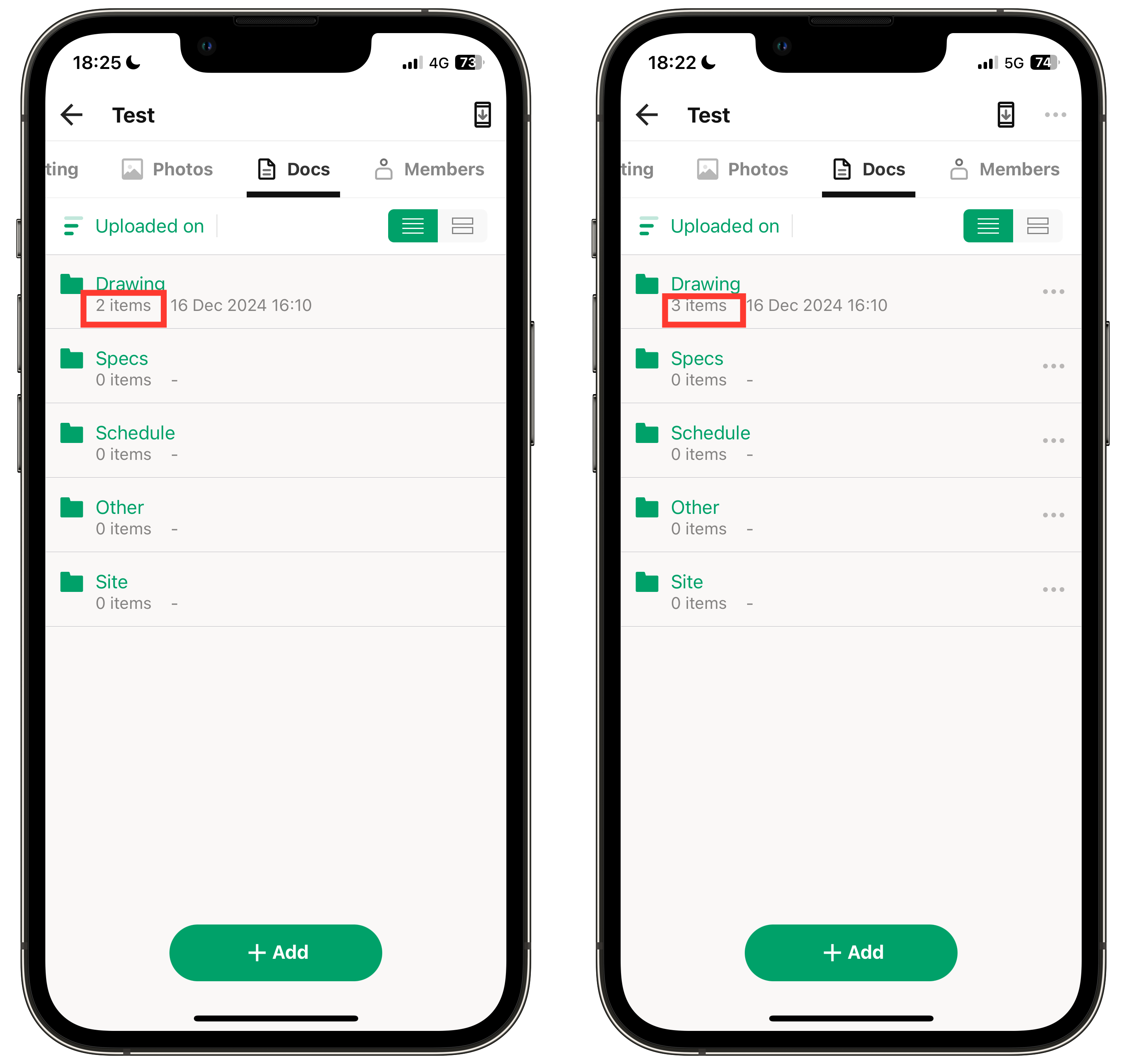
Note: For members from external companies, the number of files in subfolders will display as 0 until they open the parent folder containing the files.
(Example) If the main folder contains 2 files and a subfolder with 1 file.
(Left) External company members (Right) Own/Internal company members
Add from a Computer
1. Click on the project where you want to add a folder from the "Projects" menu.
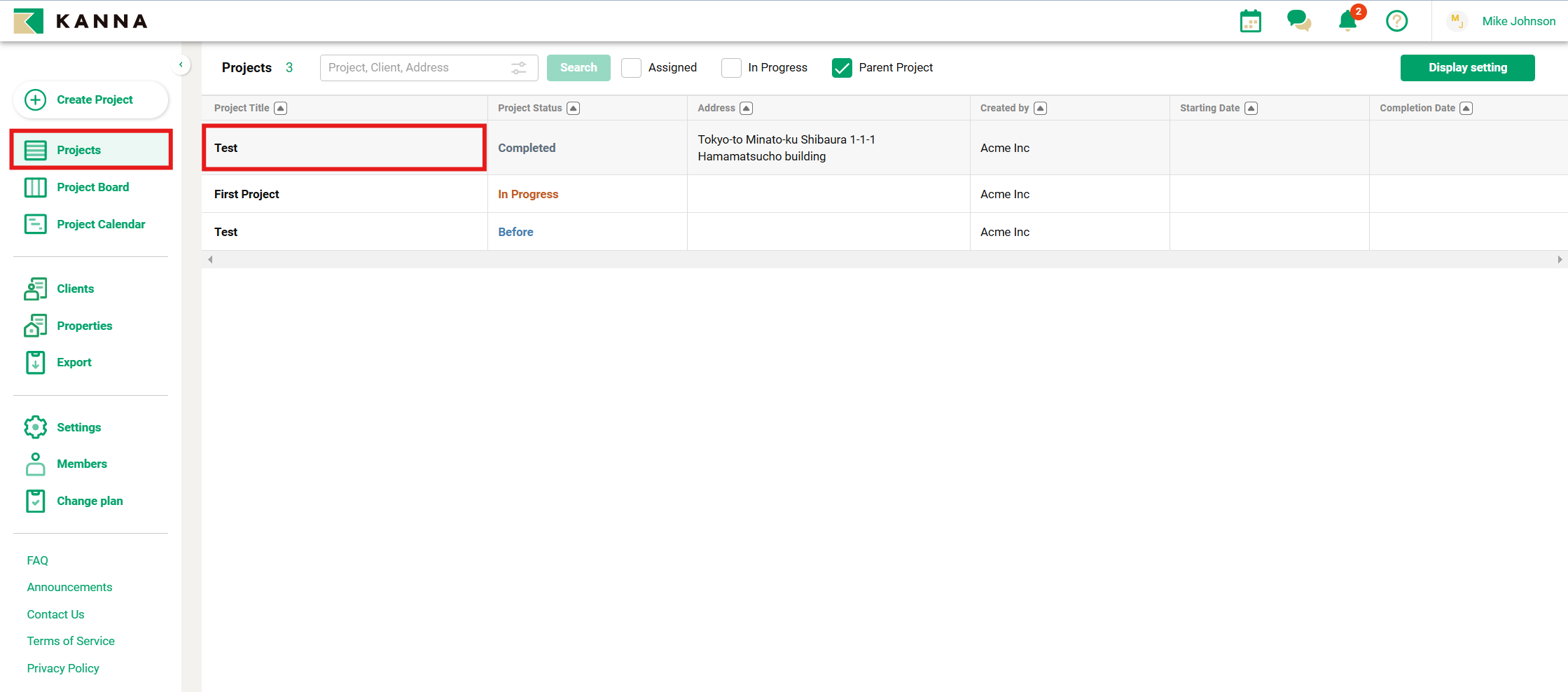
2. Click Documents.
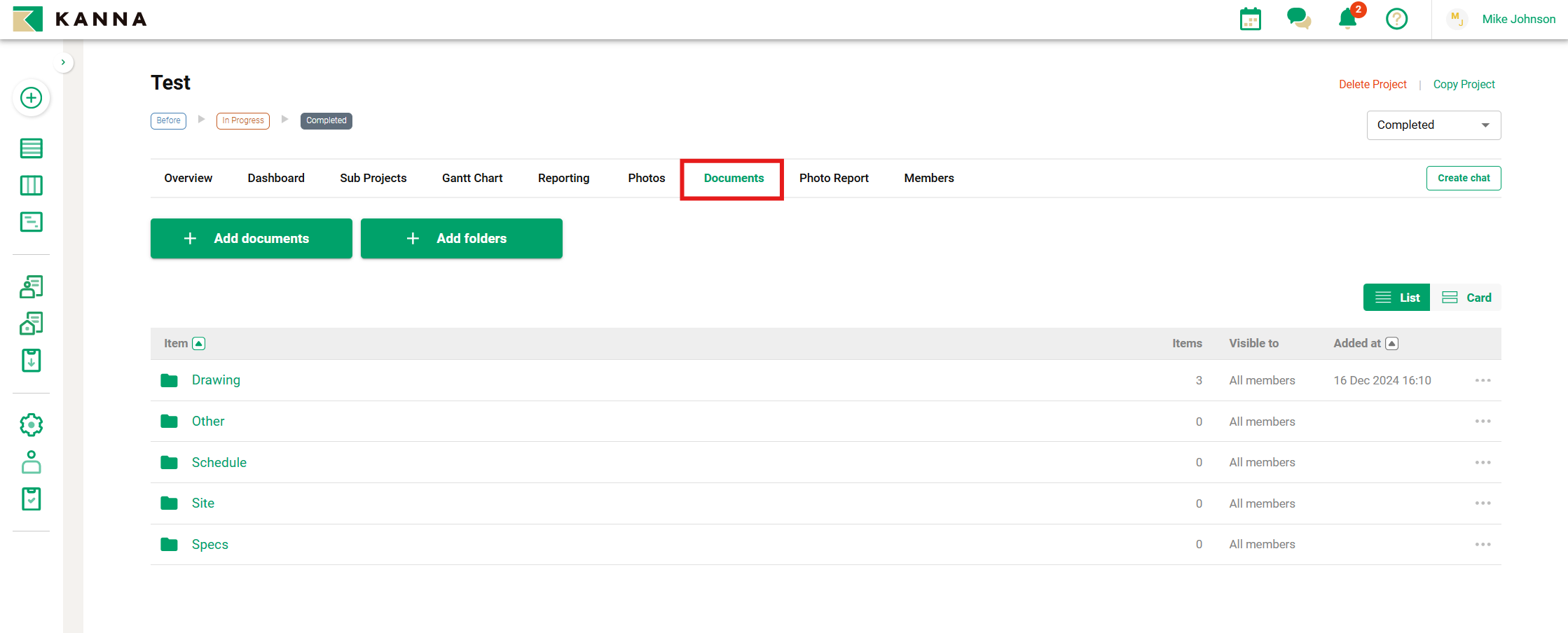
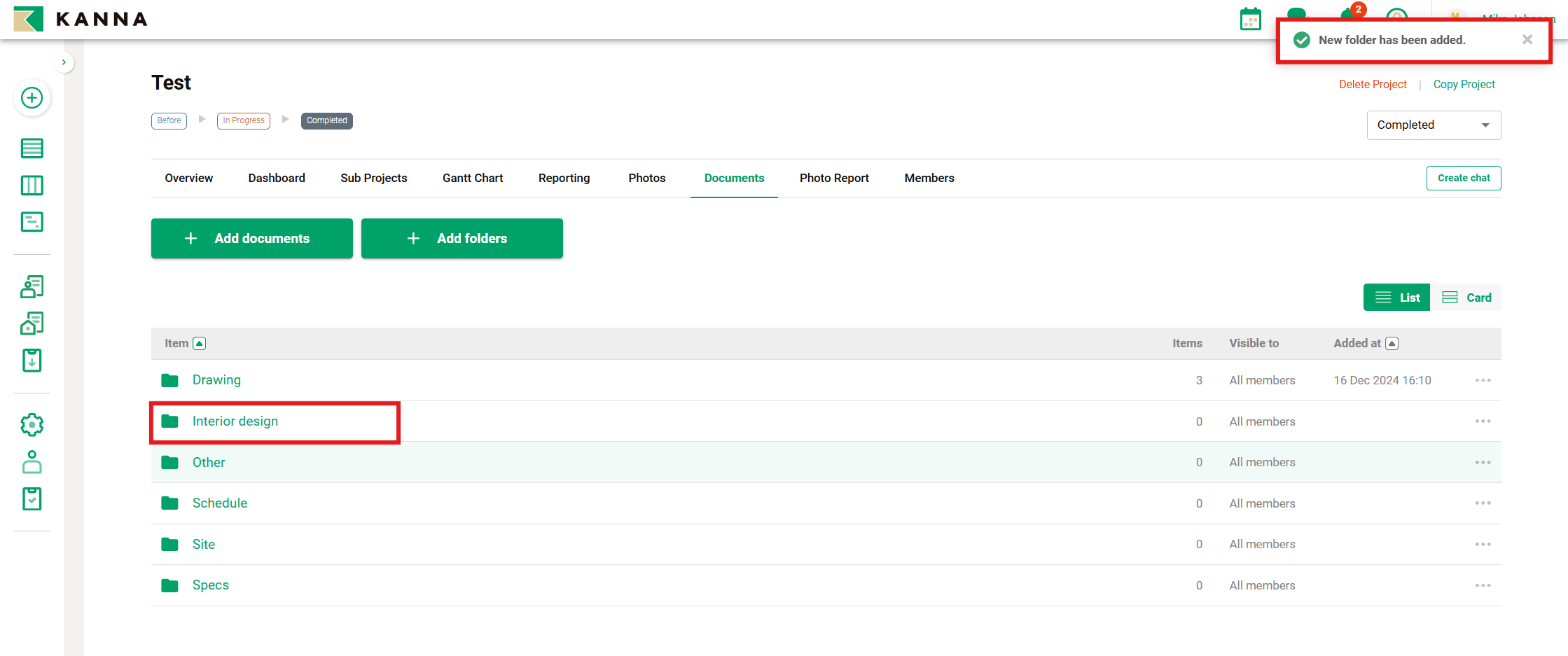
3. Click "+Add Folder".
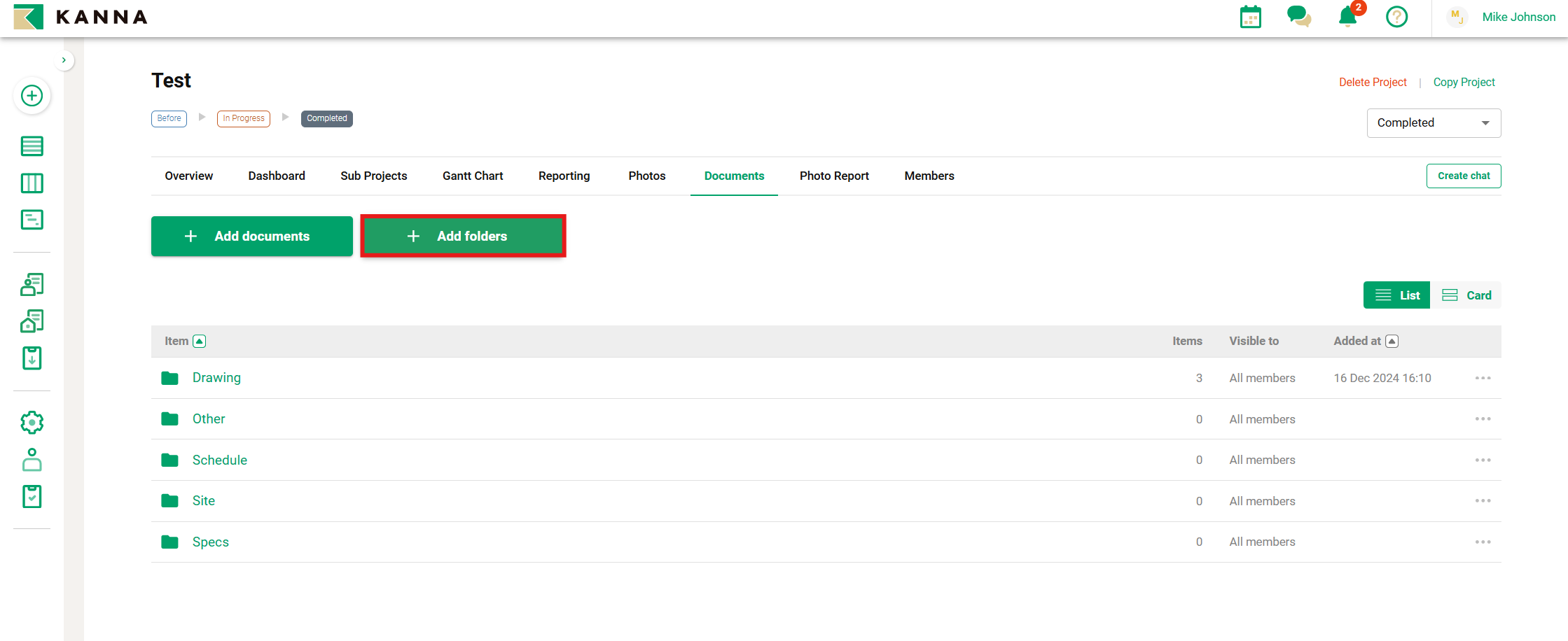
4. Enter the folder name and click Add.
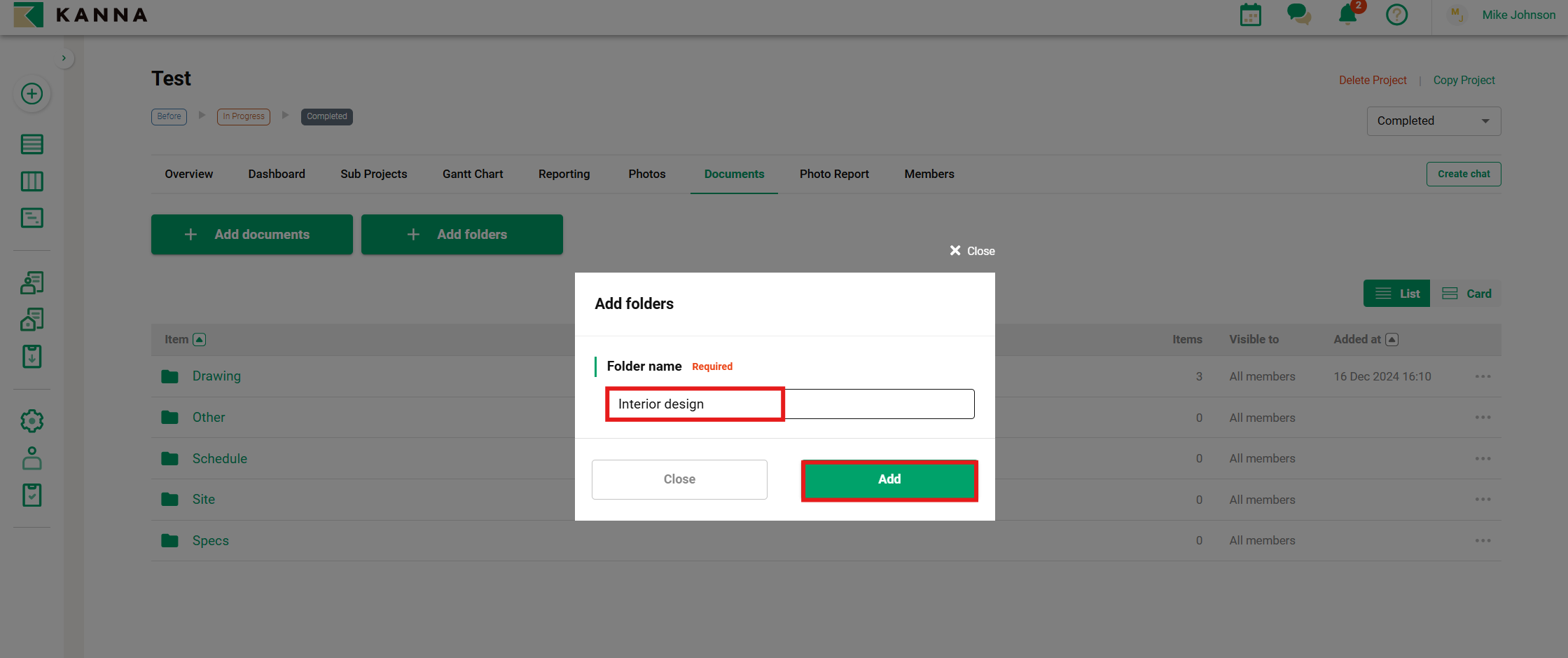
5. Folder addition complete.
Create Folder Hierarchy (PC)
You can create additional folders within a folder to build a hierarchy.
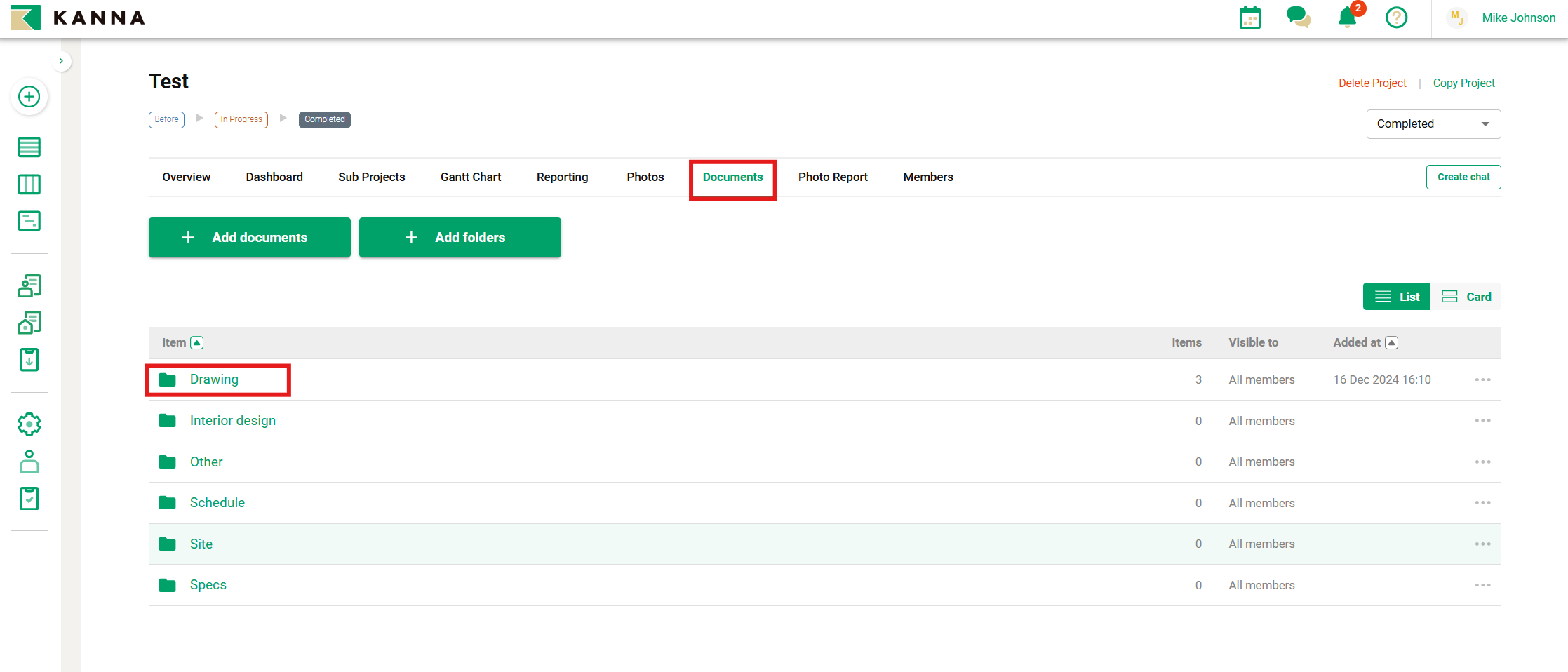
1. Open the folder where you want to create a subfolder from Documents.
For example, click the "Drawing" folder in the image.
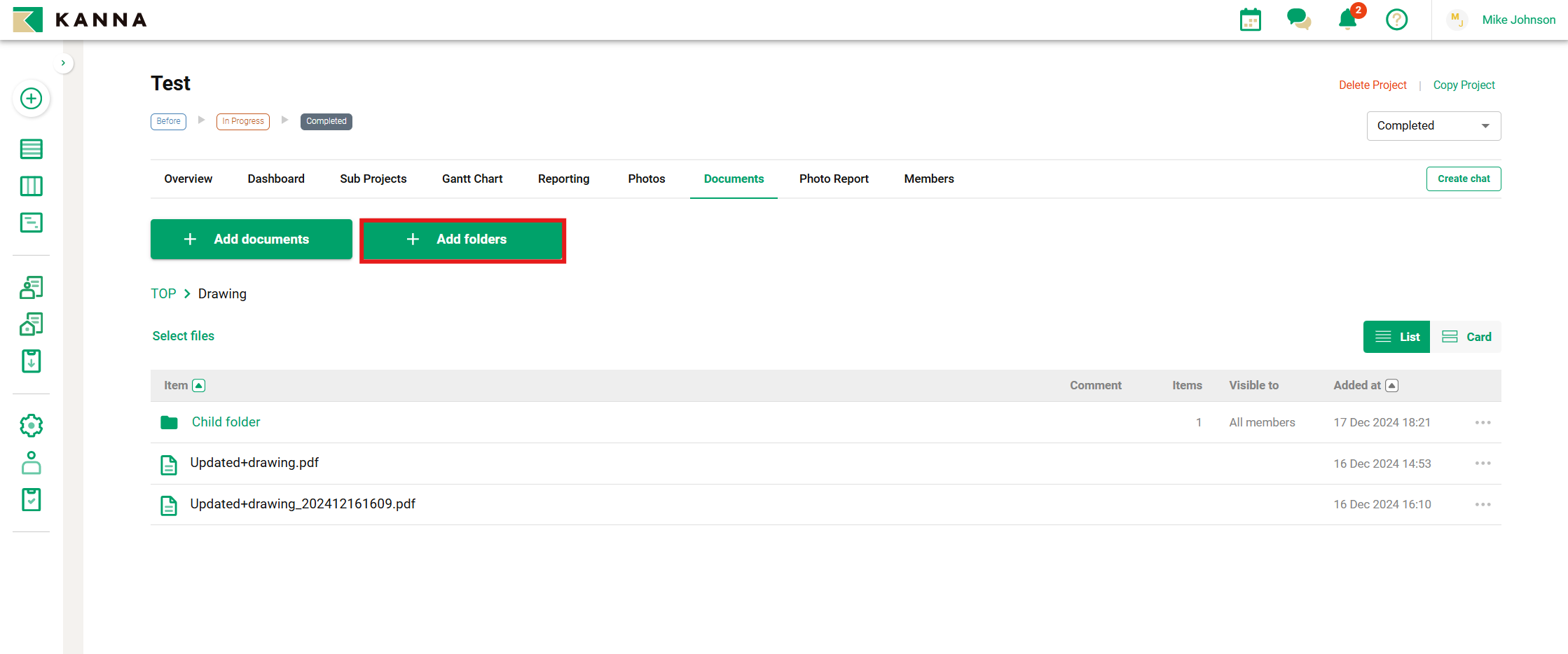
2. Click "+ Add Folder".
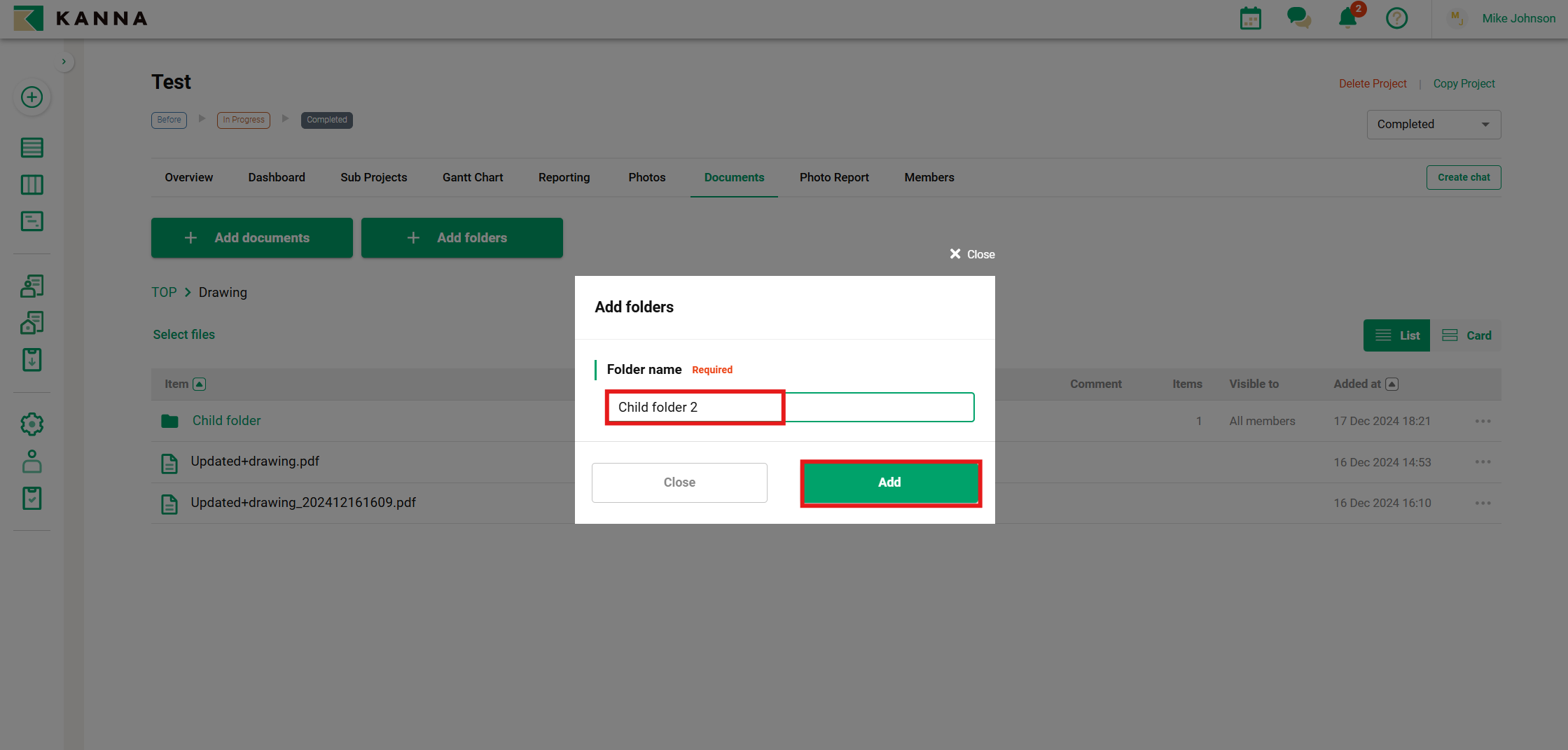
3. Enter the folder name and click Add.
Note: For members from external companies, the number of files in subfolders will display as 0 until they open the parent folder containing the files.
(Example) If the main folder contains 2 files and 2 subfolders with 1 file.
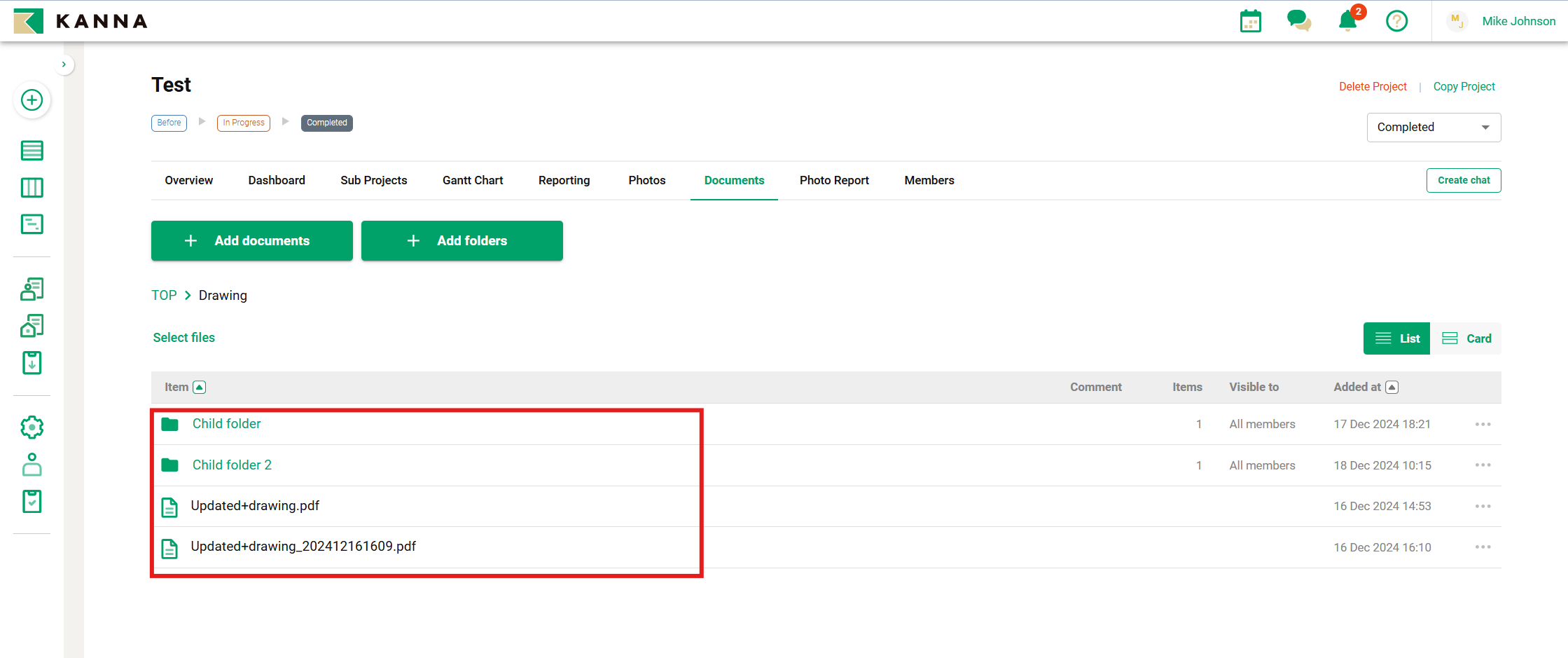
(Top) External company members, (Bottom) Own/Internal company members