This article explains the features and uses of the bulletin board function.
The bulletin board function allows you to send announcements from the company, such as work suspension instructions due to deteriorating weather conditions like typhoons or notifications about issues that occurred on-site, to both internal and external members simultaneously. It also supports attaching photos and videos, as well as selecting specific recipients to notify only certain members.
Only members with owner or company admin permissions for the internal account can post to the bulletin board.
Note: Announcements will not be notified if notification settings are turned off.
Note: The availability of features depends on your subscription plan. If you wish to use the bulletin board function, please contact us here or reach out to your representative.
Create a "Company Announcement"
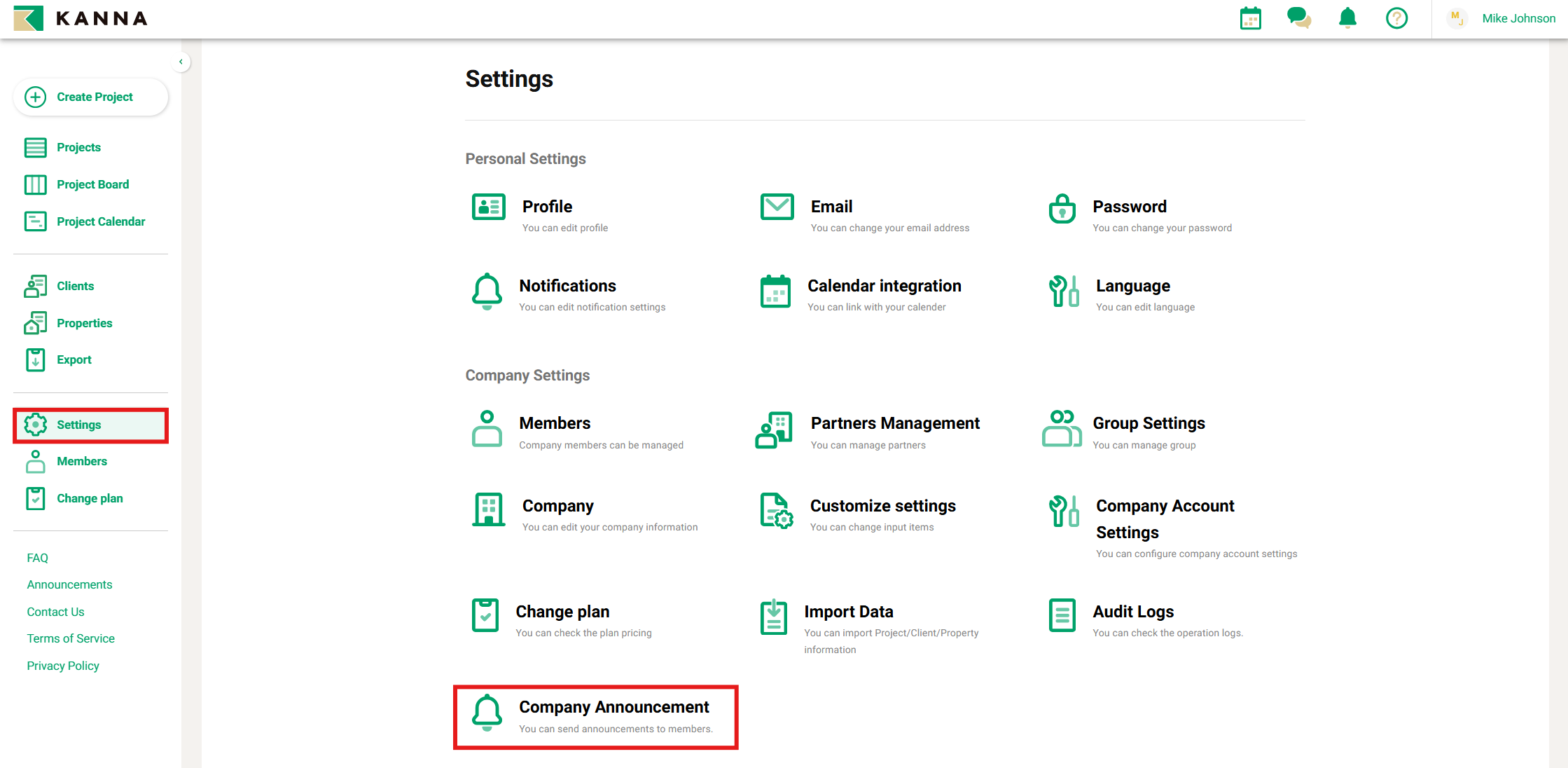
1. From Settings, click Company Announcement.
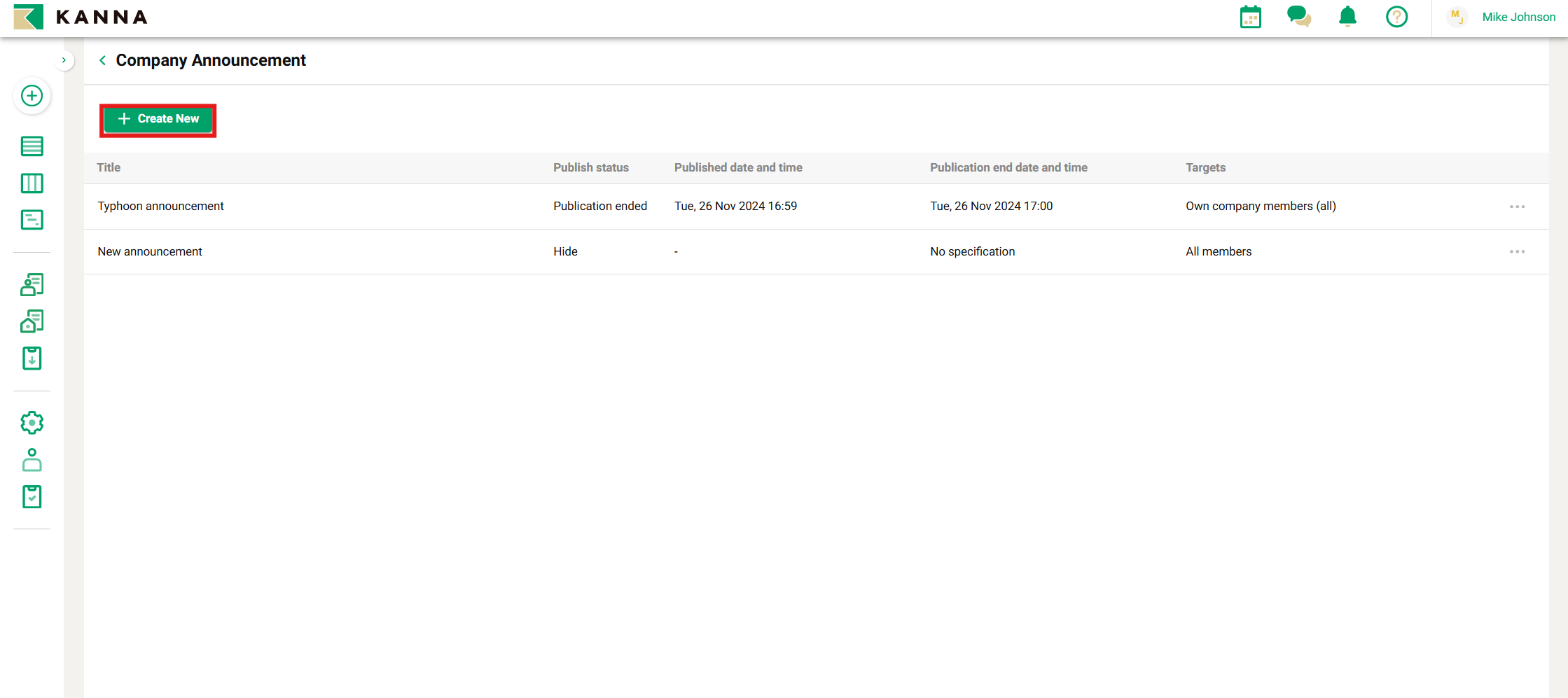
2. Click "+ Create New".
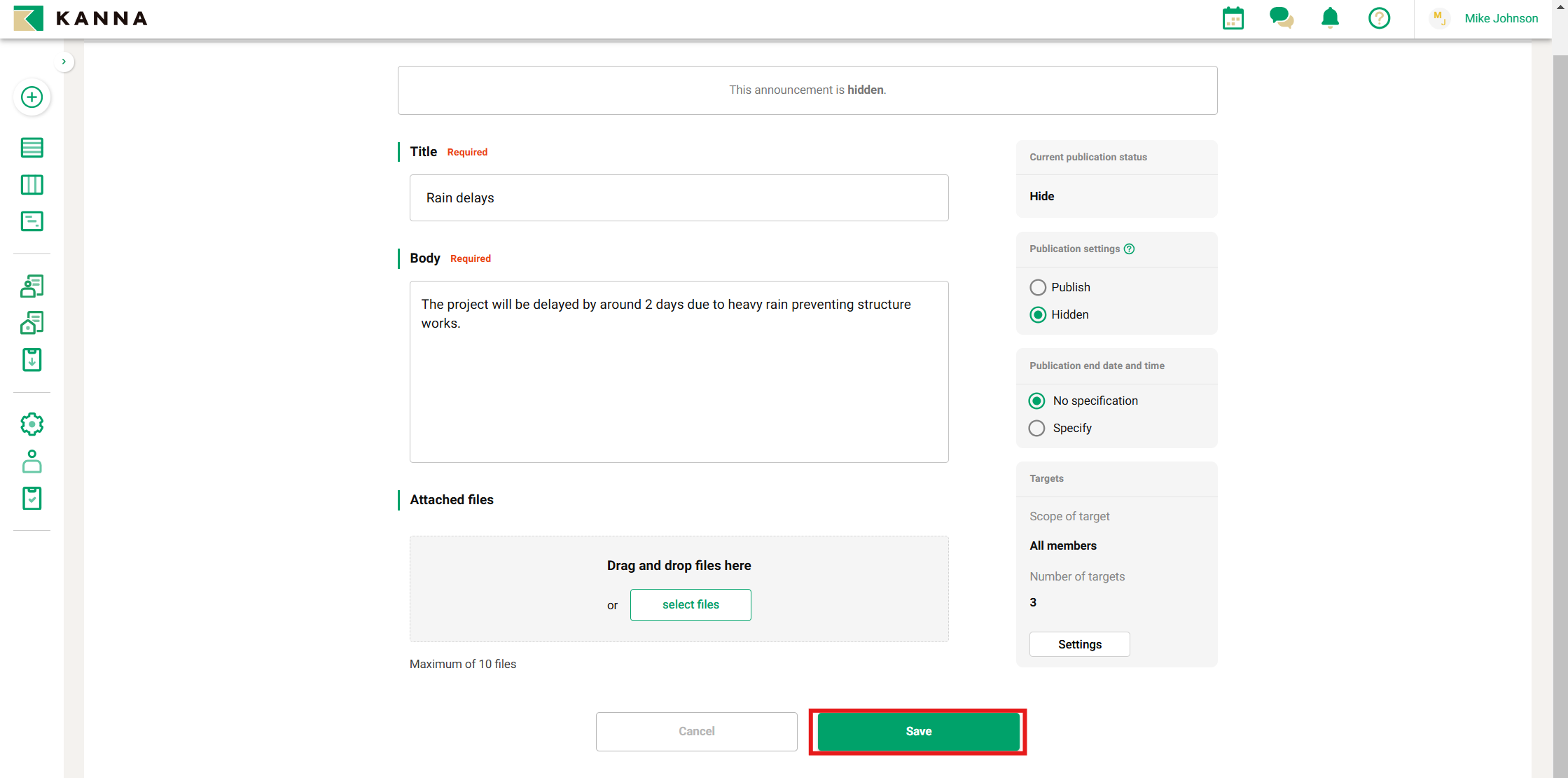
3. Enter the contents of the announcement.
You can attach up to 10 files, including photos and documents.
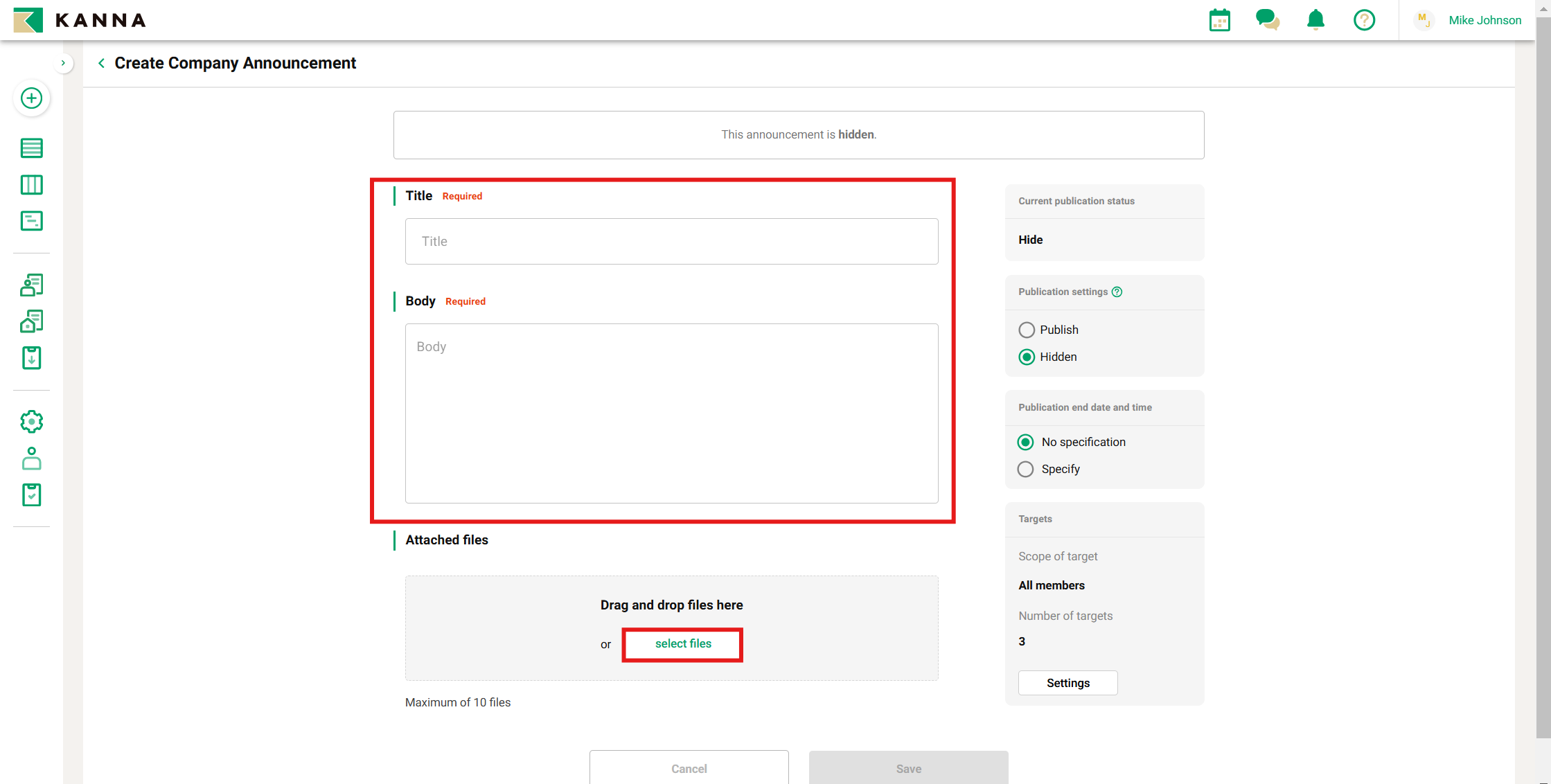
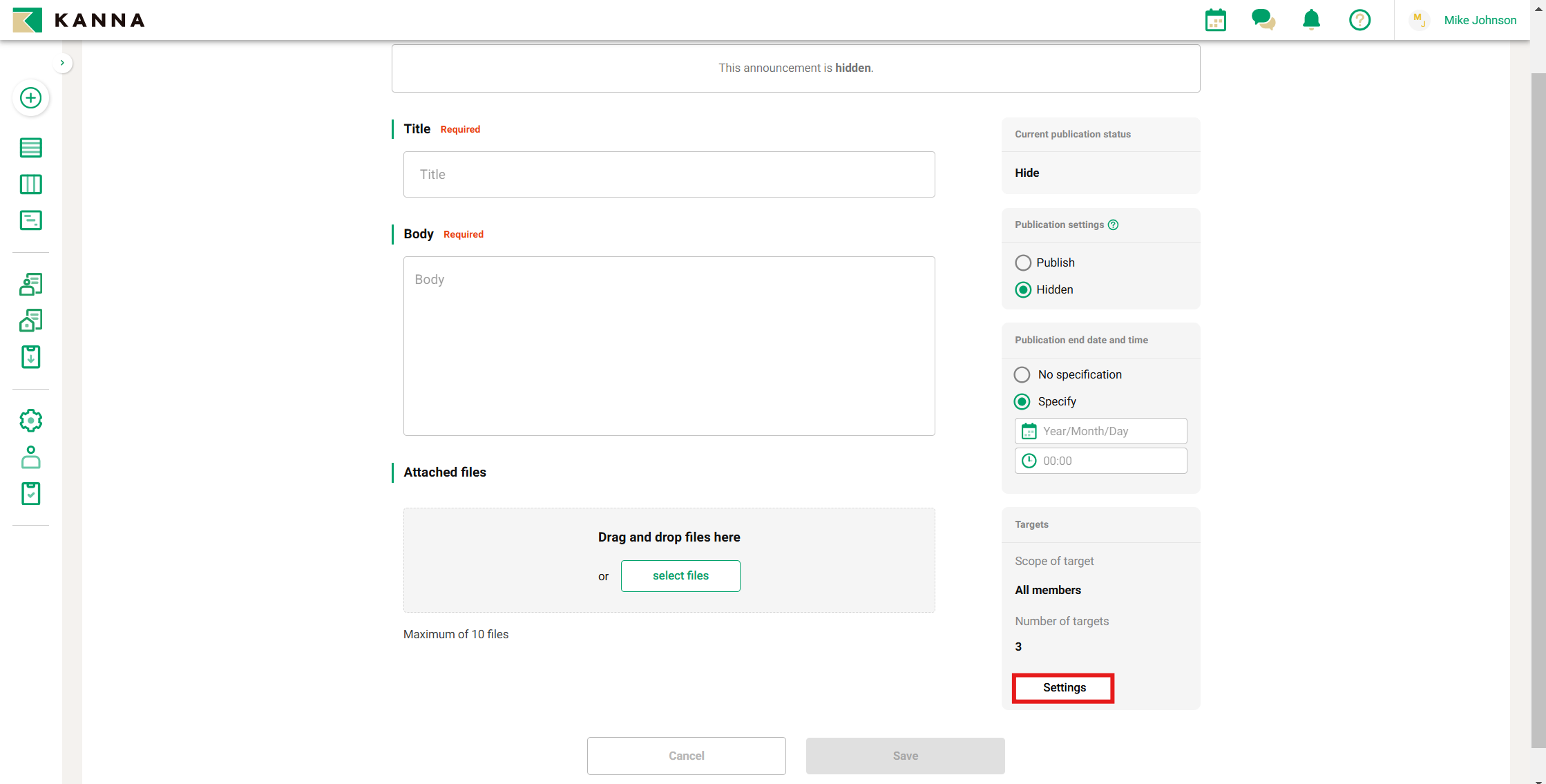
4. Configure the publication settings.
You can set it to publish/hidden, specify the publication end date, and select the target members.
If you set a publication end date, the announcement will automatically be hidden after that date.
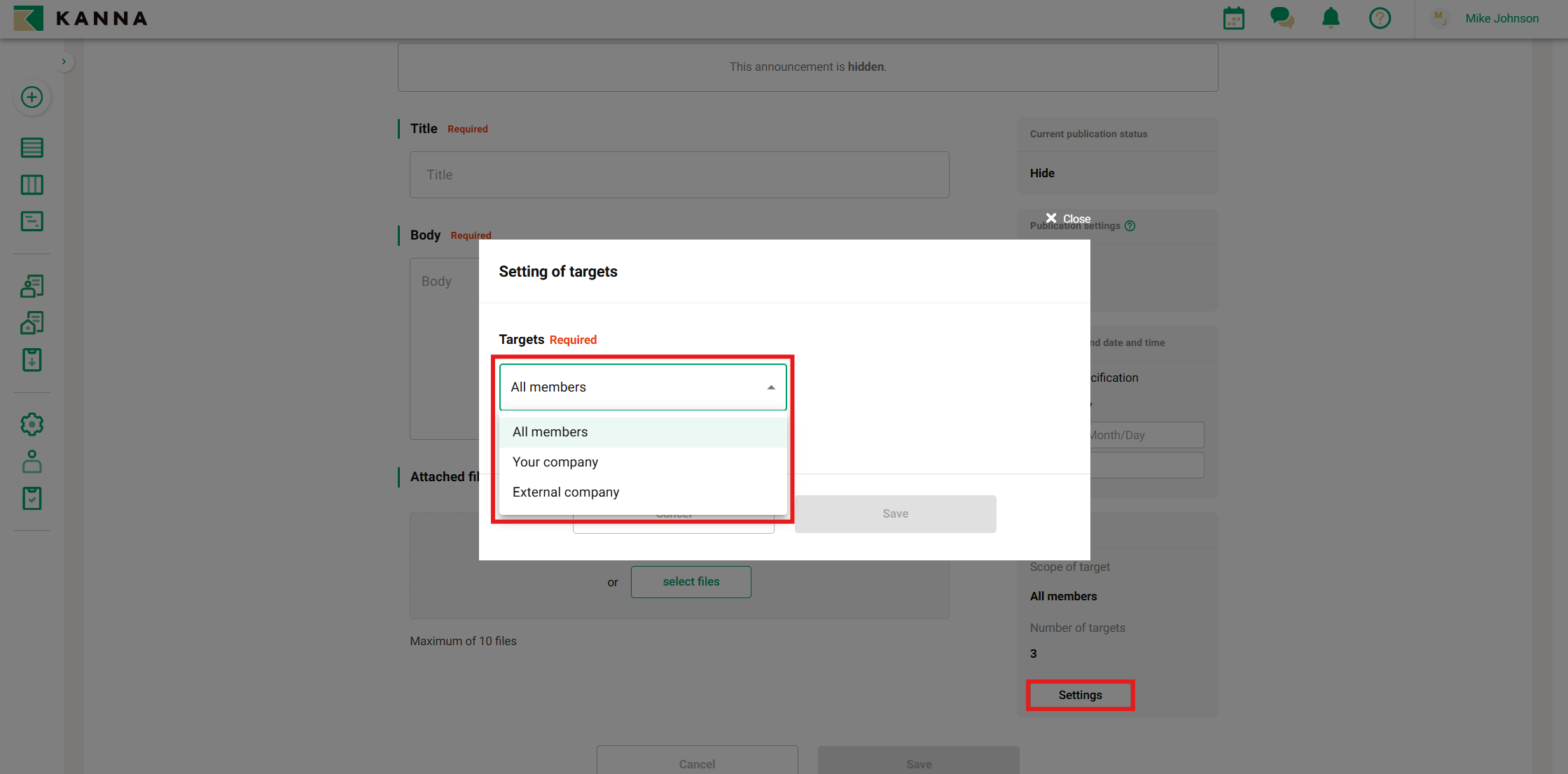
You can select the recipients of the announcement using the following three options:
1. Internal and External Members ("All Members")
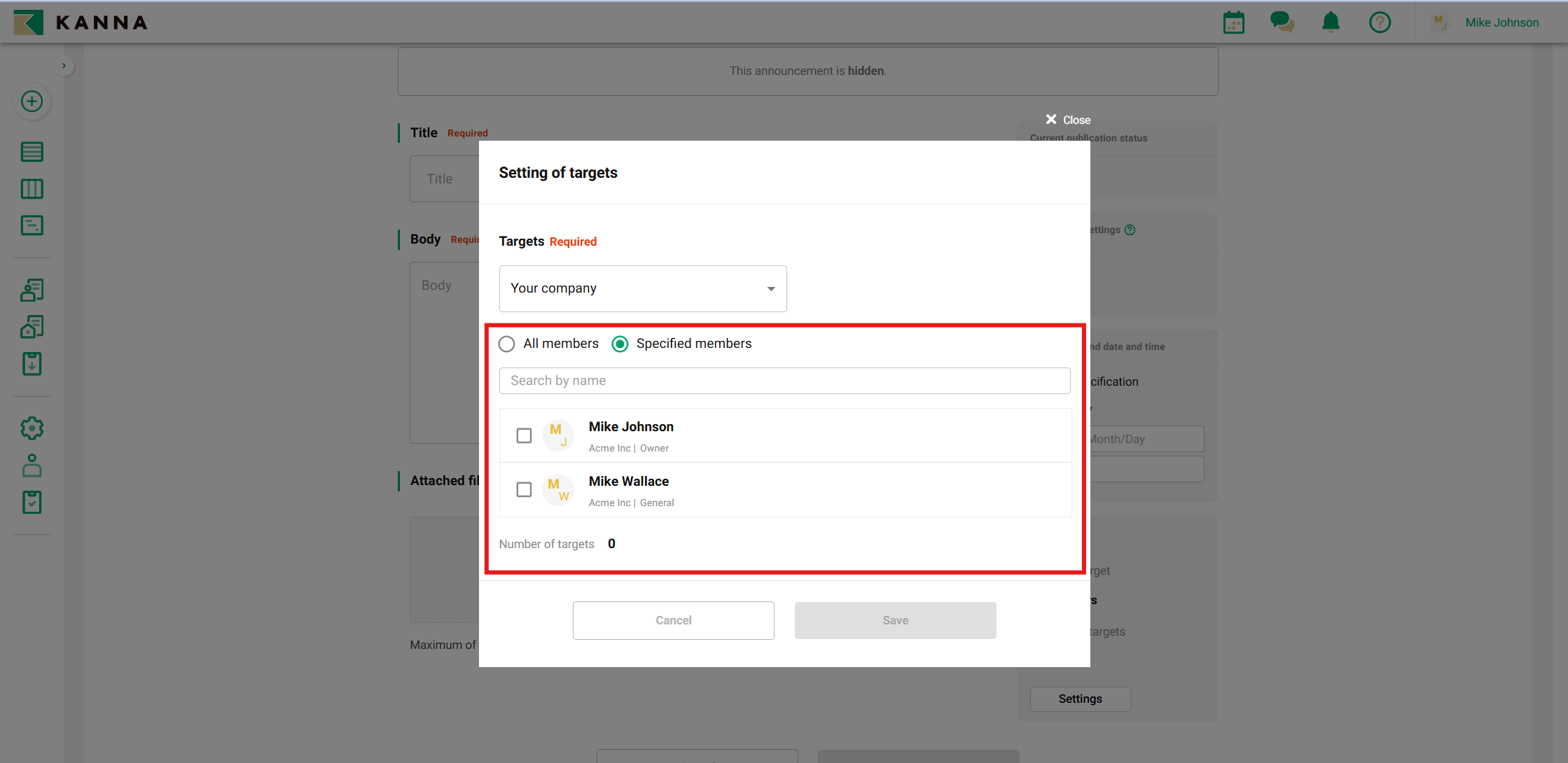
2. Internal Members ("Your company")
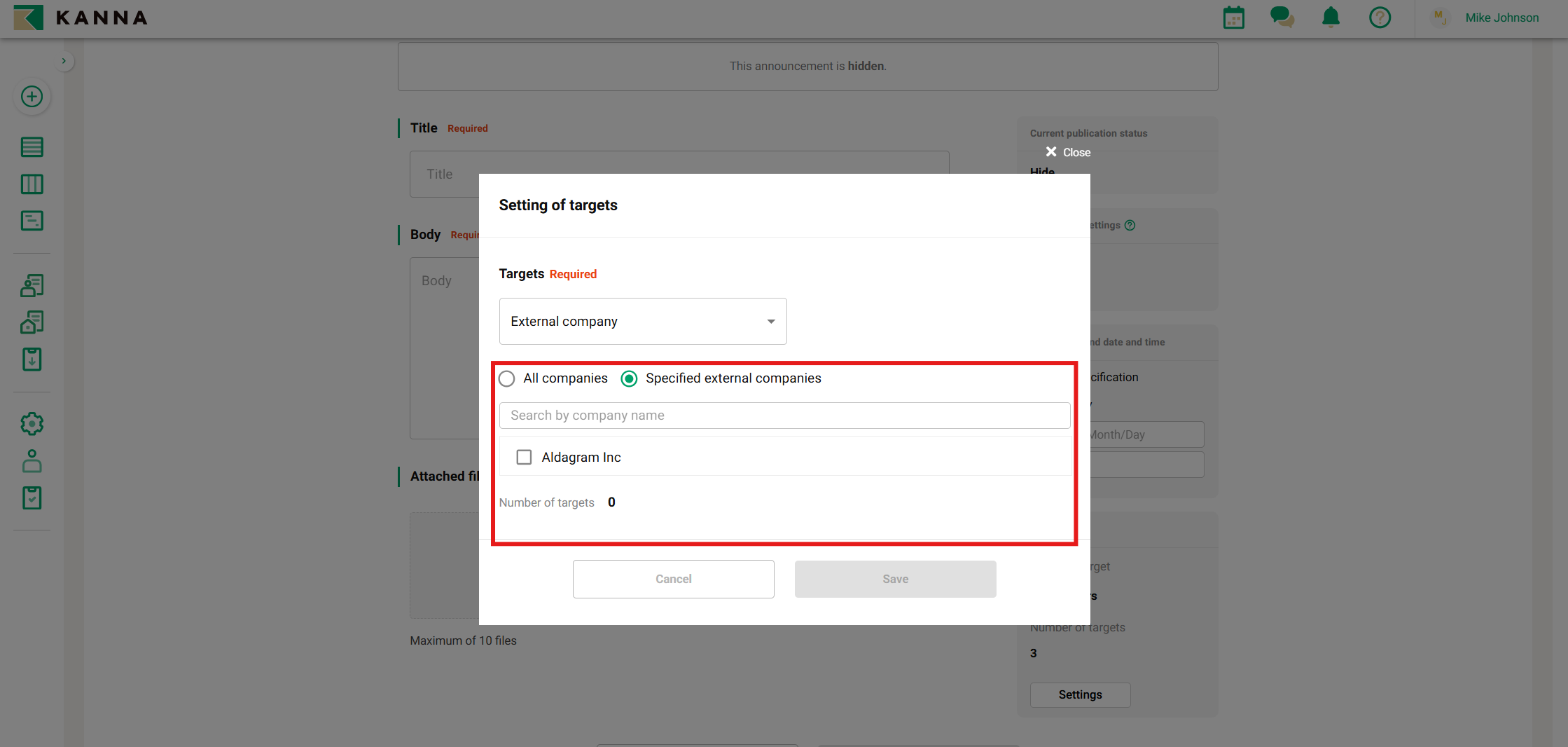
3. External Members ("External company")
For your company, you can specify individual members, and for external companies, you can specify particular companies.
5. Click Save.
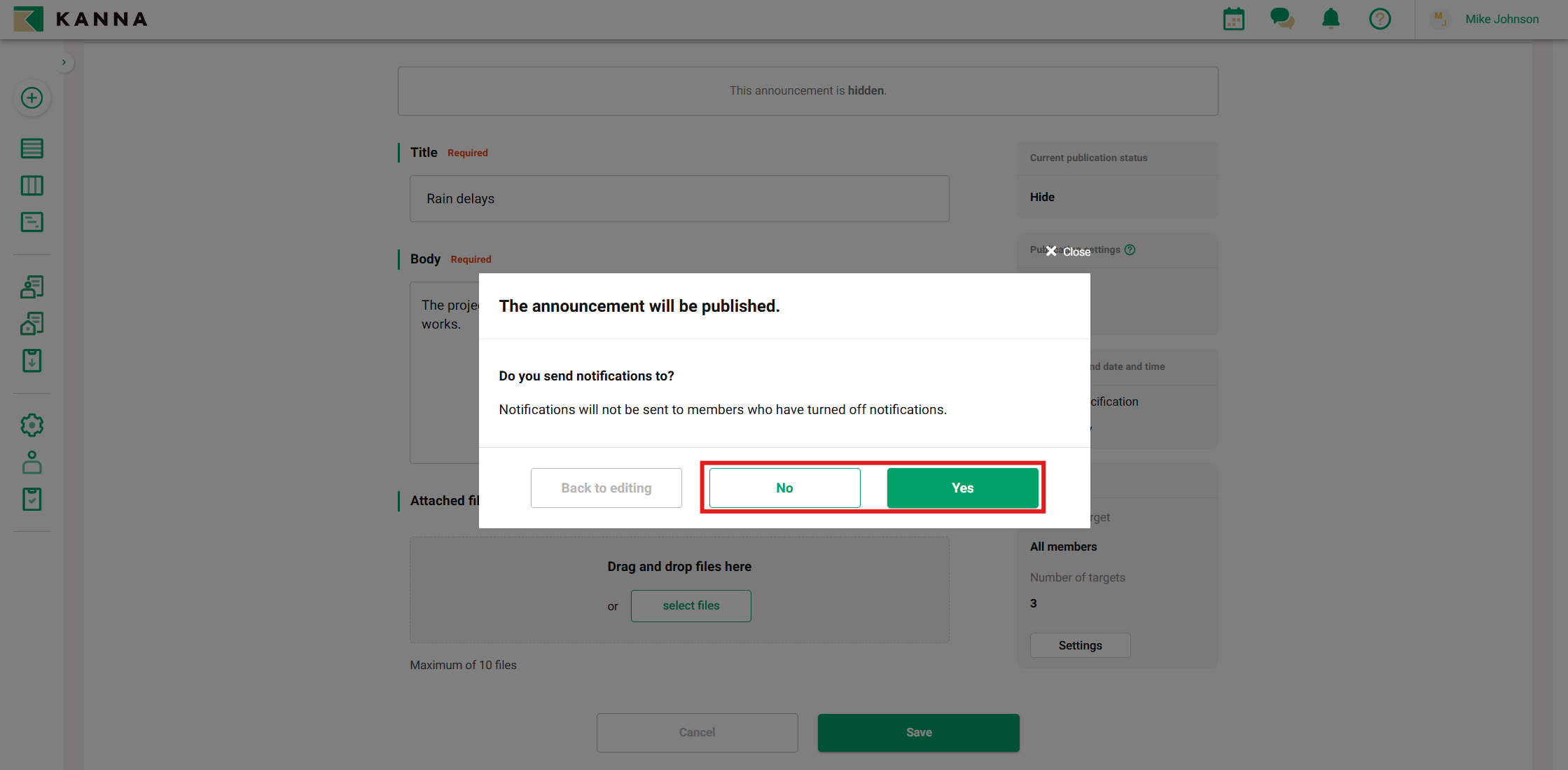
6. Select Notification
You can choose whether to send a notification for the announcement or not.
Even if you select "No" for the notification, the announcement will still be displayed on the target members' KANNA main page and under "Announcements."
Note: If you add new recipients after the announcement is published, a notification will be sent to the newly added recipients.
Receiving a "Company Announcement"
This explains how to check announcements posted by the company.
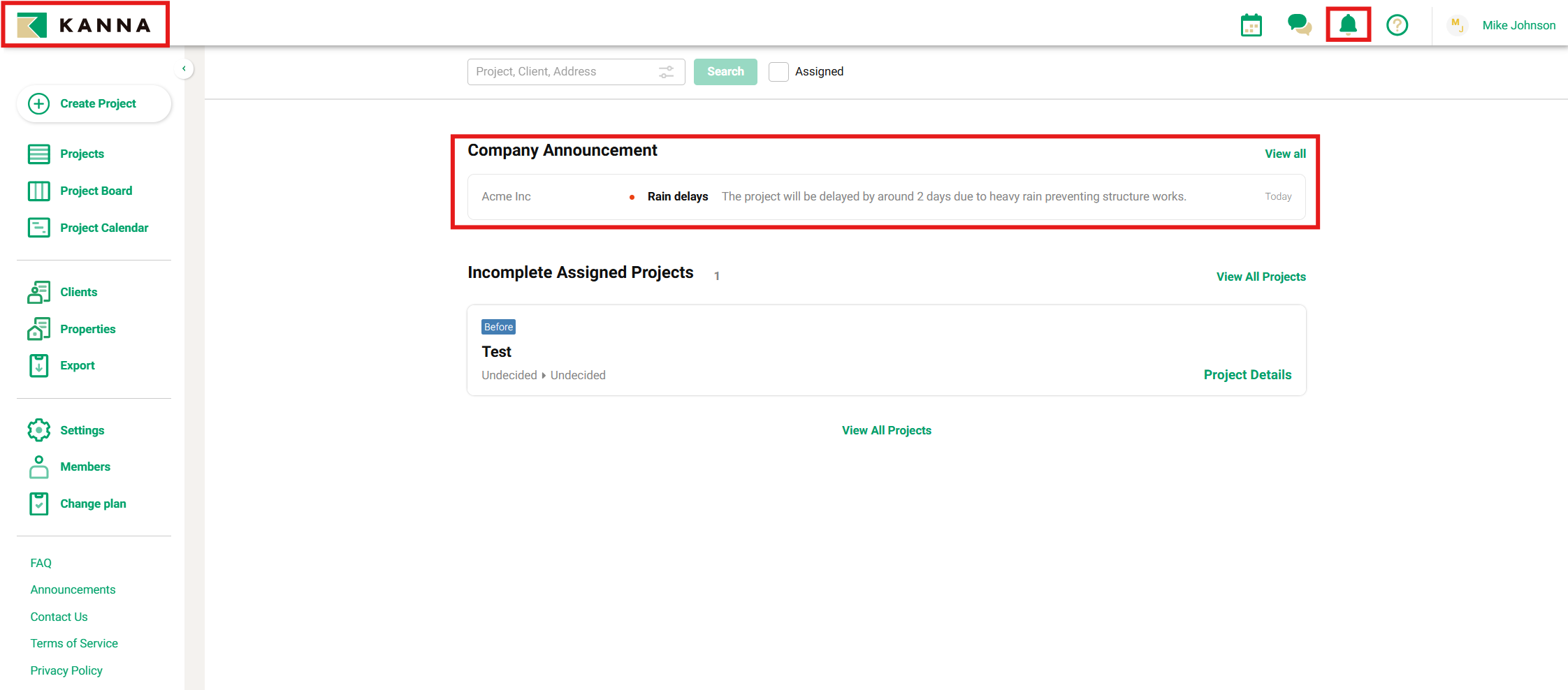
On a PC, you can check them from the top of the main page (by clicking on the KANNA logo) or by clicking the bell icon (Announcements) in the top-right corner.
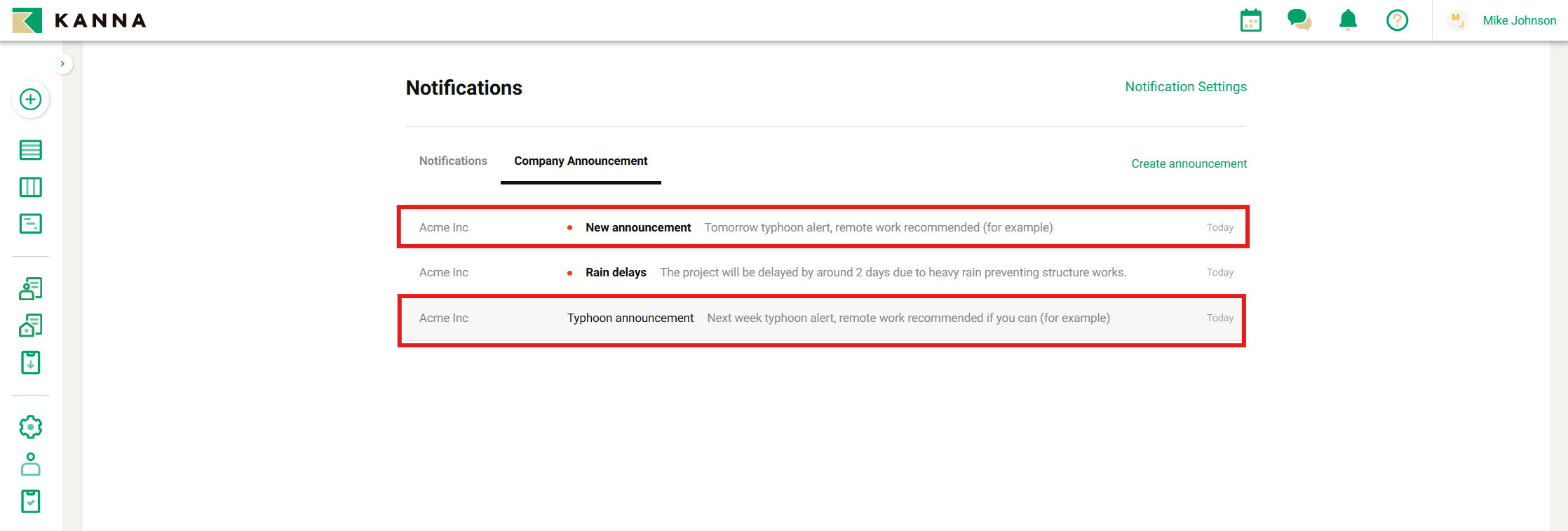
Announcements are displayed separately as [Notifications] under [Company Announcements].
[Notifications] are regular alerts, such as when you are added as a project member or when new photos are uploaded. For details, please refer here.
[Company Announcements] allow you to distinguish between read and unread announcements.
Notification Settings
For instructions on configuring notifications on your smartphone, please refer here.
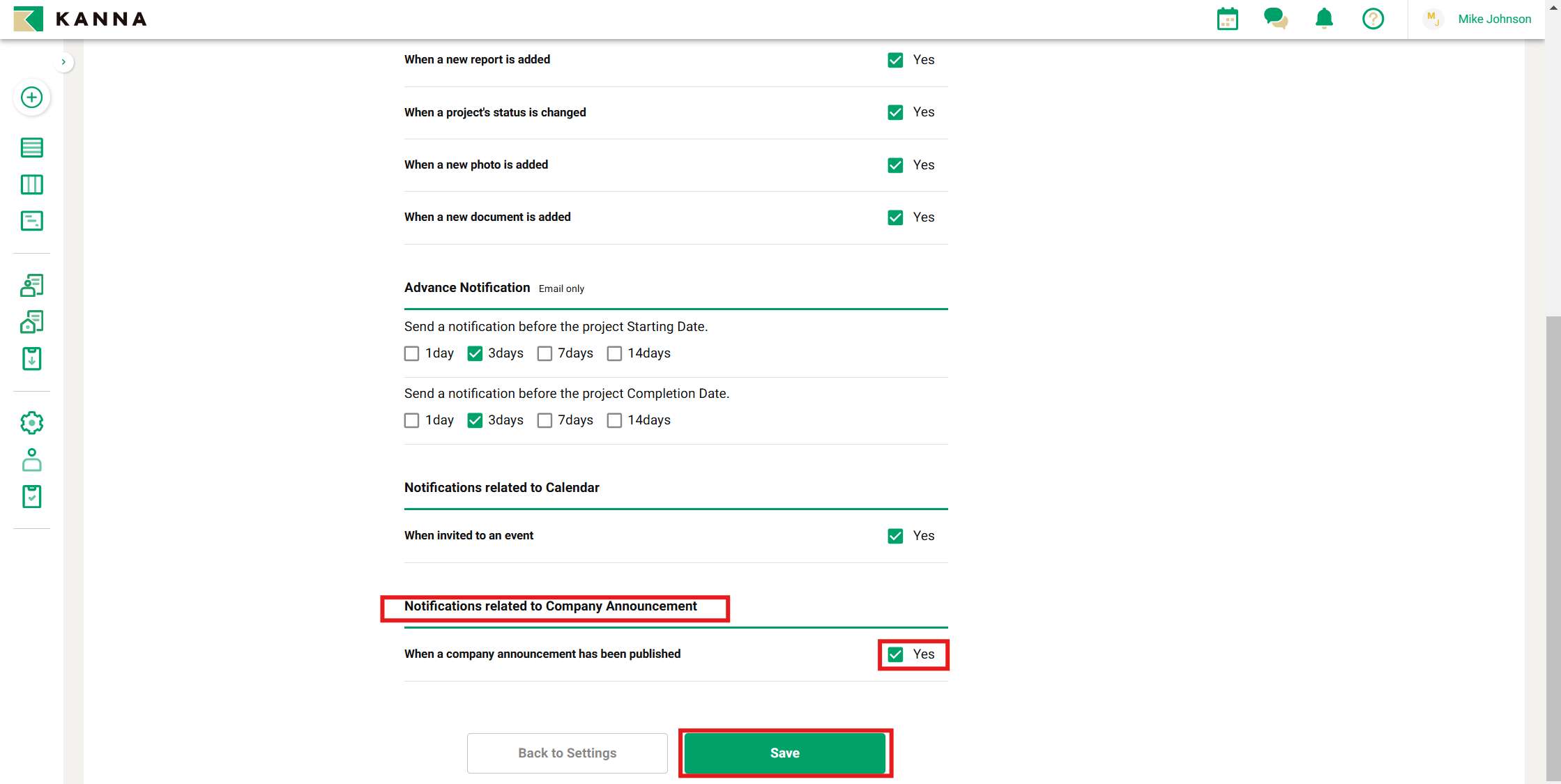
1. From Settings, click Notifications.
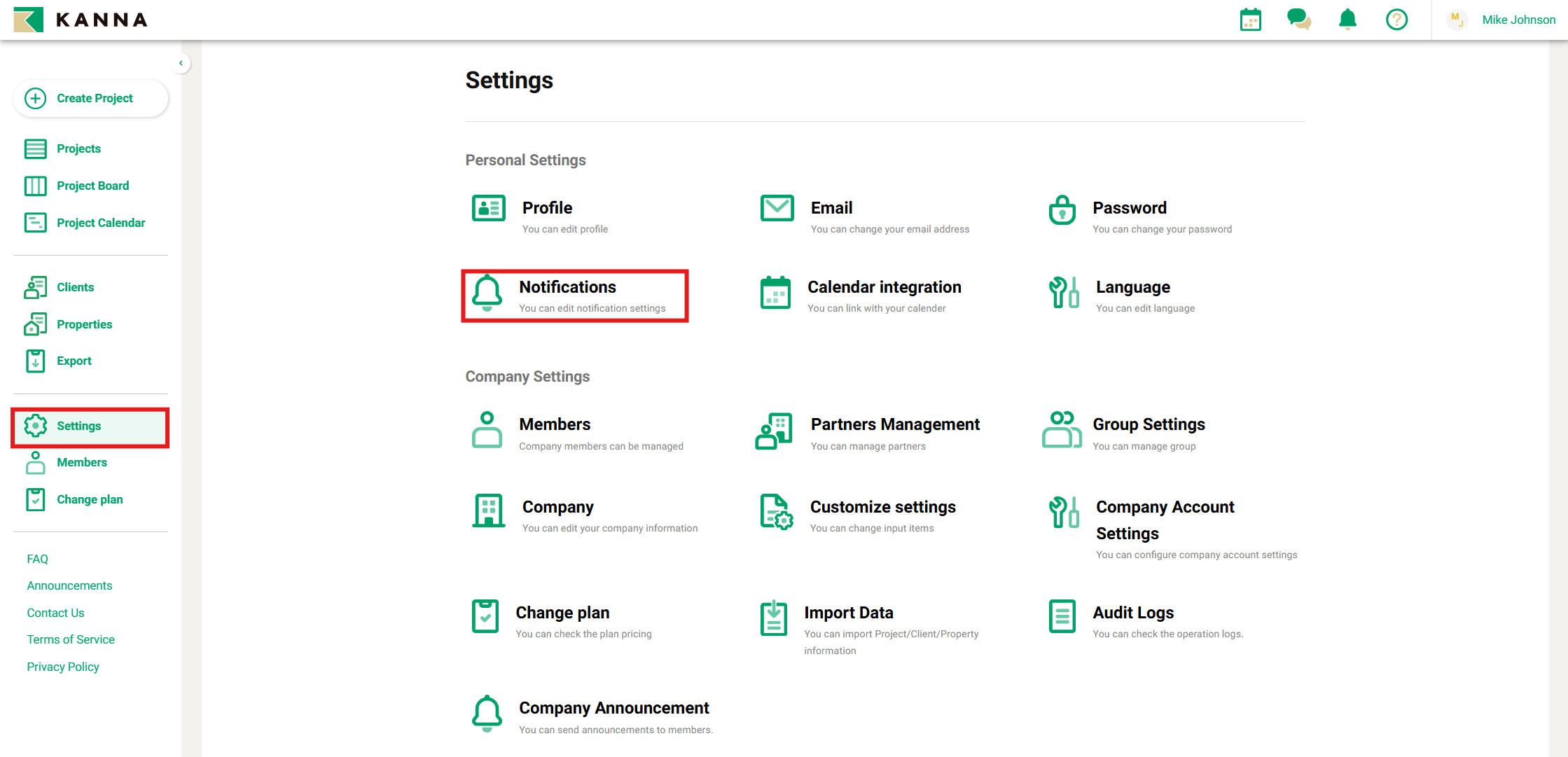
2. Check "Yes" next to "When a company announcement has been published" and click Save.